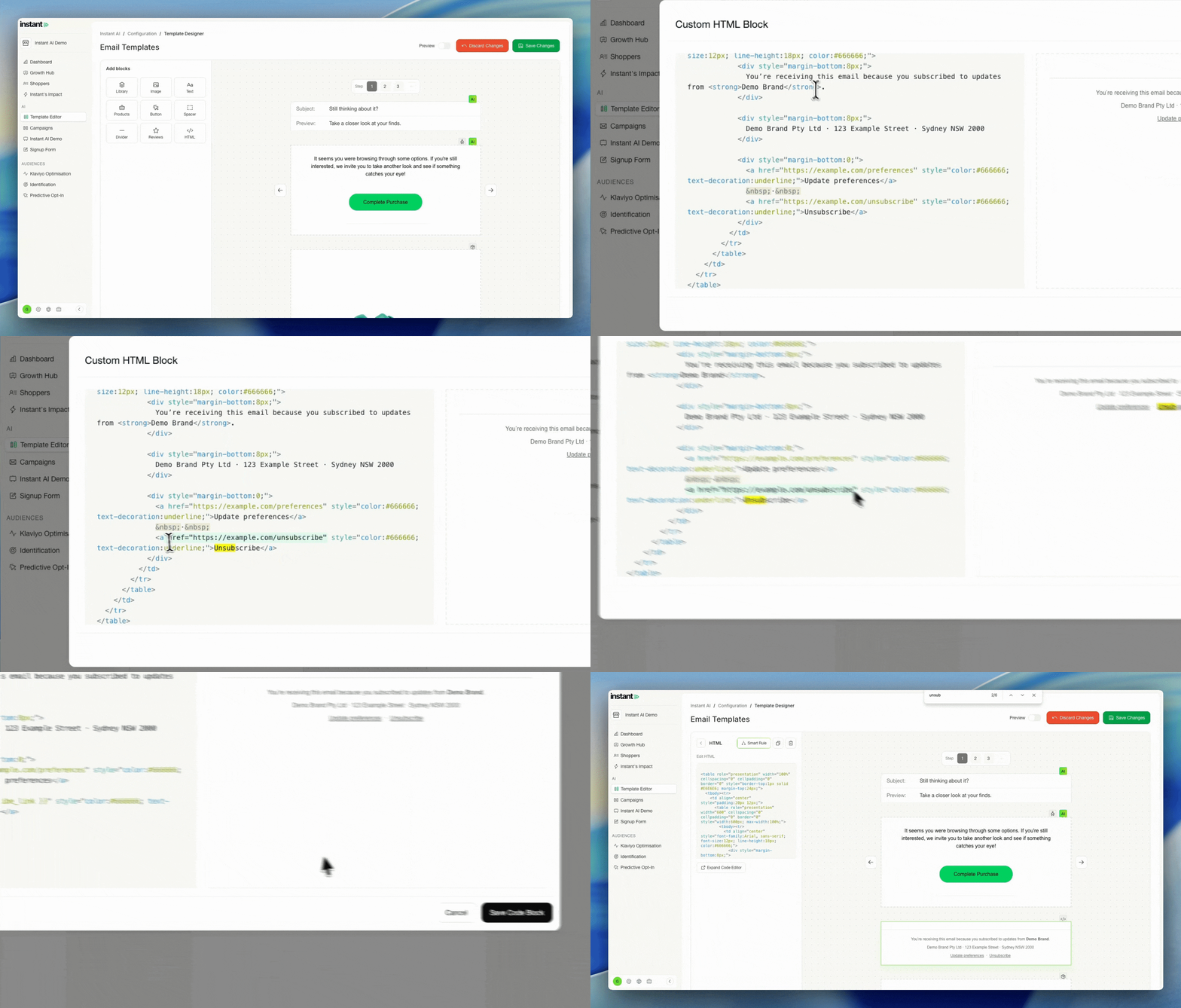
Instant AI allows you to add custom HTML directly into your emails if you need more control over layout or styling.
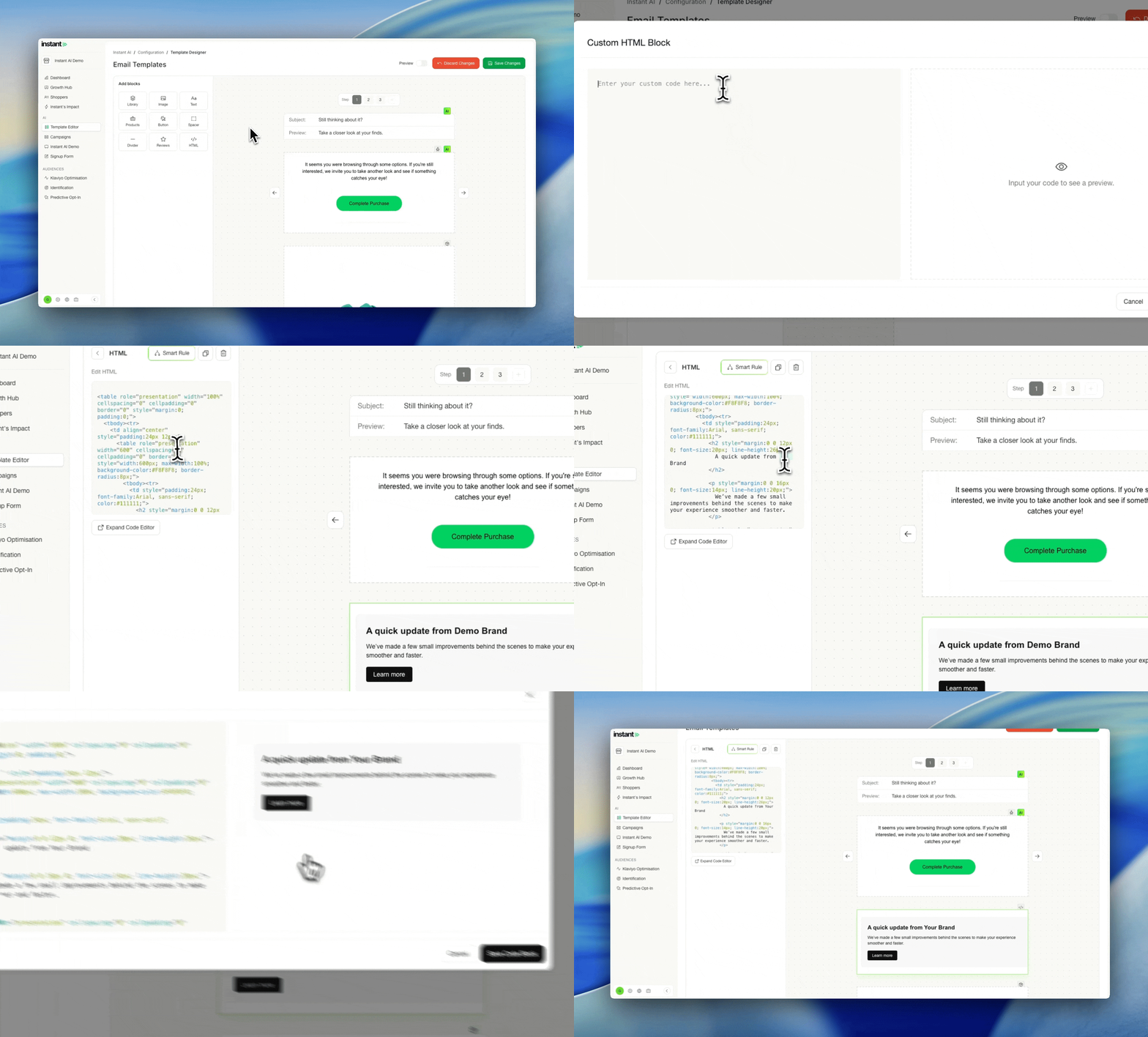
You can add a Custom HTML block just like any other block in the email editor. Open an email, click Add block, select HTML, then paste your custom HTML code and save. The HTML will render as part of your email.
It’s important to note that email HTML is different from web HTML. The editor preview is rendered in a web browser, so code may look fine there but break once the email is sent. Some HTML and CSS that works on websites is not supported by email clients.
Because of this, you should always:
-
Use HTML that was originally built for emails
-
Avoid pasting raw website HTML
-
Send yourself a test email and check it in your inbox (Gmail, Outlook, Apple Mail, etc.)
If you’re copying HTML from an existing email (for example from Klaviyo or an email in your inbox), open the email, inspect the HTML, copy the block you want, and paste it into a Custom HTML block in Instant AI. If it doesn’t render correctly, try copying a parent container instead — email styling often relies on surrounding table or wrapper markup.
Once saved, the HTML block can be reused in future emails without needing to copy and paste again.
Unsubscribe links and custom footers
Every Instant AI email must include an email address and an unsubscribe link. Emails cannot be saved or sent without an unsubscribe link.
If you’re using a custom footer, there are two ways to handle this.
The easiest option is to add your custom HTML above Instant’s footer and remove the unsubscribe section from your custom footer. This lets you fully customise the design while keeping Instant’s unsubscribe block at the bottom.
If you want to fully replace the footer, you must use Instant’s unsubscribe link in your HTML. Find where the unsubscribe URL exists in your footer and replace it with:
href=" {{ unsubscribe_link }}"
You can keep the visible text (for example, “Unsubscribe”) — only the URL needs to change. If the Instant unsubscribe link is missing, the email won’t save.
Tip: use Ctrl + F (or Cmd + F) and search for “unsubscribe” to find it quickly.
If you’re unsure how to update the HTML, you can paste it into a tool like ChatGPT and ask it to replace the unsubscribe URL with {{ unsubscribe_link }}. Always send a test email afterward to confirm it works as expected.