
Flow Setup: Add to Cart Abandonment
Note:Add to Cart abandonment flow targets visitors who have added an item to their cart and left the site without completing a purchase.
These flows are triggered through the "Add to Cart - Instant Audiences" metric in Klaviyo.
If you have an existing flow setup for 'Add to Cart', please duplicate it for Instant Audiences.
If not, we suggest duplicating your Cart Viewed/ Checkout Started flow.
When creating this Instant Audiences flows, ensure it's named '[Instant Audiences] - Add to Cart Abandonment'.
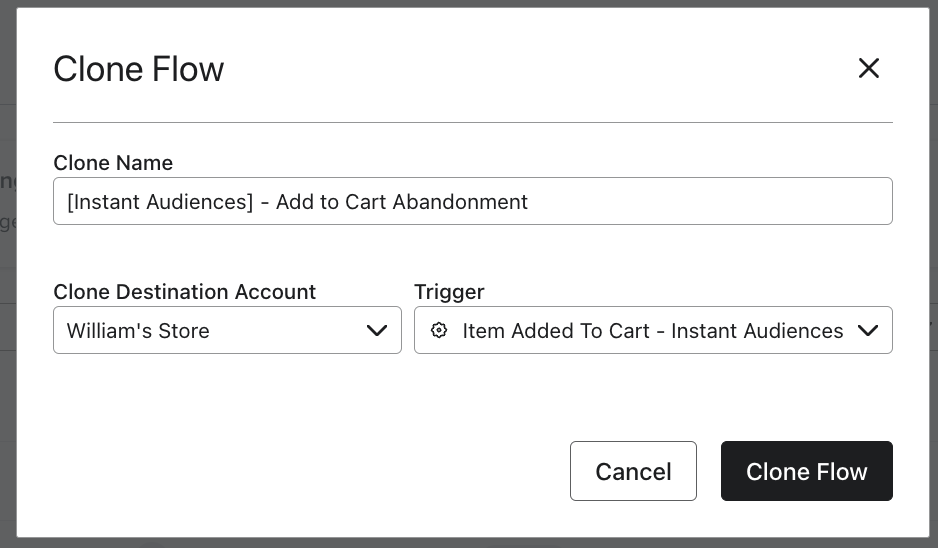
Flow Filters
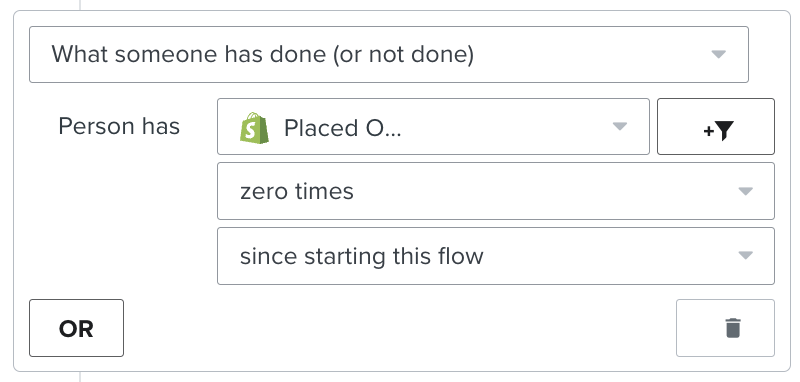
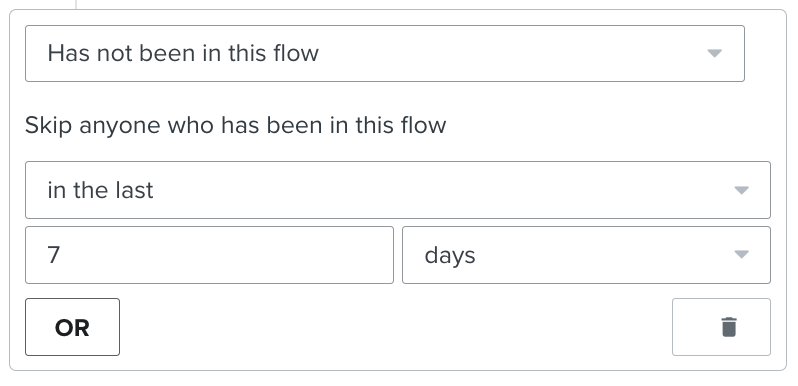
To ensure that contacts are not enrolled multiple times or if they have made a purchase, it's crucial to add the following flow filters to your new flow:
- Placed Order > zero times since starting this flow
- Has not been in this flow in the last 7* days
If you have these existing flows:
If you have any of these flows, you'll also need to add these filters on your new '[Instant Audiences] - Add to Cart Abandonment' flow to prevent enrolling contacts already in your existing flow or in a higher intent Audiences flow.If you have, or are going to create this existing flow:
Add these filters to your new Instant Audiences flow:
Add to Cart abandonment flow
Add the filter: Added to Cart > zero times > since starting this flow
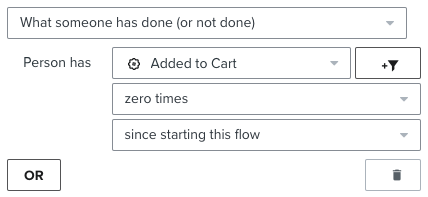
Extend the delay on your new flow to be 15 minutes later than your existing flow
(e.g. if your existing flow was 1 hour, set the Audiences flow to 1 hour, 15 minutes)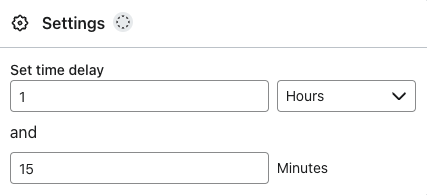
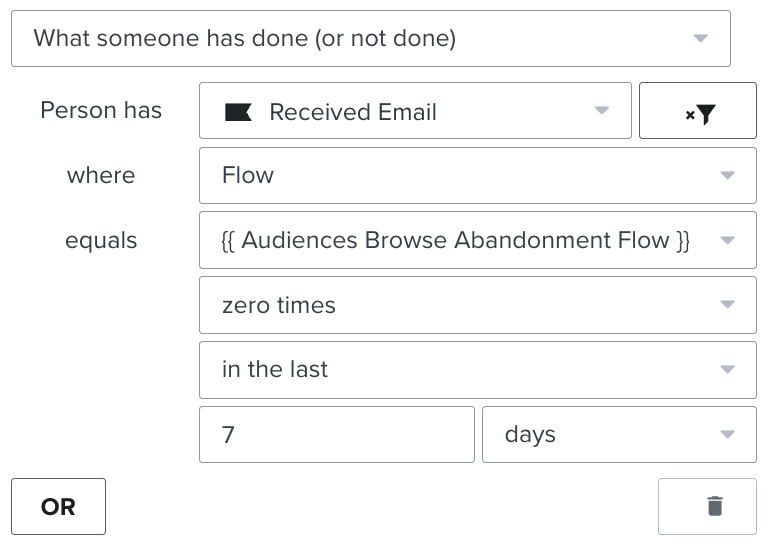
If your existing Browse Abandonment flow has a cooldown (i.e. Has not been in this flow > in the last X days), then add the following filter to your new flow. If this Audiences flow also support SMS, then also add the filter:
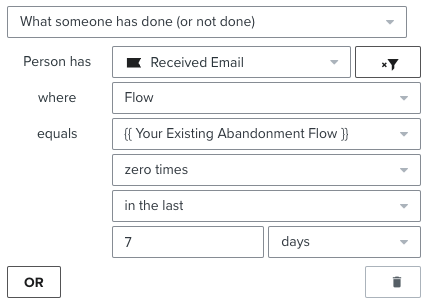
Checkout Started abandonment flow
Add the filter: Checkout Started > zero times > since starting this flow
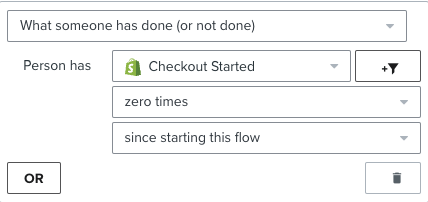
Instant Audiences - Cart Viewed / Checkout Started abandonment flow
Cart Viewed / Checkout Started - Instant Audiences > zero times > since starting this flow
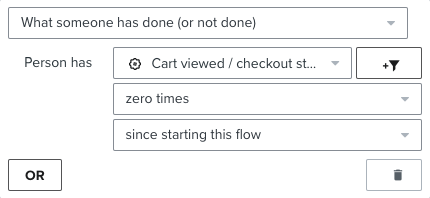
Add these filters to your existing flow's
If you have any of these existing non-Instant Audiences flows, these additional filters must be added to your existing flows to prevent enrolling contacts already in those flows.
If you have, or are going to create this existing flow
Add these filters to your existing flow
Add to Cart Abandonment
Cart Viewed / Checkout Started - Instant Audiences > zero times > since starting this flow
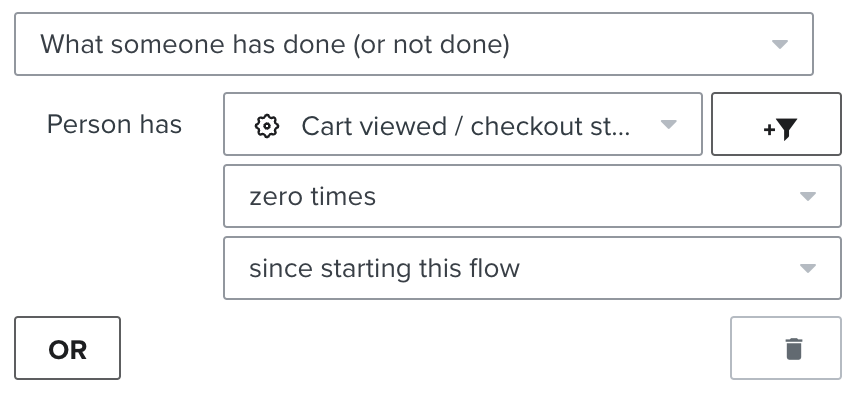
If you have a cooldown on your existing flow: then add the following filter to your new flow: If the Audiences flow also supports SMS, add another identical flow filter to your existing flow, but with "Person has Received SMS" as the filter.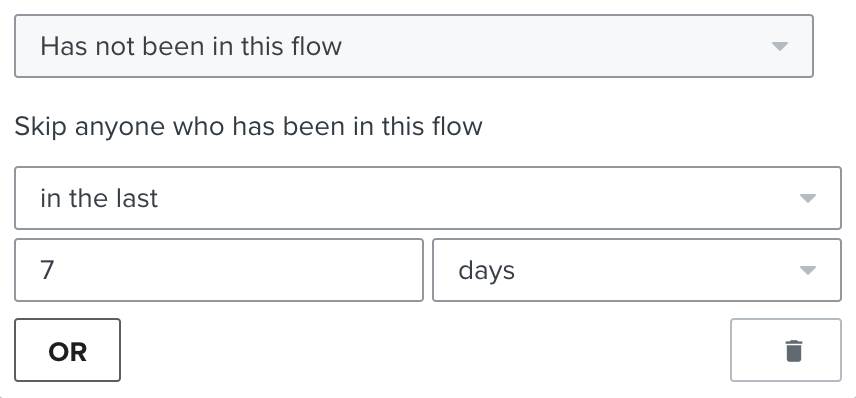
Using Instant Audiences with a Custom Store
Instant has native integrations into platforms like Shopify and BigCommerce. However some sites may be headless sites such as a PWA / React app - where the frontend is hosted separately to the back office platform. Or, you may be running an eCommerce store on an alternative platform like Salesforce, WooCommerce etc.
For these websites, Audiences will need to be integrated through a custom integration. There are detailed instructions for:
- Using Instant Audiences with a WooCommerce Store
- Using Instant Audiences with a Neto Store
- Using Instant Audiences with a Shopify Headless Store
If your custom build is not covered by these guides, please keep reading below!
Please contact your customer success manager if you run into any issues - we are happy to guide you or your developers through this implementation if needed.
Step 1: Installing Instant's Pixel
The first step of the integration process requires adding Instant's pixel to your site. This allows Instant to identify anonymous shoppers who visit your website.
- If you're currently onboarding onto the product, your pixel can be found in the Connect Custom Store step.
- If you have already onboarded onto the product, proceed to the Instant dashboard and go to Configuration > Select Custom . You will see a pixel underneath the Custom section.
- Add this pixel to the <head> tag of your website's HTML.
Step 2: Tracking Customer Events
Caution:The code snippets below are example track events.
They are intended as a reference — copying and pasting them directly may not work as-is.
After implementing these events in the correct places, make sure you're passing all the necessary data used in your email templates.
Step 3 walks you through this process.
Event triggers determine when Instant interaction events are sent and contain the payload data for Klaviyo.
- Throughout your website, where you would be sending events to Klaviyo, also send them to Instant Audiences by copy pasting the following snippet just below. See examples below.
window.InstantJS.track("EVENT_TYPE", [{
    provider: "KLAVIYO",
    event: EVENT_DATA
}]);
- Replace EVENT_TYPE with the type of event you wish to send.
- Replace EVENT_DATA with the data you'd like to send to Audiences. Audiences will then send this data through to your marketing integrations such as Klaviyo. Please note that the structure of this event data payload does not matter. Audiences will simply forward this payload through to Klaviyo.
Note that the available events are as follows:
- PAGE_VIEWED
- COLLECTION_VIEWED
- PRODUCT_VIEWED
- ITEM_ADDED_TO_CART
- CART_VIEWED
- CHECKOUT_STARTED
Tip:We recommend adding adding the following three events at a minimum:
- PRODUCT_VIEWED — this will trigger a Browse Abandonment flow
- ITEM_ADDED_TO_CART — this will trigger a Cart Abandonment flow
- CHECKOUT_STARTED — this will trigger a Checkout Abandonment flow
Example code snippets for these events are shown below.
Example: Checkout started events
To track when a customer starts the checkout flow, you'll need to execute the following JavaScript code as soon as someone visits the checkout page. The payload data serves as a placeholder to demonstrate the required data structure for Instant Audiences.
window.InstantJS.track("CHECKOUT_STARTED", [
  {
    provider: "KLAVIYO",
    event: {
      CheckoutURL: "",
      Items: [
        {
          ProductName: "",
          Quantity: "1",
          ItemPrice: "19.95",
          ImageURL:
            ""
        },
        {
          ProductName: "",
          Quantity: "1",
          ItemPrice: "221.95",
          ImageURL:
            ""
        },
      ],
    },
  },
]);
Example: Add to cart events
To track when a customer adds an item to their cart, you'll need to execute the following JavaScript code when the “Add to Cart” button is clicked.
One implementation method is to add an event listener to the "Add to Cart" button on relevant pages. When clicked, this will trigger the code shown below. The payload data serves as a placeholder to demonstrate the required data structure for Instant Audiences.
window.InstantJS.track("ITEM_ADDED_TO_CART", [
  {
    provider: "KLAVIYO",
    event: {
      CheckoutURL: "",
      Items: [
        {
          ProductName: "",
          Quantity: "1",
          ItemPrice: "19.95",
          ImageURL: "",
        },
        {
          ProductName: "",
          Quantity: "1",
          ItemPrice: "221.95",
          ImageURL: "",
        },
      ],
    },
  },
]);
Example: Product viewed events
To track product views, you’ll need to execute the following JavaScript code whenever a customer lands on a product page.
One implementation method is to add the following code snippet to the source code of your product page template. This code will trigger when a customer visits the page. The payload data serves as a placeholder to demonstrate the required data structure for Instant Audiences.
window.InstantJS.track("PRODUCT_VIEWED", [
  {
    provider: "KLAVIYO",
    event: {
      ProductName: "",
      ItemPrice: "370.00",
      ImageURL: ""
    },
  },
]);
Step 3: Update Event Properties
In the code snippet above, the PRODUCT_VIEWED event has a structured event payload:
event: {
  ProductName: "",
  ItemPrice: "370.00",
  ImageURL: ""
}
The properties in this payload will need to match the properties used in your email templates. For example, if you use the property 'event.item_price' in your templates, you will need to change the 'ItemPrice' property to 'item_price'. Similarly, this must be done for any properties your email templates require that are not included in our payload.
Caution:Please ensure you are passing through all the necessary data required in your email templates.
If you make updates to your email templates without updating your integration, Klaviyo may receive incomplete data.
Tip:Once this is finalised, your integration with Instant Audiences is complete.
Please reach out to your customer success manager if you require any assistance.
Using Instant Audiences with a Neto Store
Instant has native integrations into Shopify and BigCommerce. Alternative platforms like Neto require a custom integration. This custom integration involves three steps:
Please contact your customer success manager if you experience any issues. We are happy to guide you or your developers through this implementation if needed.
Step 1: Installing Instant's Pixel
The first step of the integration process requires adding Instant's pixel to your site. This allows Instant to identify anonymous shoppers who visit your website.
- If you're currently onboarding onto the product, your pixel can be found in the Connect Custom Store step.
- If you have already onboarded onto the product, proceed to the Instant dashboard and go to Configuration > Select Custom. You will see a pixel underneath the Custom section.
- Add this pixel to the <head> tag of your website's HTML.
Step 2: Tracking Customer Events
The second step of the integration process requires forwarding customer events to Instant Audiences, similar to how you would already be forwarding these events to Klaviyo!
- Navigate to "Settings & tools" and then "All settings & tools".
- In the "Settings & tools page", select "Custom Scripts".
- The "Custom Scripts" page will show all current custom scripts installed. Select "New" to add a new custom script.
- Paste the code snippet below into the "Page Header" section. This will ensure it is added to every page.
- When complete, click the "Save" button!
<script>
  function getCartForInstantEvent(callback) {
    // Wait for k4n.checkout to be available
    if (window.k4n && window.k4n.checkout && Array.isArray(k4n.checkout.items)) {
      // Execute the callback with the cart items
      callback(k4n.checkout);
    } else {
      setTimeout(() => getCartForInstantEvent(callback), 1000);
    }
  }


  function getProductData() {
    if (window.k4n && window.k4n.product) {
      return {
        Title: decodeURIComponent(k4n.product.name),
        ItemId: parseInt(k4n.product.product_id),
        ProductID: parseInt(k4n.product.product_id),
        Categories: k4n.product.categories.map(decodeURIComponent),
        ImageUrl: decodeURIComponent(k4n.product.image),
        Url: decodeURIComponent(k4n.product.url),
        Metadata: {
          Price: parseFloat(k4n.product.price),
        },
      };
    }
    return null;
  }


  function getCartItem(item) {
     return {
       image: decodeURIComponent(item.image),
       name: decodeURIComponent(item.name),
       product_id: item.product_id,
       qty: item.qty,
       sku: item.sku,
       total: item.total,
       unit_price: item.unit_price,
       url: decodeURIComponent(item.url)
     }
  }


  // Track Product Viewed
  document.addEventListener("DOMContentLoaded", () => {
    const product = getProductData();
    if (product) {
      window.InstantJS.track("PRODUCT_VIEWED", [
        {
          provider: "KLAVIYO",
          event: product,
        },
      ]);
    }
  });


  // Track Add to Cart with dynamic selectors
  document.addEventListener("DOMContentLoaded", () => {
    const addToCartButtons = document.querySelectorAll("[name='add-to-cart'], [name='addToCart'], [class*='addtocart'], [class*='add-to-cart'], [class*='btn-add-to-cart']"); // Add other potential selectors here
    addToCartButtons.forEach(button => {
      button.addEventListener("click", () => {
        const product = getProductData();
        let cartItems;
        if(window.nCartCache) {
         cartItems = window.nCartCache
        }
        if (product) {
          window.InstantJS.track("ITEM_ADDED_TO_CART", [
            {
              provider: "KLAVIYO",
              event: {
                ...product,
               items: cartItems
              },
            },
          ]);
        }
      });
    });
  });


  // Track Cart Viewed
  document.addEventListener("DOMContentLoaded", () => {
    if (window.location.href.includes("cart") && !window.location.href.includes("payment")) {
      getCartForInstantEvent(function (checkout) {
        window.InstantJS.track("CART_VIEWED", [
          {
            provider: "KLAVIYO",
            event: {
             items: checkout.items.map((item) => {
              return getCartItem(item)
             }),
             total: checkout.total
            },
          },
        ]);
      });
    }
  });


  // Track Checkout Started
  document.addEventListener("DOMContentLoaded", () => {
    if (window.location.href.includes("cart") && window.location.href.includes("payment")) {
      getCartForInstantEvent(function (checkout) {
        window.InstantJS.track("CHECKOUT_STARTED", [
           {
            provider: "KLAVIYO",
            event: {
            items: checkout.items.map((item) => {
              return getCartItem(item)
            }),
            total: checkout.total
            },
          },
        ]);
      });
    }
  });
</script>
Step 3: Update Event Properties
In the code snippet above, the following events have a structured payload:
- PRODUCT_VIEWED
- ITEM_ADDED_TO_CART
- CART_VIEWED
- CHECKOUT_STARTED
event: {
  image: decodeURIComponent(item.image),
  name: decodeURIComponent(item.name),
  product_id: item.product_id,
  qty: item.qty,
  sku: item.sku,
  total: item.total,
  unit_price: item.unit_price,
  url: decodeURIComponent(item.url)
}
The properties in this payload will need to match the properties used in your email templates. For example, if you use the property 'event.item_name' in your templates, you will need to change the 'name' property to 'item_name'. Similarly, this must be done for any properties your email templates require that are not included in our payload.
Caution:Please ensure you are passing through all the necessary data required in your email templates.
If you make updates to your email templates without updating your integration, Klaviyo may receive incomplete data.
Tip:Once this is finalised, your integration with Instant Audiences is complete.
Please reach out to your customer success manager if you require any assistance.
Flow Setup: Product Viewed
Note:Product Viewed abandonment flows target anonymous visitors who have viewed a product but left the site without completing a purchase.
These flows are triggered through the "Product Viewed - Instant Audiences" metric in Klaviyo.
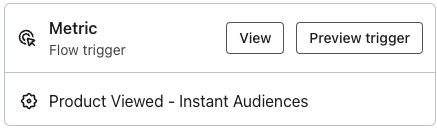
If you have an existing flow setup for 'Product Viewed' or 'Abandoned Browse', please duplicate it for Instant Audiences.
When creating this Instant Audiences flows, ensure it's named '[Instant Audiences] - Product Viewed'.
Flow Filters
To ensure that contacts are not enrolled multiple times or if they have made a purchase, it's crucial to add the following flow filters to your new flow:
- Placed Order > zero times since starting this flow
- Has not been in this flow in the last 7* days
If you have these existing flows:
If you have any of these existing non-Instant Audiences flows, add these filters on your Instant Audiences flows to prevent enrolling contacts already in your existing flow.If you have, or are going to create this existing flow
Add these filters to your new Instant Audiences flow
Product Viewed / Browse abandonment flow
Add the filter: Viewed Product > zero times > since starting this flow
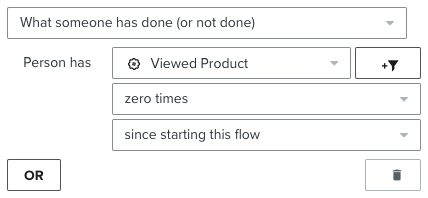
Extend the delay on your new flow to be 15 minutes later than your existing flow (e.g. if your existing flow was 1 hour, set the Audiences flow to 1 hour, 15 minutes)
If your existing Browse Abandonment flow has a cooldown (i.e. Has not been in this flow > in the last X days), then add the following filter to your new flow. If this Audiences flow also support SMS, then also add the filter:
Add to Cart abandonment flow
Add the filter: Added to Cart > zero times > since starting this flow
Checkout Started abandonment flow
Add the filter: Checkout Started > zero times > since starting this flow
Instant Audiences - Add to Cart abandonment flow
Add the filter: Item Added to Cart - Instant Audiences > zero times > since starting this flow
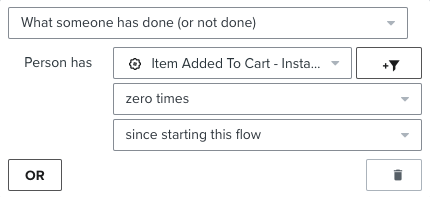
Instant Audiences - Cart Viewed / Checkout Started abandonment flow
Cart Viewed / Checkout Started - Instant Audiences > zero times > since starting this flow
Add these filters to your existing flow
If you have any of these existing non-Instant Audiences flows, these additional filters must be added to your existing flows to prevent enrolling contacts already in those flows.
If you have, or are going to create this existing flow
Add these filters to your existing flow
Browse Abandonment
Add: Item Added to Cart - Instant Audiences > zero times > since starting this flow
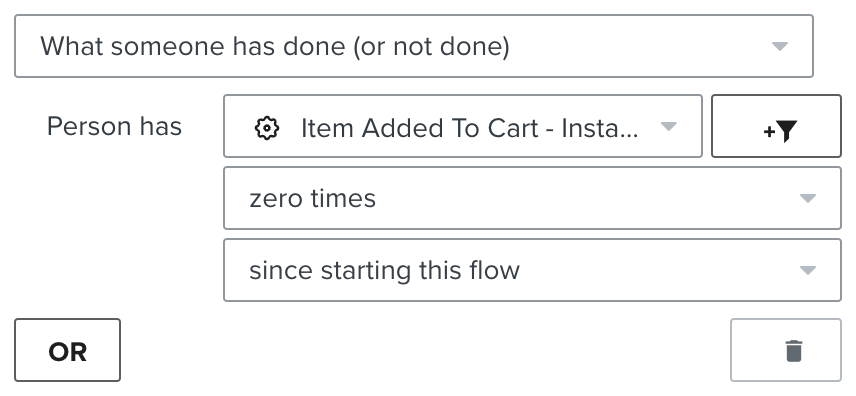
Add: Cart Viewed / Checkout Started - Instant Audiences > zero times > since starting this flow
If you have a cooldown on your existing flow: then add the following filter to your new flow. If the Audiences flow also supports SMS, add another identical flow filter to your existing flow, but with "Person has Received SMS" as the filter.
How do I view all new profiles added by Audiences new profile export?
Every new profile added by Instant is tagged in Klaviyo with the tag "Instant Audiences Tags" with the value “Net New”.
Profiles marked "Net New" are net new shoppers added via Audiences new profile export.
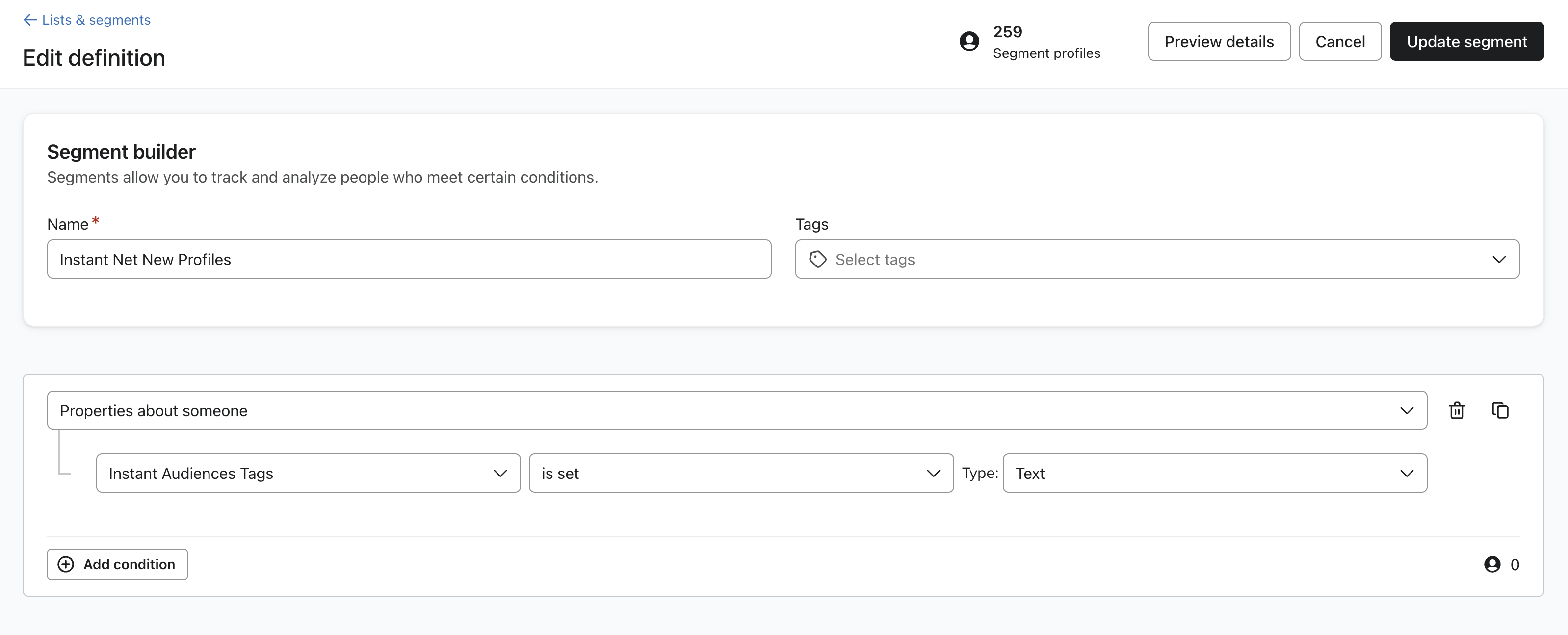
Create a Klaviyo segment filtering for profiles where "Instant Audiences Tags" "is set", Type: ‘Text’ to see profiles.
Ensure this segment contains the filter: "Properties about someone, Instant Audiences Tags contains Net New with type List". See screenshot below for more information.
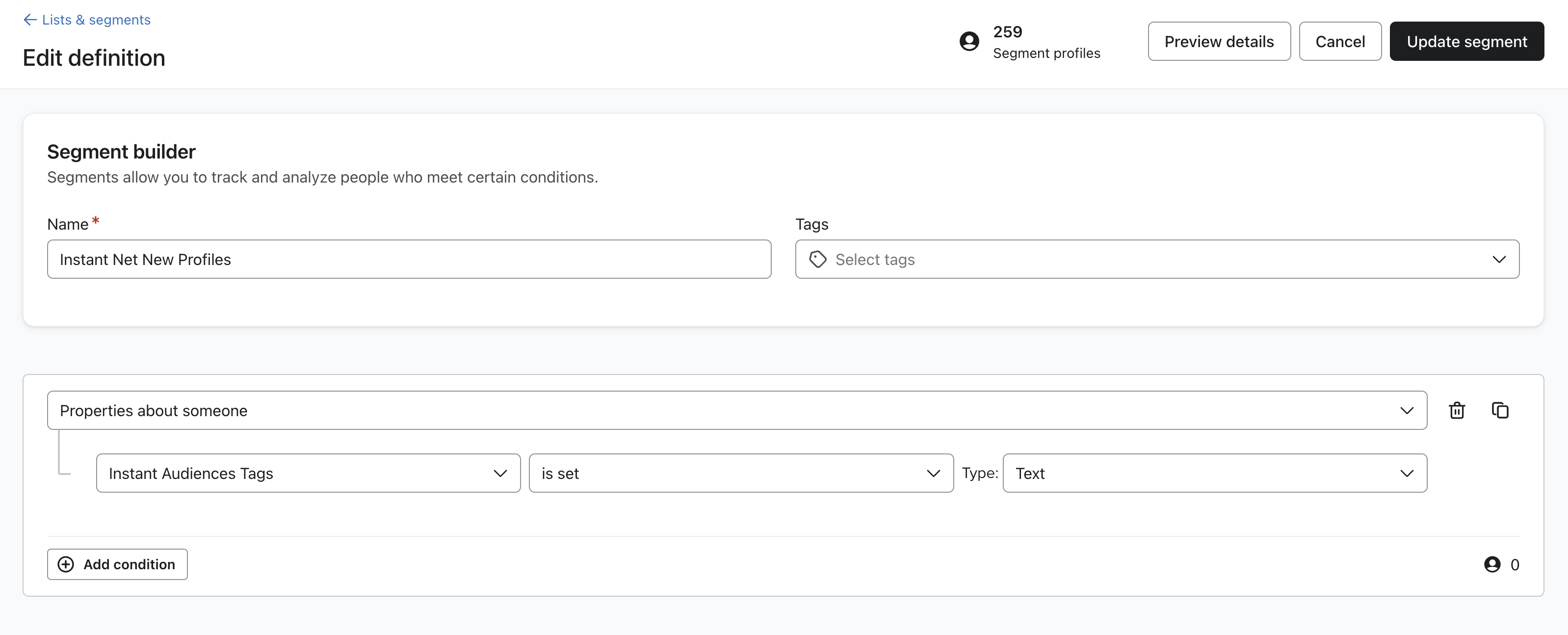 If you are unsure how to create a segment, please review the Klaviyo segment documentation, linked here.
If you used Audiences pre May 2024, please read below.
Please note that pre May 2024, Audiences used Klaviyo lists for new profiles.
As of May 2024, Audiences utilises Klaviyo Profile tags to track net new profiles. For additional documentation, please click here.
If you used Audiences before May 2024, you will need to an additional filter that looks for profiles in the net new list too.
Please see a screenshot below of what the segment definition should be.
Important: Please make sure that the filter is set to "OR", not "AND".
How do I compare the performance of Instant's identity resolution with another provider?
When comparing identity providers, it may be useful to understand and see how many profiles additional profiles Instant was able to identify beyond another provider.
Conversely, it may be useful to understand how many profiles that another provider was able to identify, that Instant was not able to.
This documentation can also be applied to exploring how many additional profiles Instant was able to identify beyond what Klaviyo's default identification can provide.
If you are running both providers in Klaviyo, it is simple to determine how many additional identifications Instant could provide by using segments in Klaviyo.
Tip: 💡 Tip: If Instant is identifying profiles but attributed revenue to Instant flows are low, Instant's identity resolution is working however there may be an issue with your flows that is prohibiting performance.
Please contact your customer success manager if this is the case, we will be more than happy to perform an audit of your Klaviyo flow setup setup and determine opportunities to optimise performance.
Please note that this analysis is only possible if you have another provider installed, and both Instant and another provider has been live for at least 30 days.
If this is not the case, this analysis will produce inaccurate and unreliable results.
Find how many profiles Instant could identify that another provider did not:
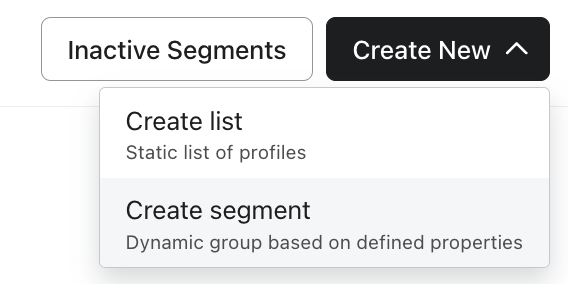
- Proceed to Audiences > Lists & Segments in Klaviyo. Click Create New > Create segment.
- You will be asked to create a segment using the segment builder. Add the following conditions. A screenshot of what this should look like is below.
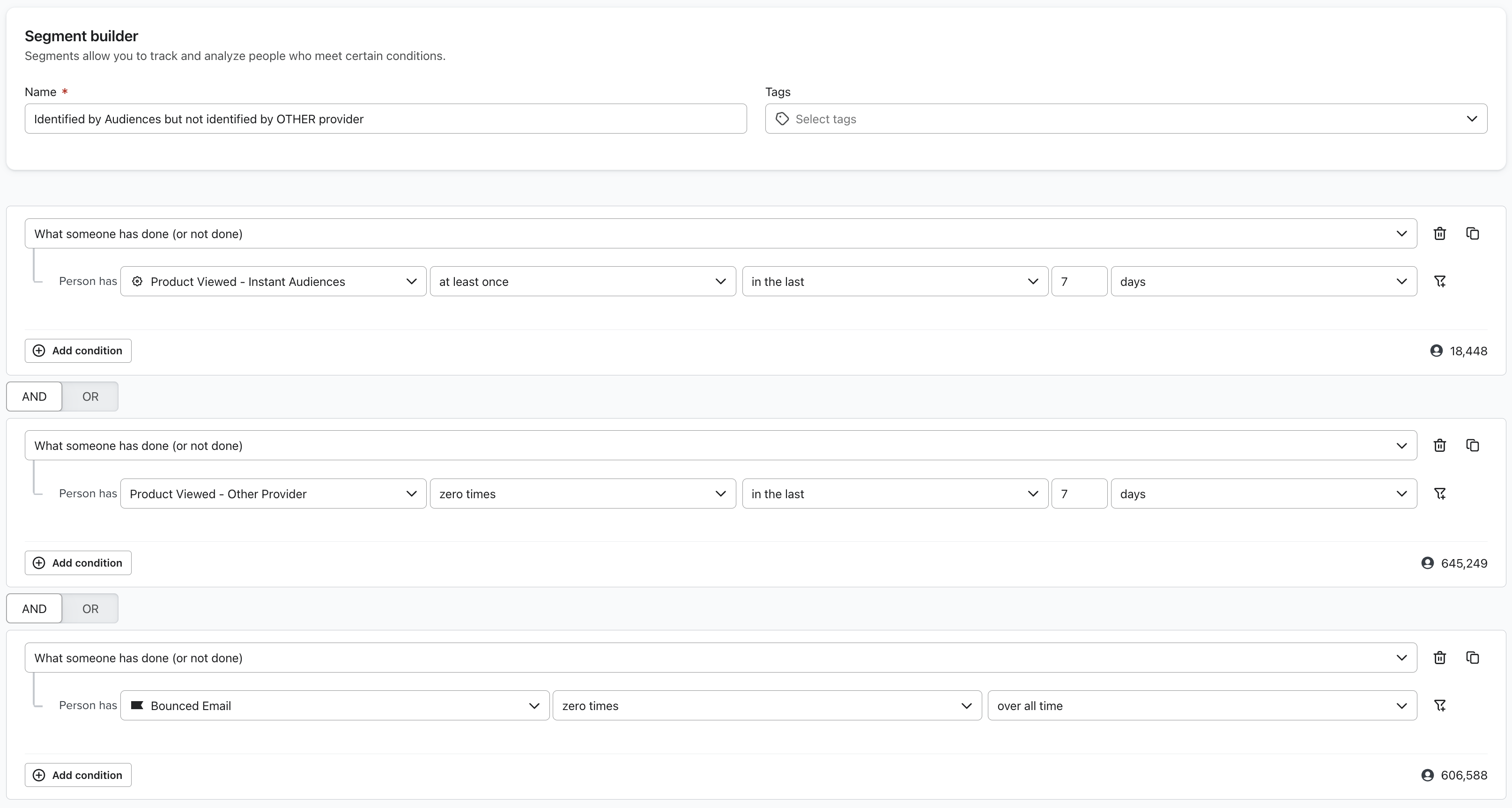
- "When someone has done (or not done) > Person has Product Viewed - Instant Audiences at least once in the last 7 days AND
- "When someone has done (or not done) > Person has Product Viewed - Other Provider zero times in the last 7 days AND
- "What someone has done (or not done) > Person has Bounced Email zero times over all time".
- This filter is important as it ensures that profiles invalid emails are filtered out.
- Please wait for the segment to create. It may take a while depending on the size of your email list.
Once this is complete, the segment will be populated with all the profiles that Instant identified, that the other provider did not.
Find how many profiles that another provider could identify that Instant did not:
- Proceed to Audiences > Lists & Segments in Klaviyo. Click Create New > Create segment.
- You will be asked to create a segment using the segment builder. Add the following conditions. A screenshot of what this should look like is below.
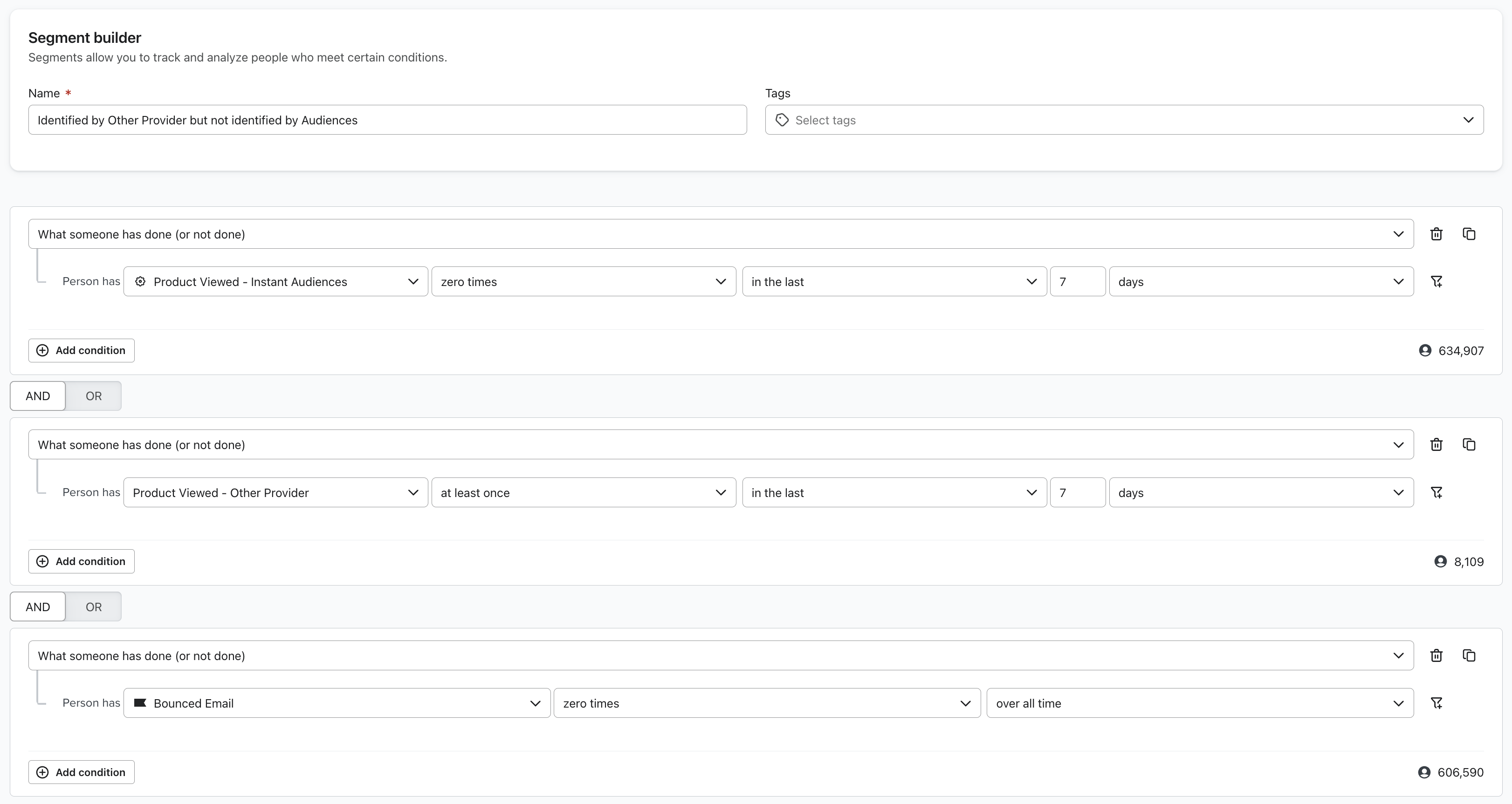
- "When someone has done (or not done) > Person has Product Viewed - Instant Audiences zero times in the last 7 days AND
- "When someone has done (or not done) > Person has Product Viewed - Other Provider at least once in the last 7 days AND
- "What someone has done (or not done) > Person has Bounced Email zero times over all time".
- This filter is important as it ensures that profiles invalid emails are filtered out.
- Please wait for the segment to create. It may take a while depending on the size of your email list.
Once this is complete, the segment will be populated with all the profiles that Instant did not to identify, that the other provider did.
How do I know that shoppers converting through emails triggered by Instant wouldn't have converted regardless?
When a shopper purchases after engaging with an abandonment email triggered by Instant, we attribute that revenue to Instant. This attribution model mirrors how platforms like Klaviyo attribute revenue generated to individual email marketing flows.
Our research has found that the majority of revenue attributed to Instant is associated with merchants who would not have placed an order had they not received an abandonment email. However, given the seasonality of retail sales, it can be difficult to see exactly how Instant's incremental revenue increase has impacted a merchants' top-line revenue, especially when a merchant adopts Instant during a quieter sales month.
Case Study
For this merchant, we conducted an A/B test to determine exactly how much additional revenue Instant's superior abandonment email marketing could generate for them.
We assigned all shoppers identified by Instant, and not identified by Klaviyo or Shopify, to two cohorts:
- Control — for this segment of shoppers, despite our ability to identify them, we suppressed sending any events to Klaviyo. Therefore, shoppers in this group would not receive abandonment emails triggered by Instant, and if they were to purchase, this would have been purely of their own volition.
- Treatment — for this segment of shoppers, we sent the usual events to Klaviyo, triggering abandonment emails.
Over two weeks, we found:
- The control segment, who did not receive any Instant-triggered abandonment emails, generated $69.8K in revenue.
- The treatment segment, who did receive Instant-triggered abandonment emails, generated $84.2K in revenue.
This is a revenue uplift of $14.4K over two weeks. Had the A/B test not been running the merchant would've generated $28.8K, or $57.6K over a one-month period.
While we did find that Klaviyo attributed slightly more revenue than this to Instant Audience's flows, this revenue uplift is impressive and inline with the results published in our case studies, achieving a massive 23x return-on-investment for the customer.
A/B testing Instant
We're happy to conduct A/B tests for individual merchants who wish to better quantify the ROI they receive from Instant.
Similar to the case study above, in these tests, we assign all shoppers identified by Instant, and not identified by Klaviyo or Shopify, to two cohorts:
- Control — for this segment of shoppers, despite our ability to identify them, we suppress sending any events to Klaviyo. Therefore, shoppers in this group would not receive abandonment emails triggered by Instant, and if they were to purchase, this would have been purely of their own volition.
- Treatment — for this segment of shoppers, we sent the usual events to Klaviyo, triggering abandonment emails.
Over two weeks, we typically see the control segment, who did not receive any Instant-triggered abandonment emails, generate much less revenue.
We can estimate a total monthly increase by multiplying this number by two, to account for the test only running for two weeks, and again by two, to account for the control group that did not receive our events.
To qualify for an A/B test of Instant, merchants must have at least $500,000 in monthly website revenue and relatively high traffic. Smaller websites, unfortunately, do not have enough traffic to produce a statistically significant result from an A/B test of this nature.
Comparing results to Google Analytics
Instant Audiences and Instant AI both conform to Klaviyo's attribution model, because this is the standard for email marketing tools. Because this attribution model varies significantly from Google Analytics, many merchants using Google Analytics notice attribution variances.
Ensure all paid and organic channels can receive credit for conversions
By default, Google Analytics only attributes revenue to Google paid channels. This massively biases Google Analytics attribution towards Google channels.
For more fair attribution across non-Google channels, ensure all paid and organic channels can receive credit for conversions.
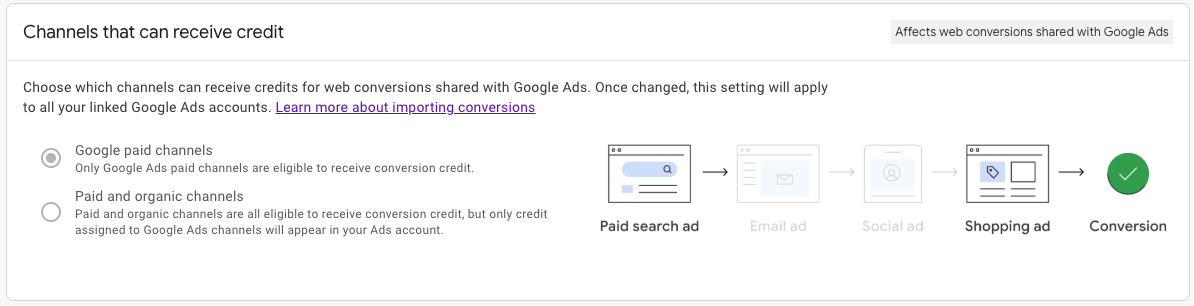
Changing this setting will not impact historic data, may take a few days to take effect, and may impact the conversions you create in Google Ads for bidding and reporting.
Tighten your attribution windows in Google Analytics
By default, Google Analytics has extremely broad attribution windows. This means top-of-funnel channels like Google Ads will get credit for conversions even if their only touchpoint event was months ago. This excessively dilutes attribution across channels, giving old and irrelevant events credit for recent conversions.
We recommend tightening your attribution windows in Google Analytics as follows:
- Acquisition key events (i.e., first_open, first_visit): 7 days (30 days is the default).
- Other key events: 30 days (90 days is the default).
- Engaged-view key events: 3 days.
Understand data-driven attribution
Google's default model is called data-driven attribution. This model is powered by AI. It is analyzing your web traffic, and, where necessary, guessing whether a conversion happened and why. This is necessary because Google Analytics isn't always are of the identity of a shopper (unlike Instant Attribution, thanks to our excellent identity resolution technology) and therefore their history.
This type of attribution works great across very large datasets, but can be extremely unreliable for smaller datasets. Any merchant turning over under $500,000 in monthly website revenue is unlikely to see accurate results from any AI-driven attribution model. These merchants should double check their results by switching to Google's paid and organic last click attribution model, which admittedly favors bottom-of-funnel channels like Instant AI, Instant Audiences, and Klaviyo.
Why are my Klaviyo flow emails being skipped?
If flow emails have a large number of skips, this may indicate an underlying issue with flow filters, or incorrect properties being used in email templates.
To look into the the reason behind skips, please navigate to your Klaviyo dashboard and complete the steps below.
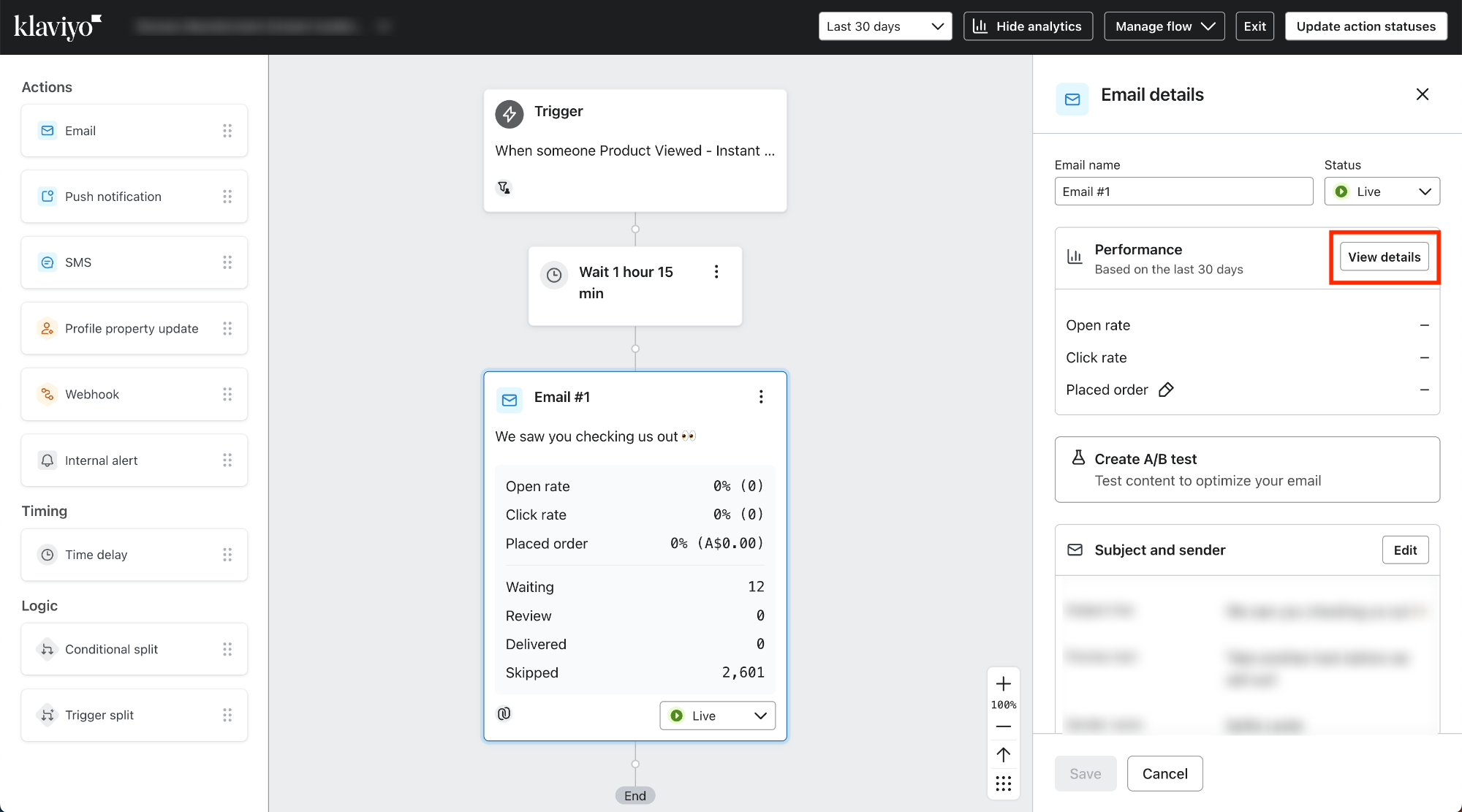
- Proceed to an abandonment flow and click an email template. On the Email details tab that appears, click on "View Details" under Performance.
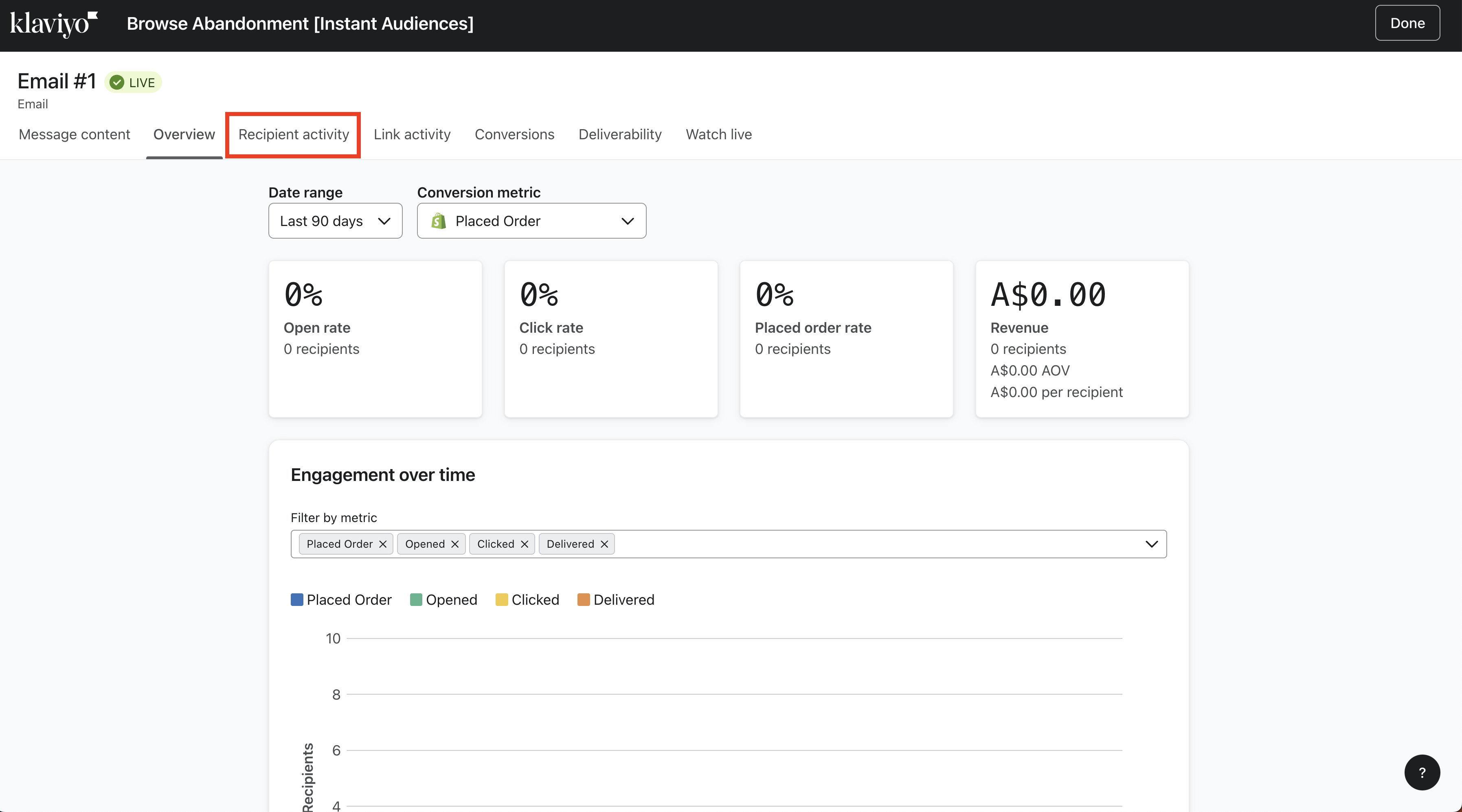
- The email overview screen will appear. Proceed to the Recipient activity tab.
- On the sidebar, click on "Skipped".
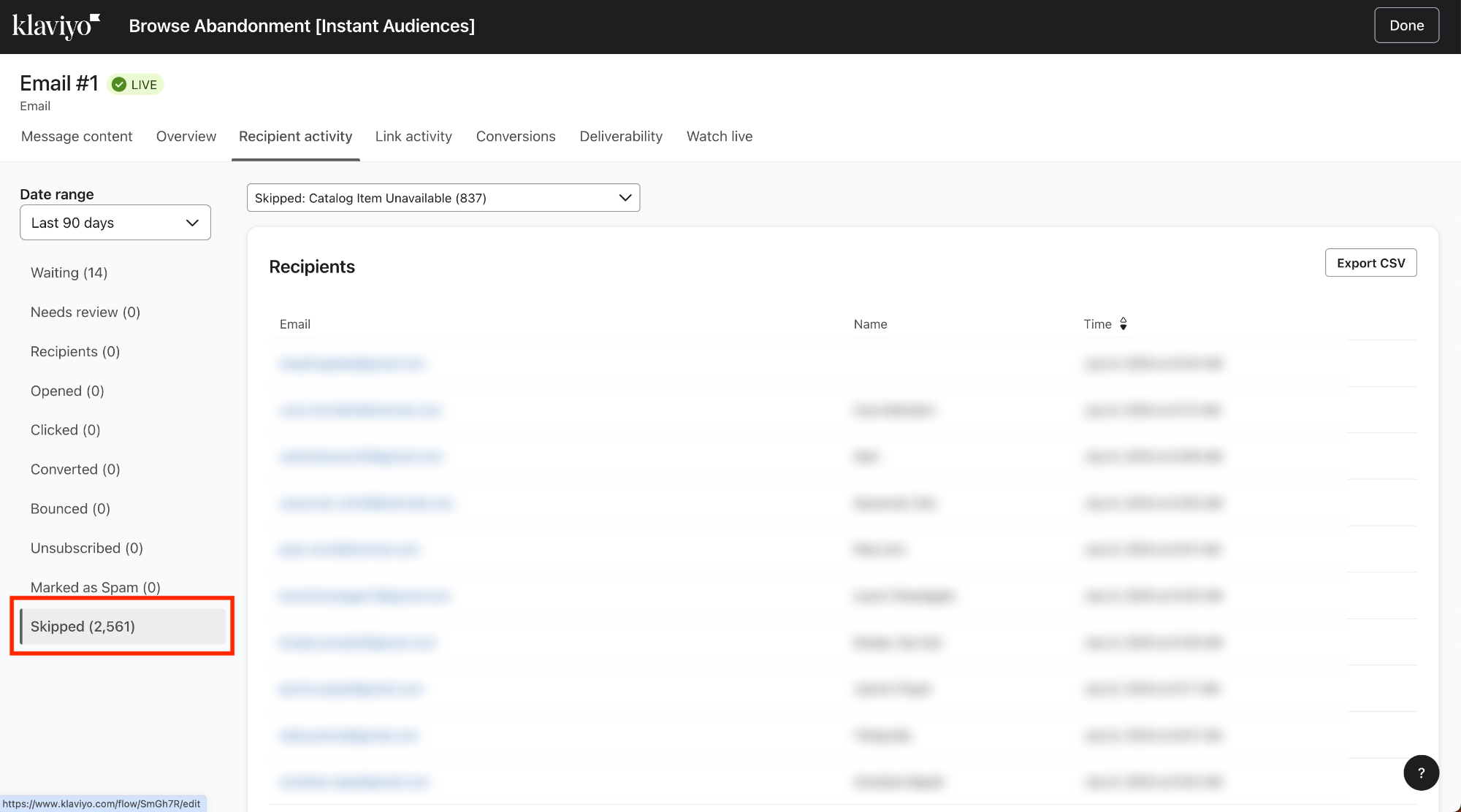
- Under the dropdown above the list of skipped emails, you will be able to see the reasons why flow emails are being skipped.
For more details on what each skip reason means, please see below.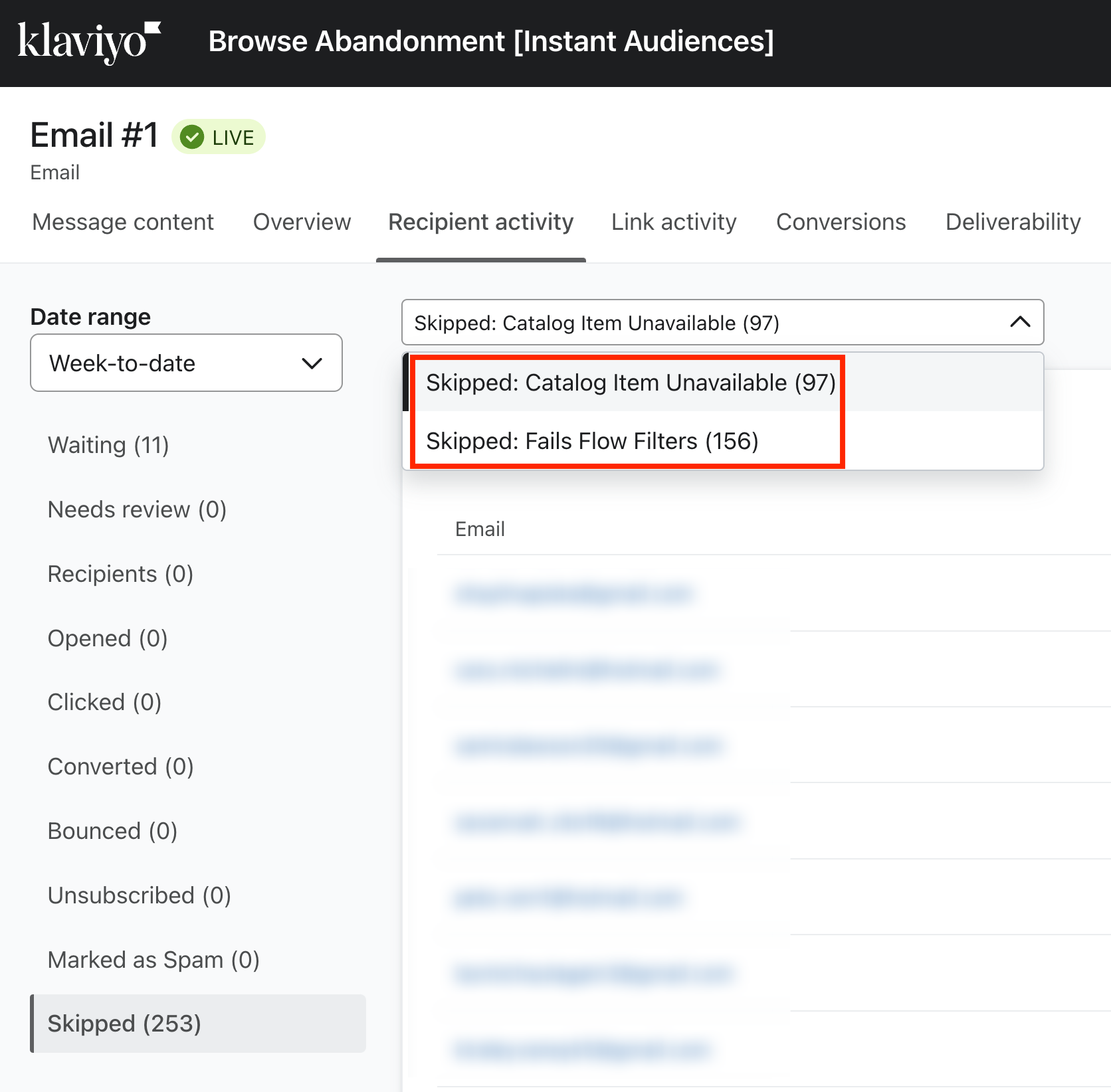
Catalog Item Unavailable
For more information on how to resolve the "Catalog Item Unavailable" error, please refer here.
Fails Flow Filters
For more information on how to resolve the "Fails Flow Filters" error, please refer here.
What metrics does Instant Audiences send to Klaviyo?
Below is a table explaining what the Instant Audiences metrics are, and when each Instant Audiences metric is fired in Klaviyo.
Metric Type
When is this Metric fired?
Page Viewed
Fired when someone views a page.
This event will also trigger when someone views a product or cart. For example, if someone views a product, both the Page Viewed and Product Viewed will fire.
Product Viewed
Fired when someone views any product page. This metric will fire multiple times if someone views a product multiple times.
Item Added to Cart
Fired when someone adds an item to cart, or increases the quantity of any item in their cart.
This metric will fire multiple times if multiple items are being added to the cart in one go.
For example, if you add a bundled product that has 5 products, 5 separate Item Added to Cart metrics will be fired for each item.
Cart Viewed
Fired when someone views a cart page. This metric will fire multiple times if someone views a cart page multiple times.
Checkout Started
Fired when someone views a checkout page. This metric will fire multiple times if someone views the checkout page multiple times.
This metric will also fire when a customer progresses through parts of the checkout stage, e.g. completing personal or address information will trigger this metric.
Cart Viewed / Checkout Started
Fired when either the "Cart Viewed" and "Checkout Started" events are fired.
This metric is used to enable simple flow creation, as a single flow can be used for both Cart Viewed and Checkout Started, instead of creating two separate flows.
How do I add new profiles from Audiences into a welcome flow?
Incorporating new profiles from the Audiences new profile export into a welcome flow or other low-touch, incentive-driven flows is highly recommended.
This approach effectively engages shoppers who have shown intent but may still be undecided or browsing.
By integrating welcome flows with the Audiences new profile export, you can create a powerful conversion strategy that maximizes the ROI from your top-of-funnel traffic.
- Create a segment in Klaviyo which contains all new profiles identified by Instant Audiences.
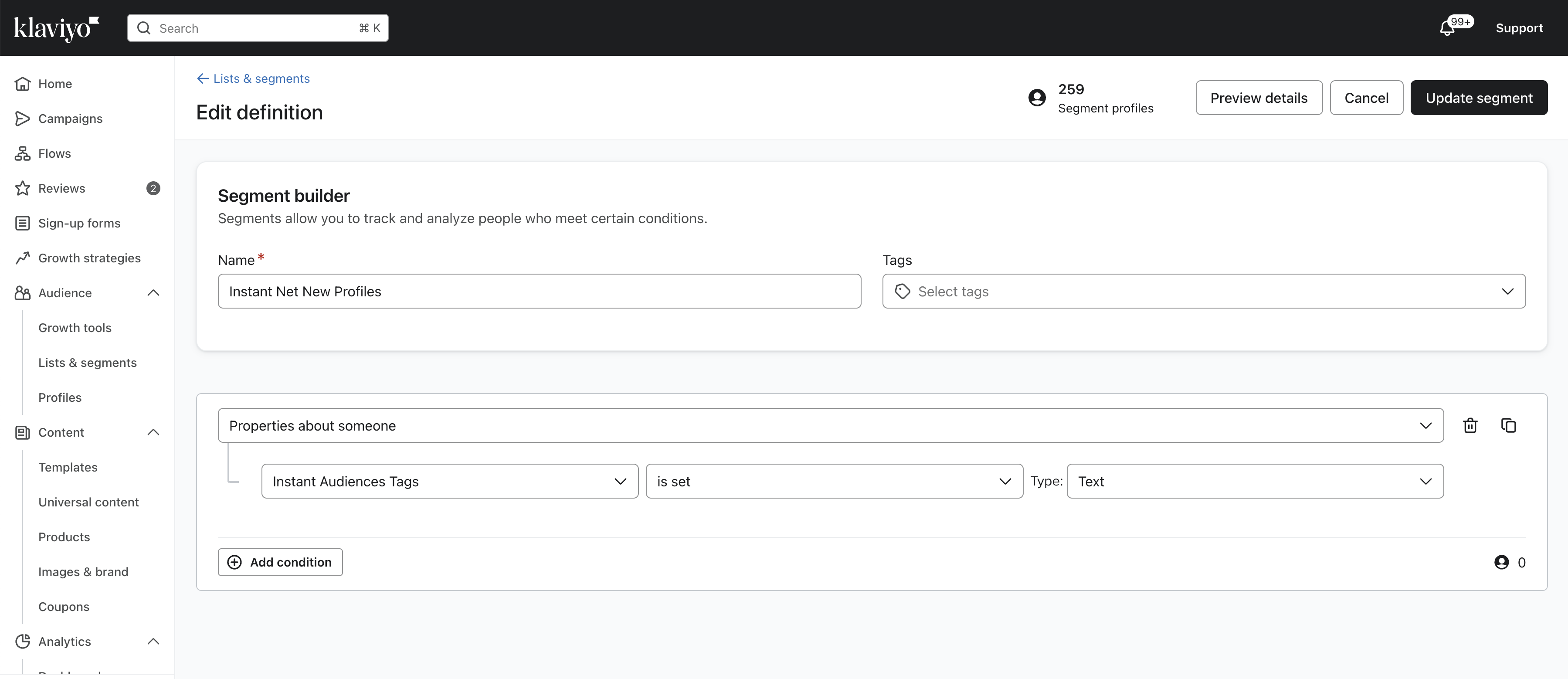
- Follow the Klaviyo documentation on how you can create a segment triggered flow. When creating the flow, ensure you use this segment.
https://help.klaviyo.com/hc/en-us/articles/360003040052 - Once you have created a segment triggered flow, add the following filters to the flow
(1) Placed Order zero times since starting this flow
(2) Placed Order zero times in the last 7 days
(3) Received email where flow equals {{ your existing welcome flow }} zero times in the last 30 days
(4) If someone is in or not in a list - person is not in {{ your main subscriber list }}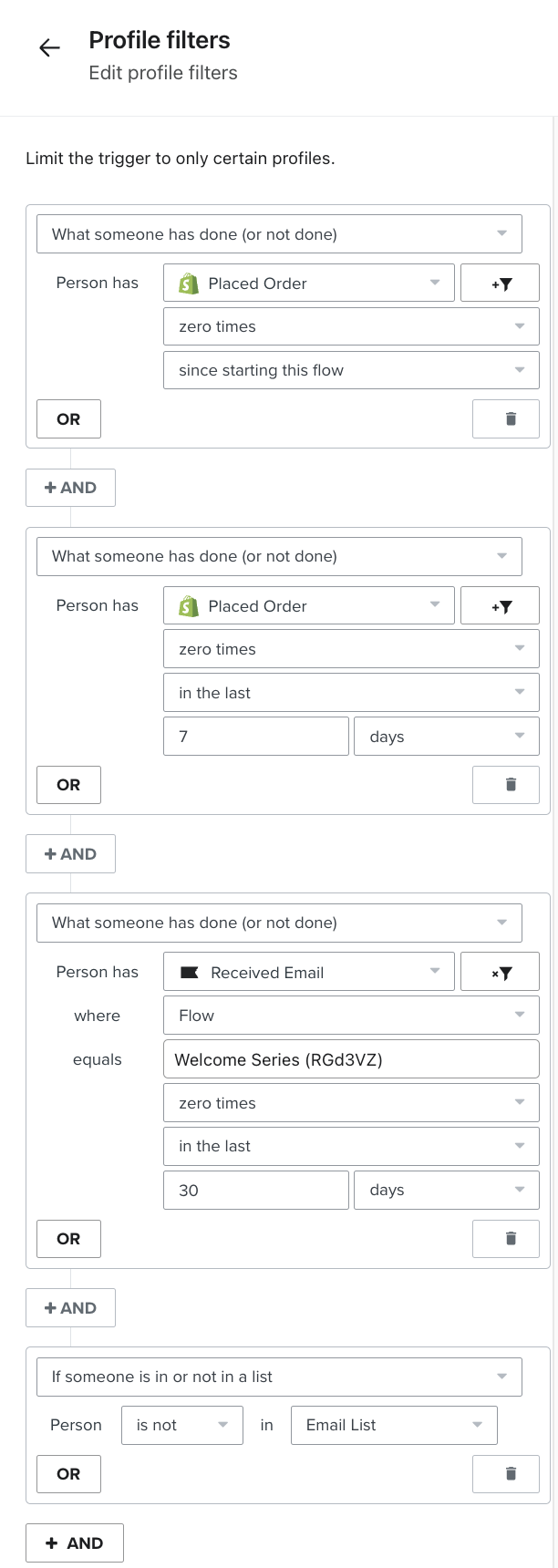
Best practices for new profile export with email EDMs and campaigns
Sending campaigns to new profiles is generally not recommended.
Instead, focus on welcome flows or abandonment flows to engage these customers meaningfully.
Please use Klaviyo filters to exclude profiles that are not in your main newsletter list from EDMs/campaigns.
It is important to focus on welcome flows and abandonment flows to meaningfully engage new profiles that have been identified on your website, rather than un-targeted, broad campaigns. This will minimise any risk of increasing unsubscribe and spam rates when using new profile export.
To achieve this, you can either
- Ensure campaigns are sent only to a list of shoppers that have opted into marketing via your newsletter signups / opt-in popup.
To do this, add a filter to the segment which you send campaigns to which ensures you are targeting customers in your main newsletter list.
For example, if your main list is named "Online Store Subscribers", then add a filter below.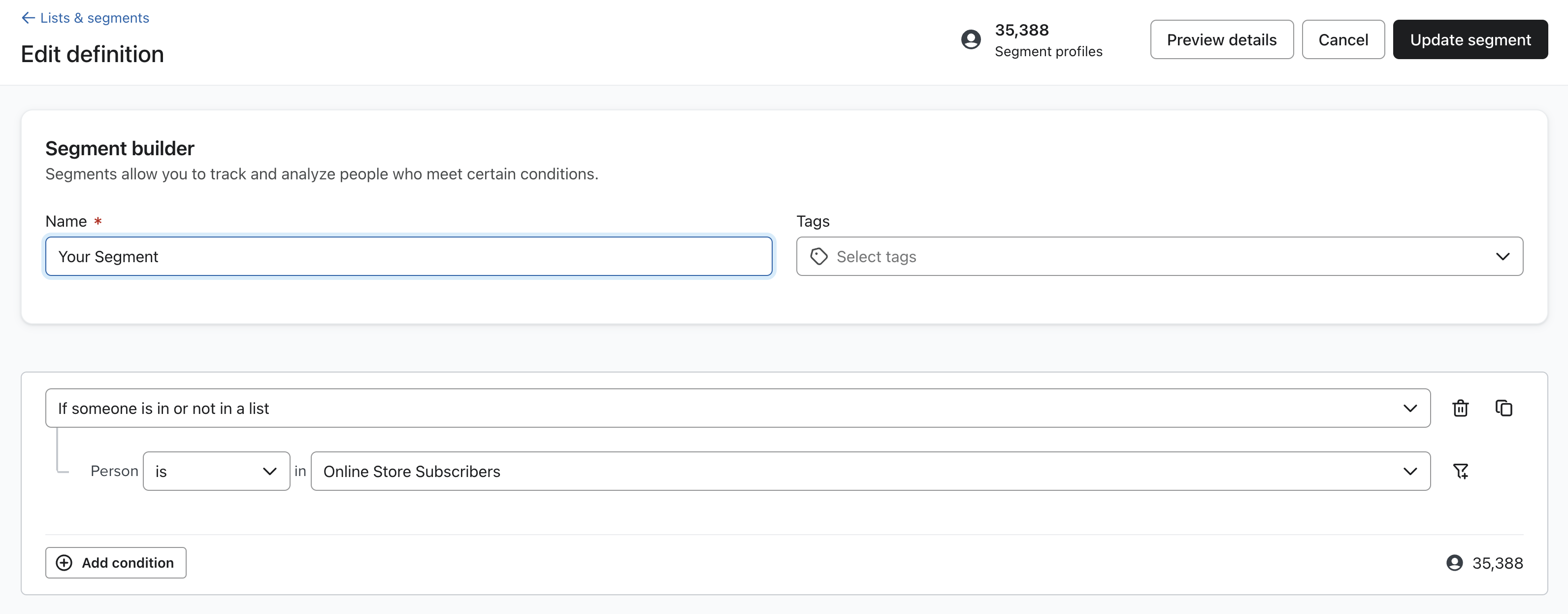
- Add a filter to segments which you send campaigns to, to ensure that you are only sending campaigns to subscribed shoppers.
To do this, add a filter to the segment which you send campaigns to which ensures that you are only sending campaigns to shoppers that have subscribed.
This filter is "If someone can or cannot receive marketing - person can receive email marketing - because person subscribed". Please see the screenshot below for reference.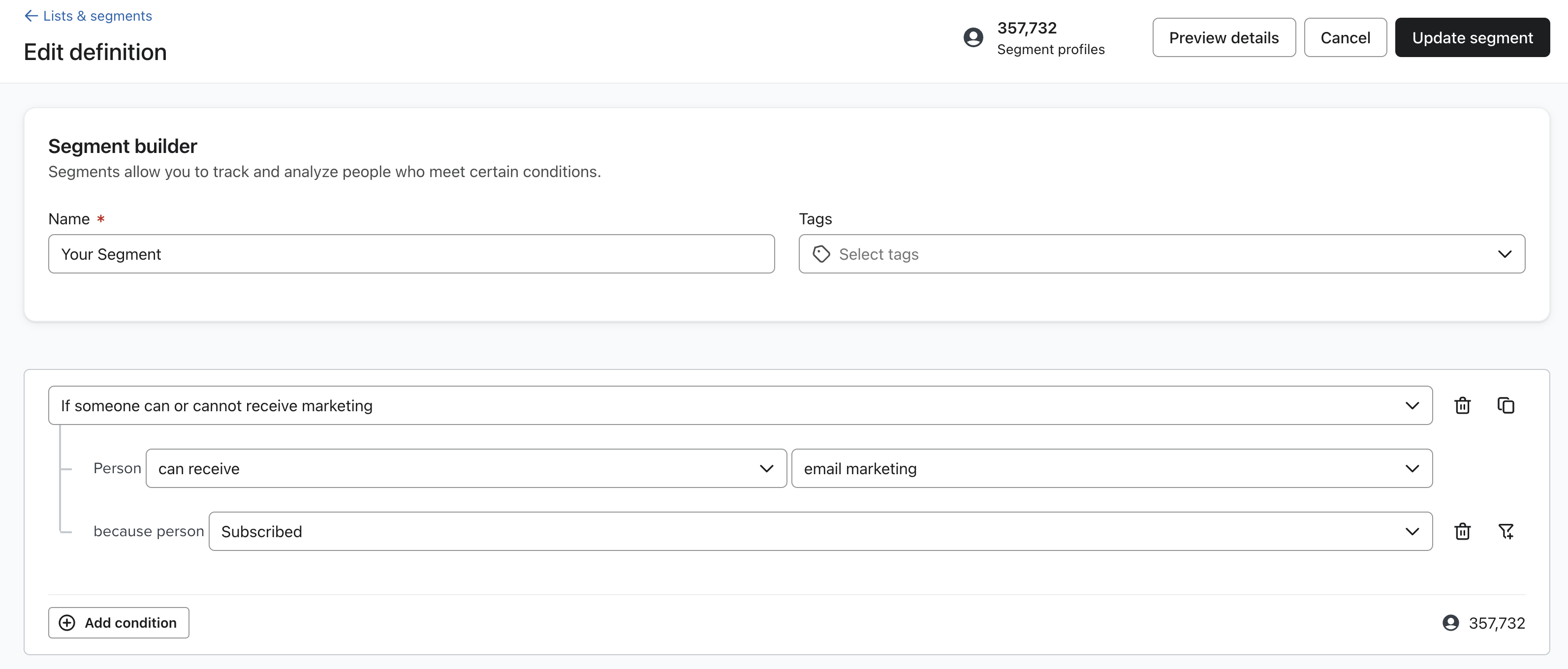
This is particularly important when emailing a segment that is built off site engagement. For example, if your campaign is targets anyone who has viewed a product in the last 30 days, ensure this filter is added. - Don't send campaigns to profiles that have their subscription status as "Never subscribed".
Profiles with their subscription status as "Never subscribed" should only be enrolled into flows, not added to campaigns.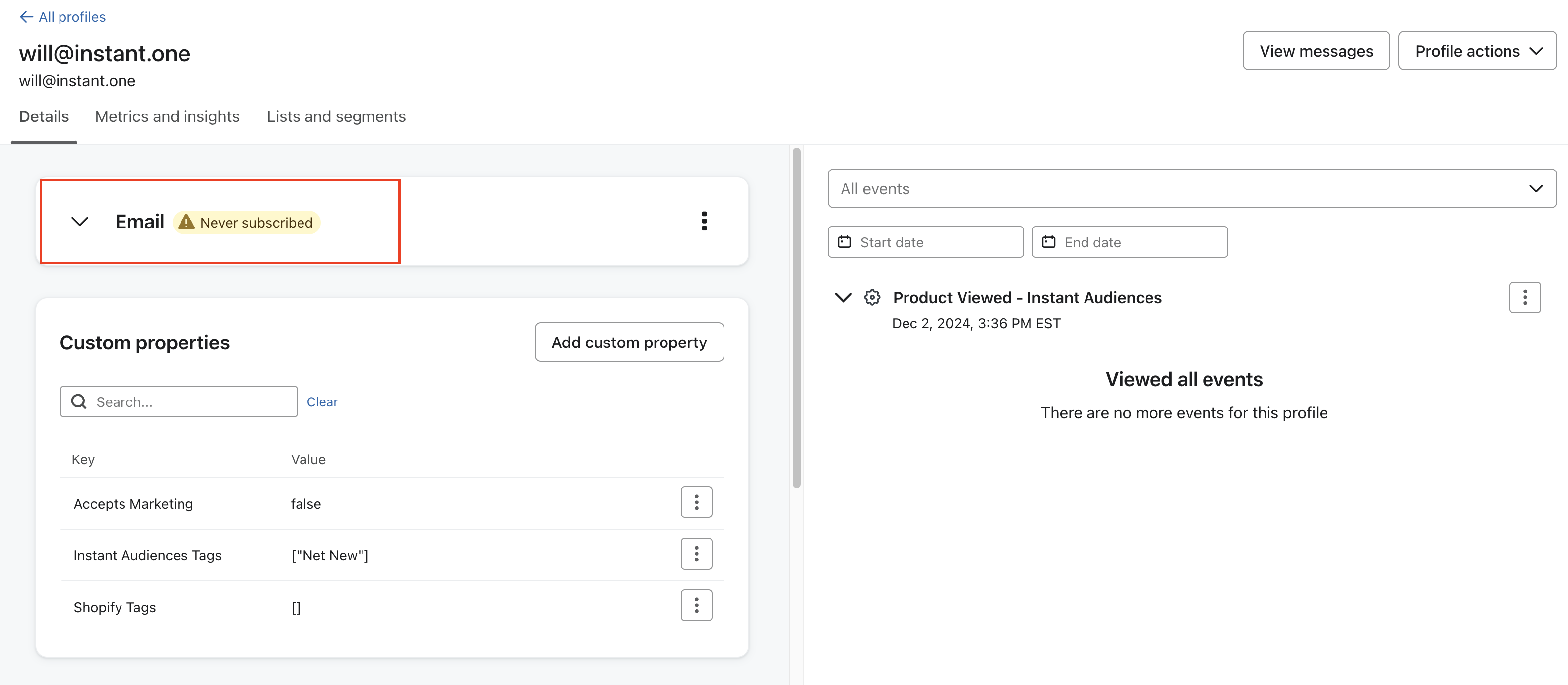
To ensure that these profiles are not added to campaigns, add the filter is "If someone can or cannot receive marketing - person can receive email marketing - because person subscribed". Please see the screenshot below for reference.