
Instant supports SMS as a step type inside multi-step campaigns, alongside email. This article covers why SMS in campaigns matters, how to add and write an SMS step, and what to expect after you send.
If you haven't enabled SMS for your account yet, start with the SMS setup guide first.
- Why send SMS campaigns
- Before you start
- Creating from scratch
- Adding to an existing campaign
- Writing your SMS
- Sending a test SMS
- Scheduling your SMS
- What your customer receives
- How we know who to send to
- Analytics for sent campaigns
- FAQ's
Why send SMS campaigns
SMS reaches shoppers in a way email can't. Most texts are read within minutes of delivery, and open rates sit far above what's achievable on email. That makes SMS the right channel for moments that need attention right away: sale launches, last-chance reminders, restocks, exclusive drops, anything where timing matters.
It's also the channel shoppers are most protective of. They expect SMS to be short, useful, and infrequent. Used well, that gives every send a much higher chance of converting than the equivalent email.
The best SMS campaigns sit alongside email, not instead of it
It's rare to send a campaign as SMS only. The strongest results come from pairing channels: an email that does the storytelling, the visuals, and the detail, plus an SMS that delivers the urgency or reminder. Common patterns include:
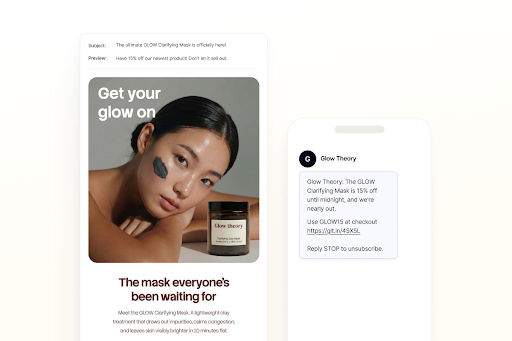
- Email first, SMS follow-up. Lead with a launch email, then send an SMS reminder on the last day of the sale to anyone who hasn't converted.
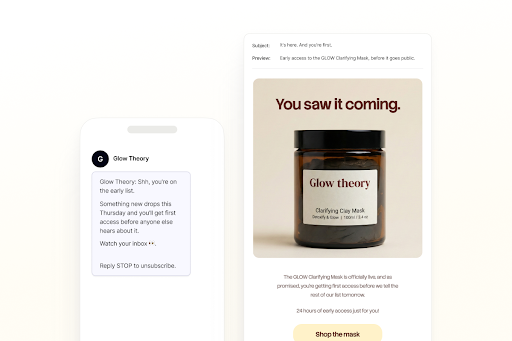
- SMS teaser, email reveal. Tease a drop with a short SMS, then send the full announcement by email. Many brands see success with an early access SMS teaser for just the most eager subscribers, then a follow up email
- Multi-touch over a few days. Two emails plus one well-placed SMS often outperforms three emails alone.
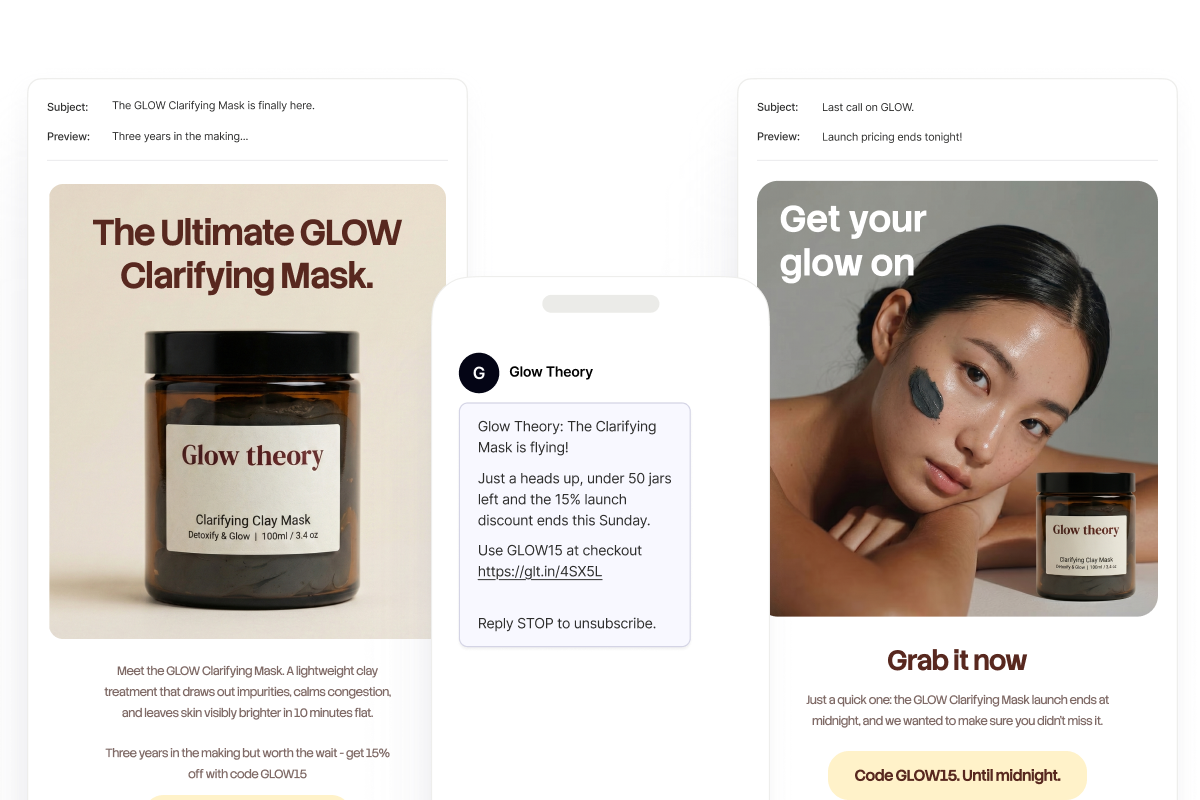
This is why SMS in Instant only lives inside multi-step campaigns. You can send a one-step SMS-only campaign if you need to, but the structure is built for sequencing channels together.
Why send SMS through Instant
Adding SMS through Instant means you're not running a parallel program in another tool. You get:
- One audience for both channels. Pick a segment once, and Instant routes each step to the contacts who can receive it (more on this below).
- Unified attribution. SMS revenue, clicks, and engagement appear in the same place as your email metrics, on the campaign view and on your main dashboard.
- Compliance handled. Your brand prefix and unsubscribe line are added automatically, character limits are enforced before you hit send, and STOP replies sync across the platform.
- Predictable cost. Every SMS is kept to a single message, so you're charged one credit per send, every time.
Before you start
SMS in Campaigns requires SMS to be configured on your account first. Once that's done, you can write campaigns that include SMS steps in any combination with email.
- Available for Australian (+61), US and Canadian (+1) phone numbers. Shoppers with numbers from other countries are skipped automatically. See Enabling Instant AI SMS in Australia or Enabling Instant AI SMS in the US and Canada for the full setup.
- Set your brand prefix. Every SMS you send through Instant starts with a brand prefix that identifies your business. See Customising your SMS brand prefix for the options.
- Capture SMS subscribers. Make sure you're collecting SMS consent through your sign-up form, pop-up, or an integrated platform. Existing subscribers synced from Klaviyo or Shopify are picked up automatically. Instant only sends SMS to shoppers who have given explicit SMS consent.
Creating an SMS in a multi-campaign from scratch
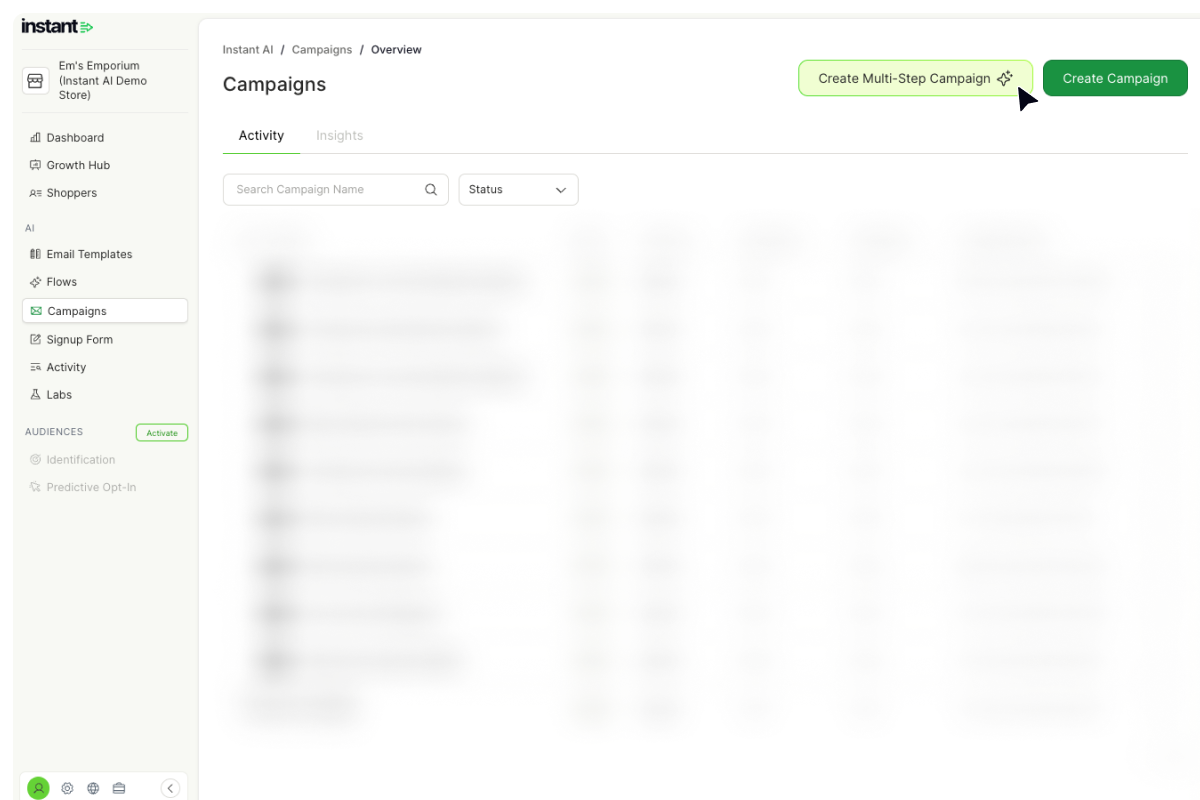
- Go to Campaigns in your dashboard.
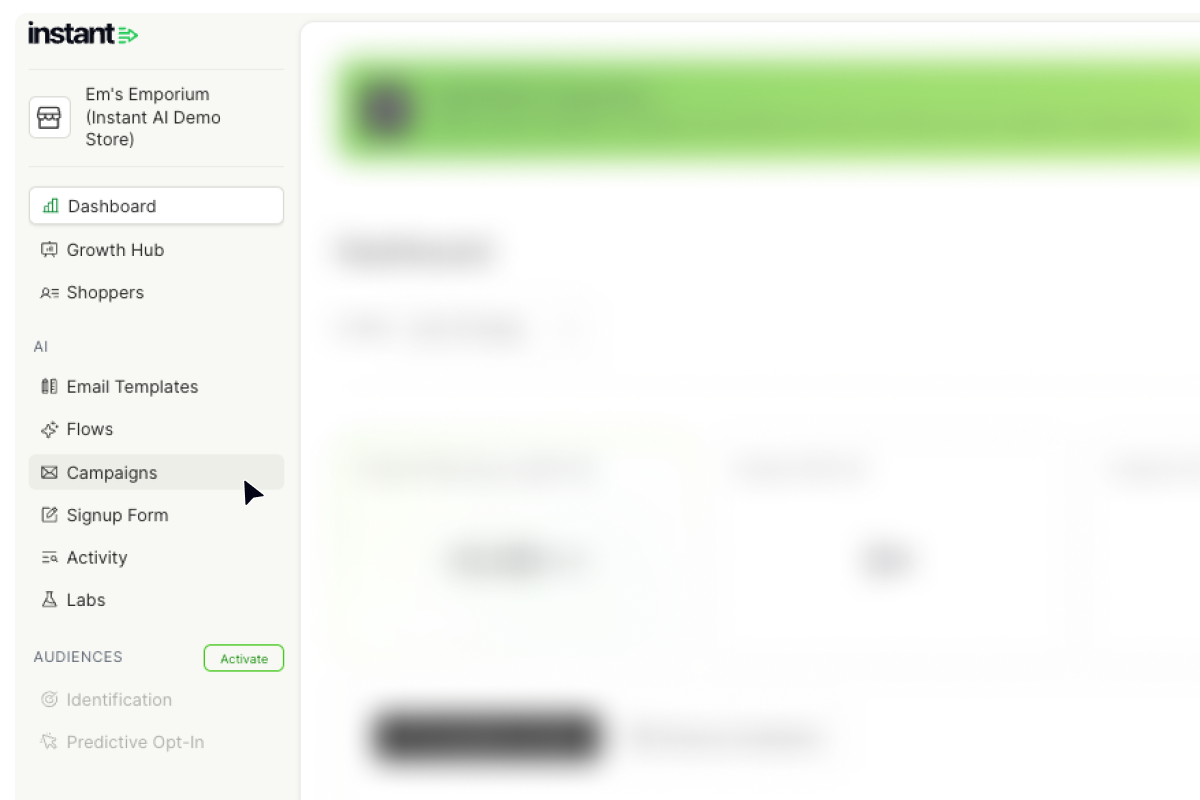
- Click Create Multi-Step Campaign.
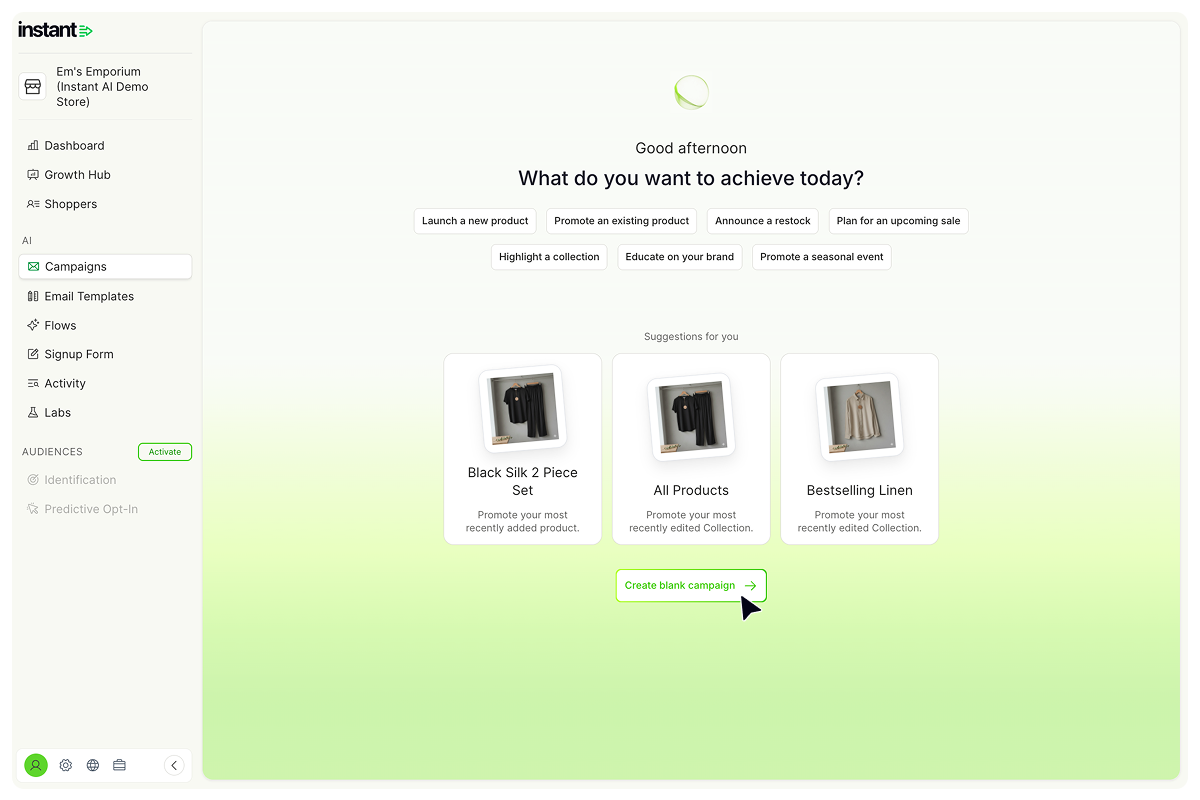
- Choose Create Blank Campaign for an empty multi-step canvas.
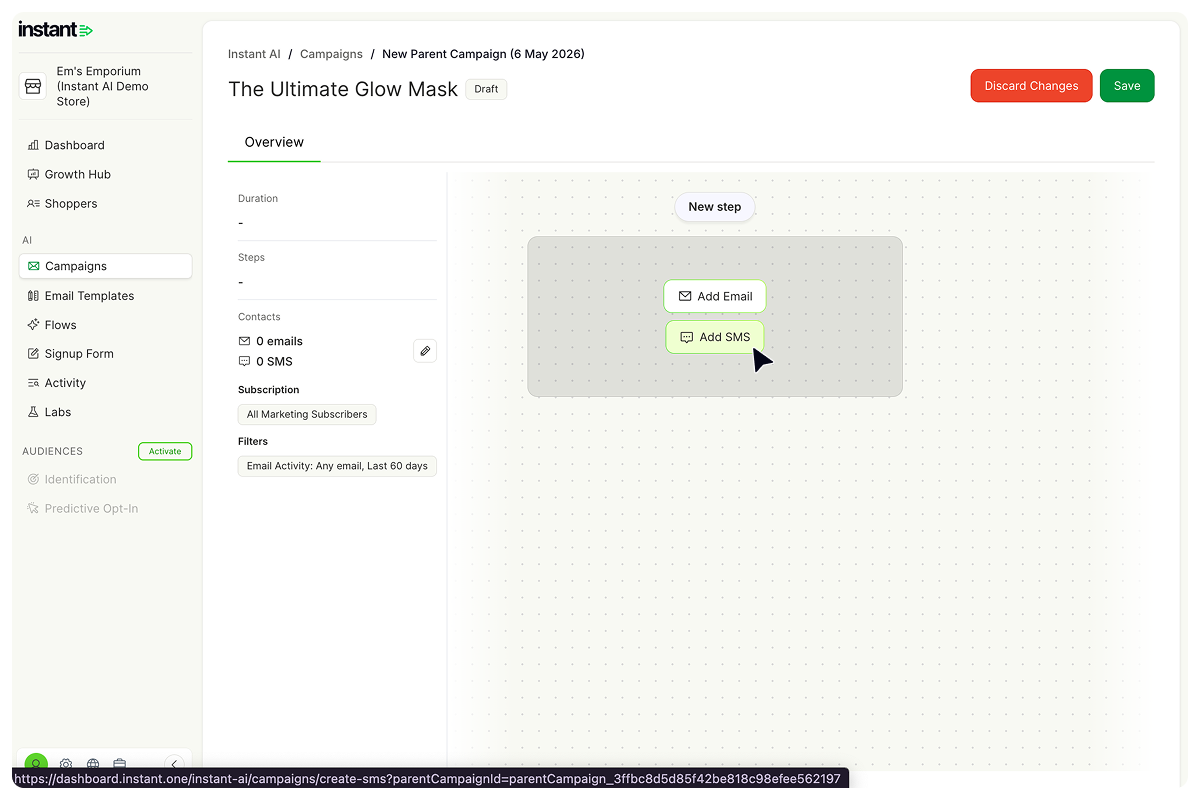
- On the new step, choose Add SMS and draft your message
Adding SMS to an existing campaign
You can add an SMS step to any multi-step campaign, even if every other step is an email. For example, if you have three email touchpoints, you can add an SMS as a fourth step, or insert one between two emails.
- Open the multi-step campaign you want to edit.
- Click New step.
- Choose Add SMS.
- Draft your message.
Writing your SMS
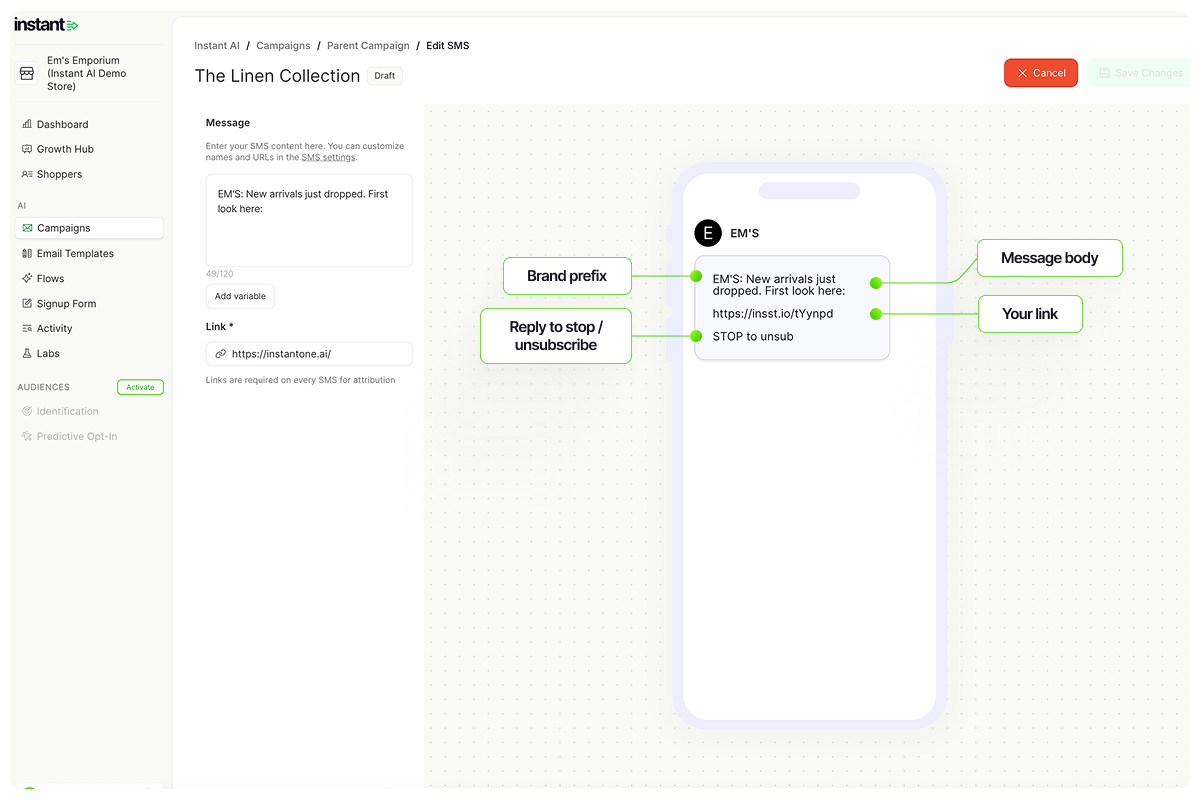
When you click Add SMS, the message editor opens with your brand prefix already inserted (for example, EM'S:). The prefix, the unsubscribe line, and your link are all part of the final SMS your customers receive.
The brand prefix
Your prefix is set in SMS Settings, not inside the campaign. Whatever you've configured there will pre-fill at the start of every SMS you draft. You can delete the prefix from an individual campaign if you want to, but you must include your business name somewhere else in the message body. See Customising your SMS brand prefix for more.
Character limit
You have 120 characters to write your message, which includes your prefix. The remaining space in the SMS is reserved for your link and the auto-appended Reply STOP to unsubscribe line.
The character count updates live as you type. If you add an emoji or special character, the count drops automatically to keep your message to a single SMS. For the full breakdown of how this works, see Understanding SMS character limits.
Adding a link
Every SMS must include a link. SMS attribution is based entirely on click tracking, so a link is the only way Instant can attribute revenue back to the SMS.
By default, your link will be set to your store URL. You can change it to any URL you want by editing the Link field. The link is auto-appended after your message and is not part of your 120-character limit.
Adding a variable
You can personalise your SMS with the shopper's first name.
- Click Add variable.
- Choose First name.
- Set a fallback value. The fallback is used if the shopper's name is unknown, or if including their name would push the SMS over the character limit.
First name is the only variable currently supported in SMS campaigns. See Understanding SMS character limits for how variables affect your character count.
Sending a test SMS
Send the SMS step to your own phone to check how the message reads and that the link opens the right page.
- Open the SMS step in the editor.
- Click Save Changes. The test sends the saved message, so save your edits first.
- Click Send test SMS at the top of the editor.
- Choose your country and enter your phone number.
- Click Send test SMS.
If your message uses the First name variable, the test uses the first name on your Instant account.
Note: Each test SMS uses SMS credits, like any send. You can send 20 test SMS a day across all your flows and campaigns. The count resets at midnight in your store's local time zone, and the Send test SMS window shows how many you have left.
Scheduling your SMS
Each step in your multi-step campaign has its own send date and time, set when you build the step. SMS steps are scheduled the same way as email steps.
Instant sends at the exact time you choose, in your store's local time zone. There are no enforced quiet hours, so it's your responsibility to pick a sensible time for your audience. Avoid late nights, very early mornings, and any times that aren't appropriate for marketing messages.
What your customer receives
Every SMS sent through Instant includes:
- Your brand prefix (or your business name if you've removed the prefix)
- The message body you wrote
- Your link
- The
Reply STOP to unsubscribeline, automatically appended
Here's an example:
EM'S: New arrivals just dropped. First look here: https://insst.io/tYynpi Reply STOP to unsubscribe
How we know who to send to
You only pick one segment for the entire campaign, not a separate audience per step. From there, Instant automatically works out who in that segment is eligible to receive each step, based on what they're subscribed to.
- Contacts subscribed to both email and SMS receive every step that applies to them.
- Contacts subscribed to email only receive the email steps and skip the SMS steps.
- Contacts subscribed to SMS only receive the SMS steps and skip the email steps.
- Contacts with no phone number on file are automatically skipped on SMS steps.
You don't need to build separate campaigns for each channel. One sequence runs, and every contact only receives the steps they've opted into.
Reading the audience breakdown
When you select your segment, you'll see an estimated breakdown:
- Total contacts in the segment
- How many of those have a subscribed email address
- How many of those have a subscribed phone number
The email and SMS counts will often add up to more than the total contact count, and that's expected. A contact who is subscribed to both email and SMS is counted once in the contact total, but appears in both the email and SMS counts. The email and SMS numbers are forecasts of how many sends each channel will produce, not a unique-person count.
After your campaign sends
Once your campaign is live, SMS appears in your campaign analytics as its own step, alongside any email steps. Send volumes, clicks, attribution, and revenue are all reported in the same place as email, so you can compare both channels directly within the same campaign.
Compliance reminder
Every commercial SMS you send must clearly identify your business. The default brand prefix takes care of this for you. If you ever remove the prefix from a campaign, make sure your business name appears somewhere else in the message body. Sending commercial SMS without proper sender identification can breach SMS rules, such as the Australian Spam Act or US and Canadian carrier rules.
FAQs
Can I edit or cancel a scheduled SMS campaign?
Yes. Open the scheduled campaign and make your changes. Editing moves the campaign back to draft, where you can reschedule it when you're ready. To cancel a scheduled send, edit the campaign to send it back to draft and leave it there.
Can I send a test SMS to myself before launching?
Yes. Open the SMS step, click Save Changes, then click Send test SMS and enter your phone number. Each test uses SMS credits, and you can send 20 a day. See Sending a test SMS.
Can I include more than one link in an SMS?
No. Every SMS sends with exactly one link, set in the Link field of the step. The link is the only way Instant tracks attribution for SMS.
Does Instant support sending images or MMS?
No. SMS in Instant is text only. Images and MMS aren't supported.
If a shopper unsubscribes between steps, do they still receive the rest of the campaign?
No. Once a shopper unsubscribes from SMS, they're removed from any remaining SMS steps in the campaign immediately. They can still receive email steps if they're subscribed to email.
How does this interact with SMS I'm already sending through Klaviyo or another tool?
If you're sending SMS for the same audience through both Instant and Klaviyo, shoppers may receive duplicate messages. Customers tend to be far less forgiving of duplicate texts than duplicate emails, so we recommend sending SMS through one platform at a time. Unsubscribes sync both ways with Klaviyo if you have an integration.
Does Instant respect quiet hours or send-time restrictions in Australia, the US or Canada?
No. Instant sends at the exact time you schedule. It's your responsibility to choose appropriate sending times for your audience.
Where does SMS revenue show up in my analytics?
SMS revenue is included everywhere campaign revenue appears, including the main dashboard, the campaigns overview, and the individual campaign view. It's reported alongside email so you can see total campaign performance and per-channel performance in the same place.