
Your Instant segments are built on identified shopper data, which makes them a strong source for building custom audiences in your paid ads. Instant does not have a direct Google Ads integration, so you cannot sync a segment to Google automatically. You can still put the same audience to work by exporting any segment as a CSV and uploading it to Google Ads as a customer list.
If you advertise on Meta, Instant connects natively. It syncs your segments to Meta as Custom Audiences and refreshes them every 24 hours, so there is no manual export. See How to set up the Instant AI and Meta integration. For Google Ads, the export below gives you the same targeting outcome with a quick manual upload.
Why use Instant segments in your paid ads
Instant identifies far more of your site traffic than standard cookies, so a segment can reach a larger, more accurate set of shoppers than a list built elsewhere. Because you can filter the Shoppers page on anything (engagement, purchase behaviour, location, product interest, and more), you can shape an audience precisely and then use it in Google Ads to:
- Target a specific group of shoppers with tailored offers and messaging
- Exclude a group, such as recent purchasers, so you stop spending on people who have already converted
- Build lookalike or similar audiences in Google Ads from a high-quality seed list
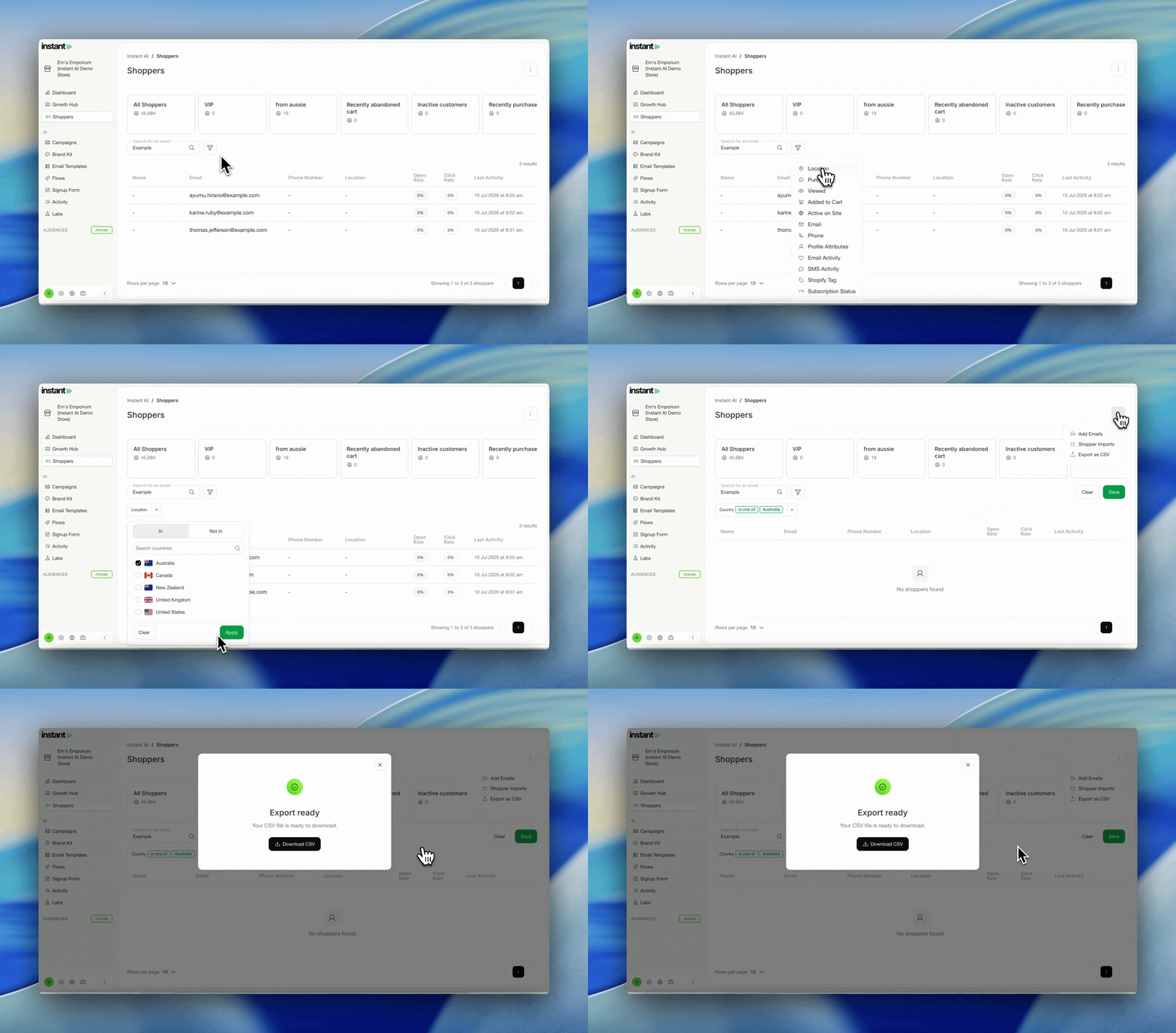
The export is a direct match of the table on screen. Whatever filters you have applied are exactly what gets downloaded, so you control the audience before it ever leaves Instant.
To build and export a segment for Google Ads:
- Go to Instant AI > Shoppers
- Apply any filters you want to define your audience (for reusable segments, see How to create and save segments in Instant AI)
- Check the shopper list on screen matches the audience you want
- Click the ⋯ menu in the top-right corner
- Select Export as CSV
- Once your file is ready, click Download CSV
To upload your list to Google Ads:
- In Google Ads, open Tools > Audience manager
- Go to Your data segments and click the + to create a new segment
- Select Customer list
- Upload the CSV you exported from Instant
- Map the columns Google Ads uses to match shoppers, such as email address and phone number
- Save the segment, then apply it to a campaign to target or exclude it
What the export includes
Each row is one shopper profile. The columns Google Ads uses to match shoppers are the Email Addresses and Phone Numbers fields. The file also includes Profile ID, Last Event Time, First Name, Last Name, address fields, and engagement counts. For the full column list, see How to export your Shoppers list.
Tip: Google Ads matches customers on email address and phone number, and both are included in the export. The more contact details in your list, the higher your match rate in Google Ads.
Note: The export reflects whatever is in view when you download it. Apply your filters first, then export, so the CSV contains only the shoppers you want.
FAQ
Does Instant integrate directly with Google Ads? No. Instant does not sync segments to Google Ads. You can export any segment as a CSV and upload it to Google Ads as a customer list, which gives you the same audience to target or exclude.
Do you have a direct integration for Meta? Yes. Meta connects natively and syncs your segments as Custom Audiences, refreshed every 24 hours, with no manual export. See How to set up the Instant AI and Meta integration.
What data does Google Ads use to match my shoppers? Email address and phone number. Both are included in the export, so no extra formatting of the data is needed on Instant’s side.
How do I keep my Google Ads audience up to date? The export is a point-in-time snapshot of your segment. To refresh it, re-export the segment from the Shoppers page and upload the new CSV to the same customer list in Google Ads.
Can I export a saved segment, or only a filtered view? Both. Open a saved segment or apply filters manually on the Shoppers page, then export. The download always matches what is on screen.
For more on connecting Instant to Meta, see How to set up the Instant AI and Meta integration. For more on segments, see How to create and save segments in Instant AI.