Instant can send an SMS as part of all your Abandonment flows and Stock flows. There is no extra setup to building the flows, once you enable it on your chosen flow, we handle everything automatically. SMS works the same way in every flow.
Before you start
SMS in Flows requires SMS to be configured on your account first. If you haven't done that yet, head to the SMS setup guide for your region: Enabling Instant AI SMS in Australia or Enabling Instant AI SMS in the US and Canada. It only takes a few minutes. Your per-SMS cost is shown there too.
-
Available for Australian (+61), US and Canadian (+1) phone numbers. Shoppers with numbers from other countries are skipped automatically.
-
Using Instant pop-ups? Make sure you've added the SMS opt-in step to your pop-up so you're capturing new SMS subscribers. If you're using a third-party pop-up tool that's integrated with Instant, or syncing an existing subscriber list from Klaviyo or Shopify, those consents are picked up automatically, no extra steps needed.
-
Turn off SMS in any other platforms you use for the same flows. Customers are forgiving of receiving a duplicate email, but a duplicate text is a fast way to lose a subscriber. If you're currently sending abandonment or stock alert SMS through Klaviyo or Attentive, disable those before enabling SMS in Instant.
How it works
When SMS is enabled on a flow, Instant sends one SMS per enrolment.
Here's an example how it fits into a standard flow:
- Touchpoint 1: Email
- Touchpoint 2: SMS (if the shopper has SMS consent & an Australian, US or Canadian number), or Email (if they don't)
- Touchpoint 3: Email
If your flow has more than 3 touchpoints, SMS still only sends once at touchpoint 2. All other touchpoints send email only.
A few things worth knowing:
- One SMS per enrolment, always. A shopper will never receive more than one text for the same enrolment, whether that is an abandoned cart, a browsing session or a stock alert.
- Predictable cost. Every message is kept within the standard character limit, so you're never charged more than one SMS credit per send.
- AI-generated content. Each message is unique to the shopper and their cart so there's nothing to write or configure to keep it relevant to that interaction.
- Coupons carry through. If you have a coupon configured on touchpoint 2, it's included in the SMS automatically.
- If a shopper converts or unsubscribes before touchpoint 2, the SMS is skipped.
Example SMS
Each message follows this structure:
[store name]: [personalised AI message]
[cart link]
text STOP to opt out
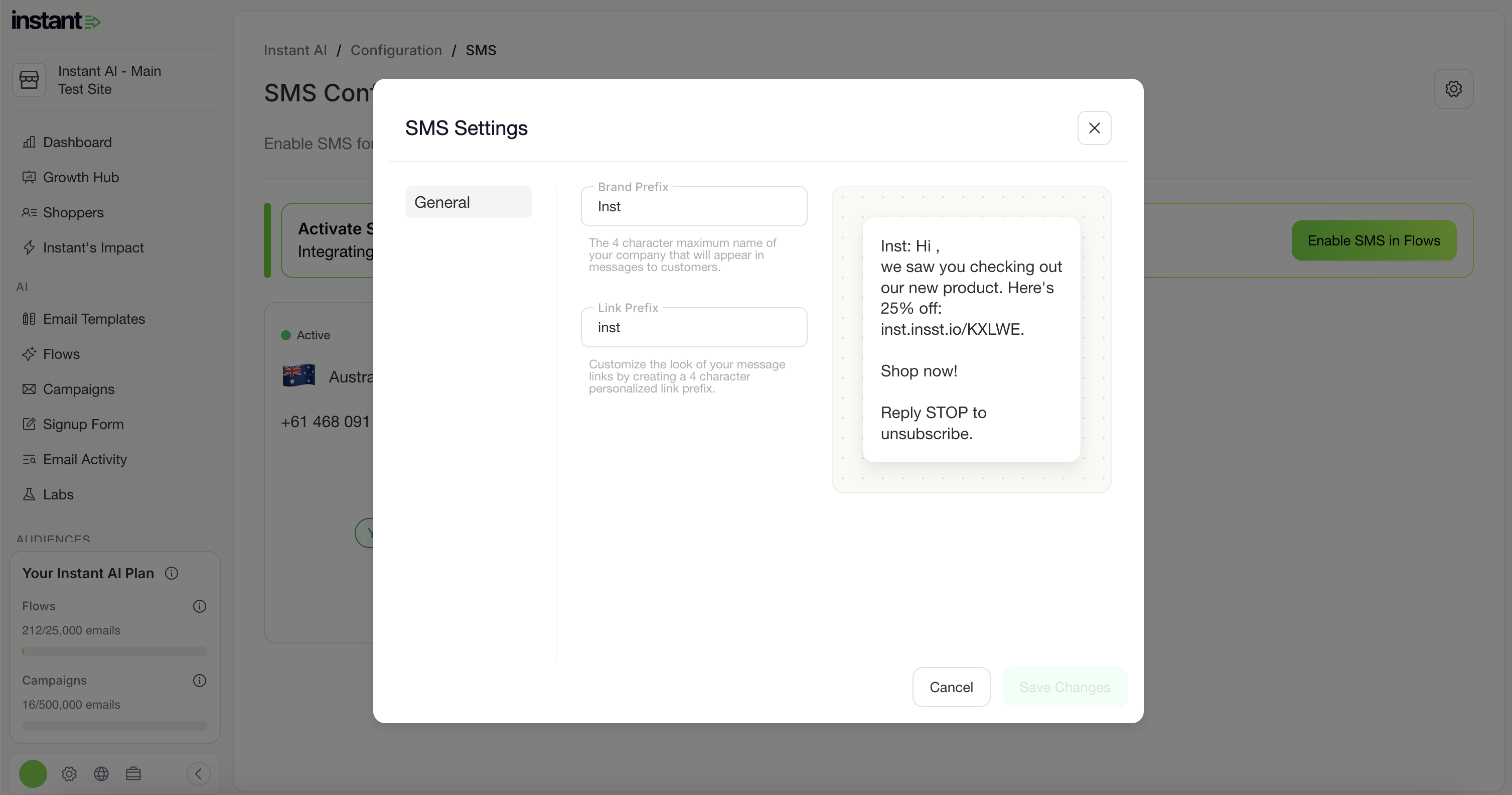
The store name prefix (e.g. inst:) is set during SMS configuration and can be customised to your brand name. Additionally, the prefix used in your links can also be customised. In this example, we've used Inst as the setting, but this could be replaced with any 4 characters to suit your business. The cart link takes shoppers directly back to their cart.
Here's what a few look like in practice:
Inst: Hi Steve, still thinking about the House Jeans? Its durable denim is built to last. https://inst.insst1.io/TdPai — text STOP to opt out
Inst: Flawless foundation that blends effortlessly and lasts all day. See it again? https://inst.insst1.io/ZO2pW — text STOP to opt out
SMS Consent
Instant only sends SMS to shoppers who have given explicit SMS consent. This is separate from email consent. Shoppers need to have actively opted in to receive texts.
Unsubscribes are handled automatically and synced in both directions with Klaviyo, if you have an integration.
- If a shopper replies STOP to an Instant SMS, we notify Klaviyo and suppress them there too.
- If a shopper unsubscribes from SMS in Klaviyo, Instant receives that notification and stops sending to them.
A shopper can be unsubscribed from SMS but still subscribed to email, or the reverse. These are managed as separate subscriptions.
Enabling SMS on a flow
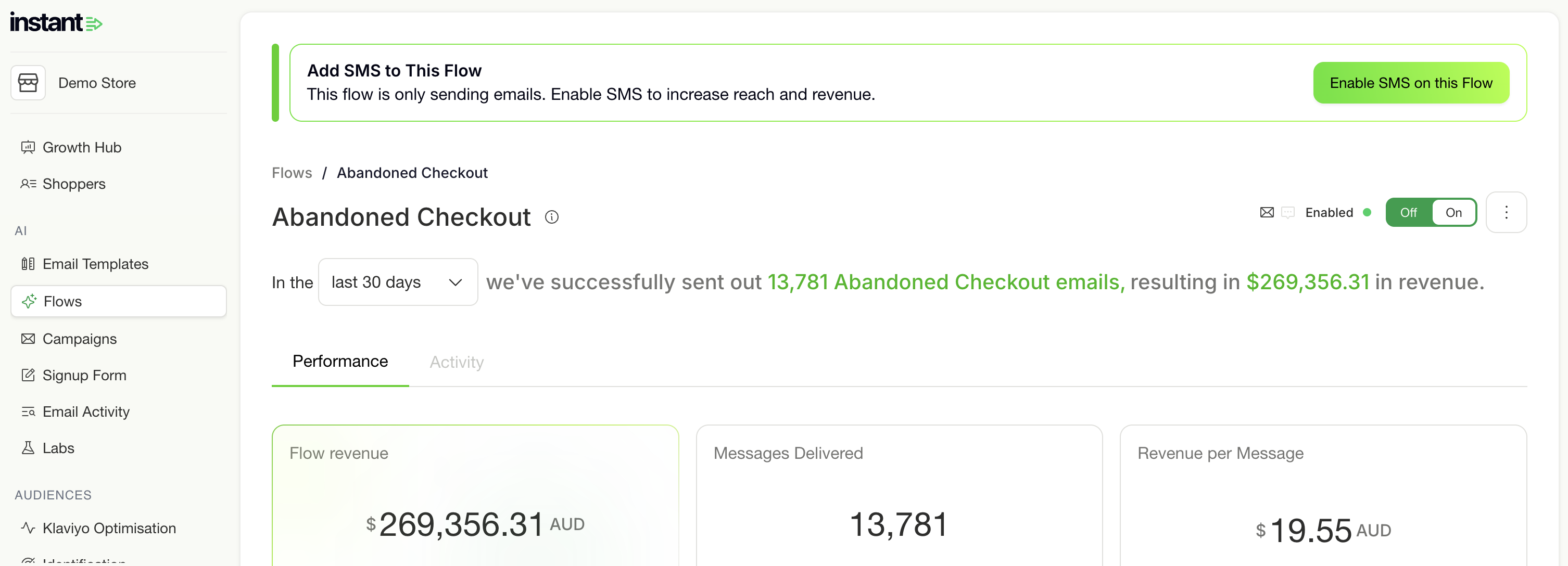
When you open an Abandonment or Stock flow, you'll see one of the following banners:
-
"Unlock SMS for Your Flows"
If SMS isn't configured on your account yet, click Try SMS to get set up, here's how. -
"Add SMS to This Flow"
If SMS is configured and ready. Click Enable SMS on this Flow and it goes live immediately. -
"SMS Is Paused on This Flow"
If you've previously disabled SMS on this flow. Click Re-enable SMS to turn it back on.
Sending a test SMS
Send the flow's SMS to your own phone to check how the message reads and that the link opens the right page.
- Open the flow.
- Select the three dots in the top-right corner of the flow.
- Select Send test SMS.
- Choose your country and enter your phone number.
- Click Send test SMS.
The test uses sample shopper data and the first name on your Instant account. If the SMS includes a coupon, the test shows a sample code that does not work at checkout.
Note: Each test SMS uses SMS credits, like any send. You can send 20 test SMS a day across all your flows and campaigns. The count resets at midnight in your store's local time zone, and the Send test SMS window shows how many you have left.
Viewing performance
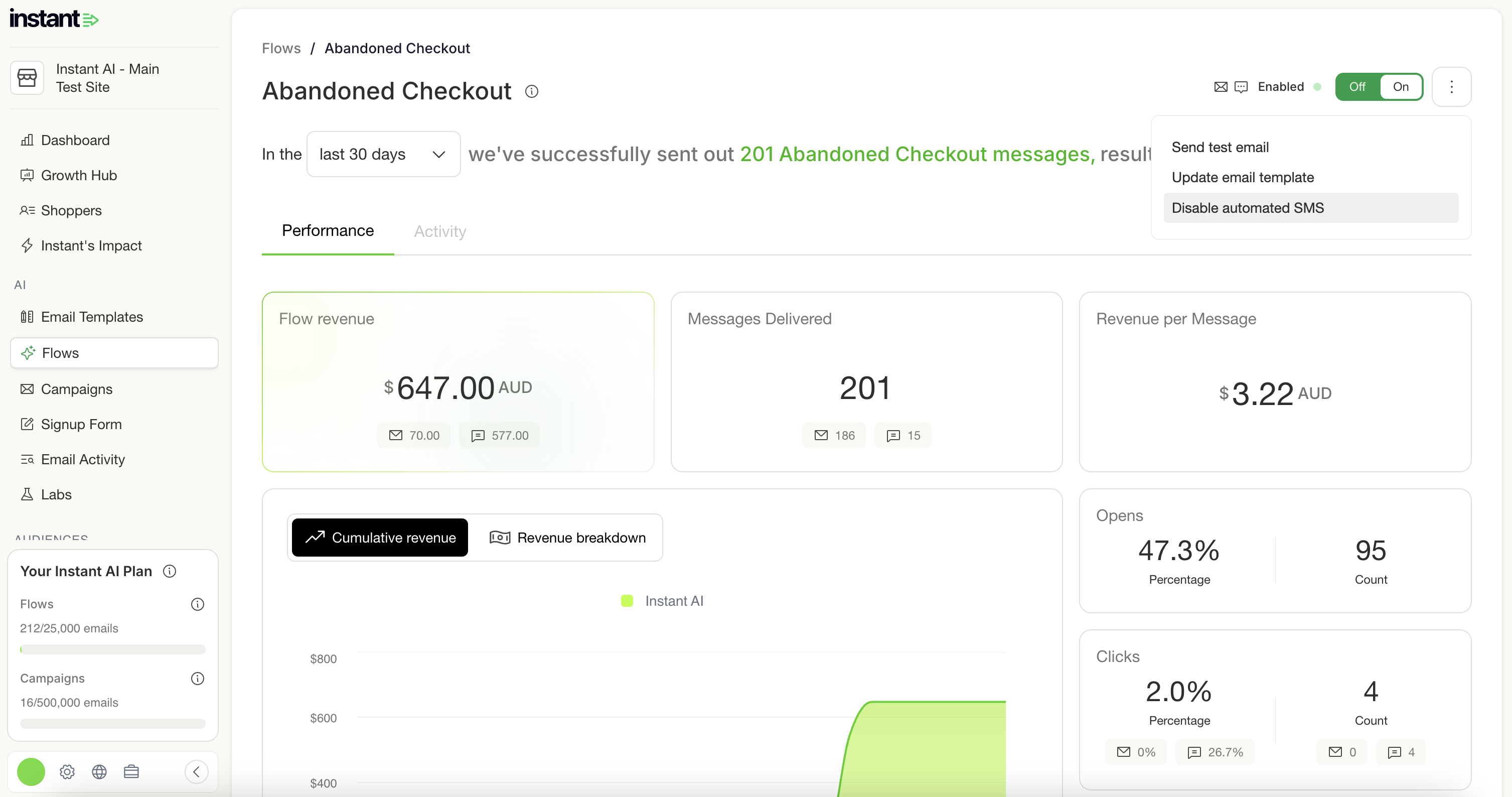
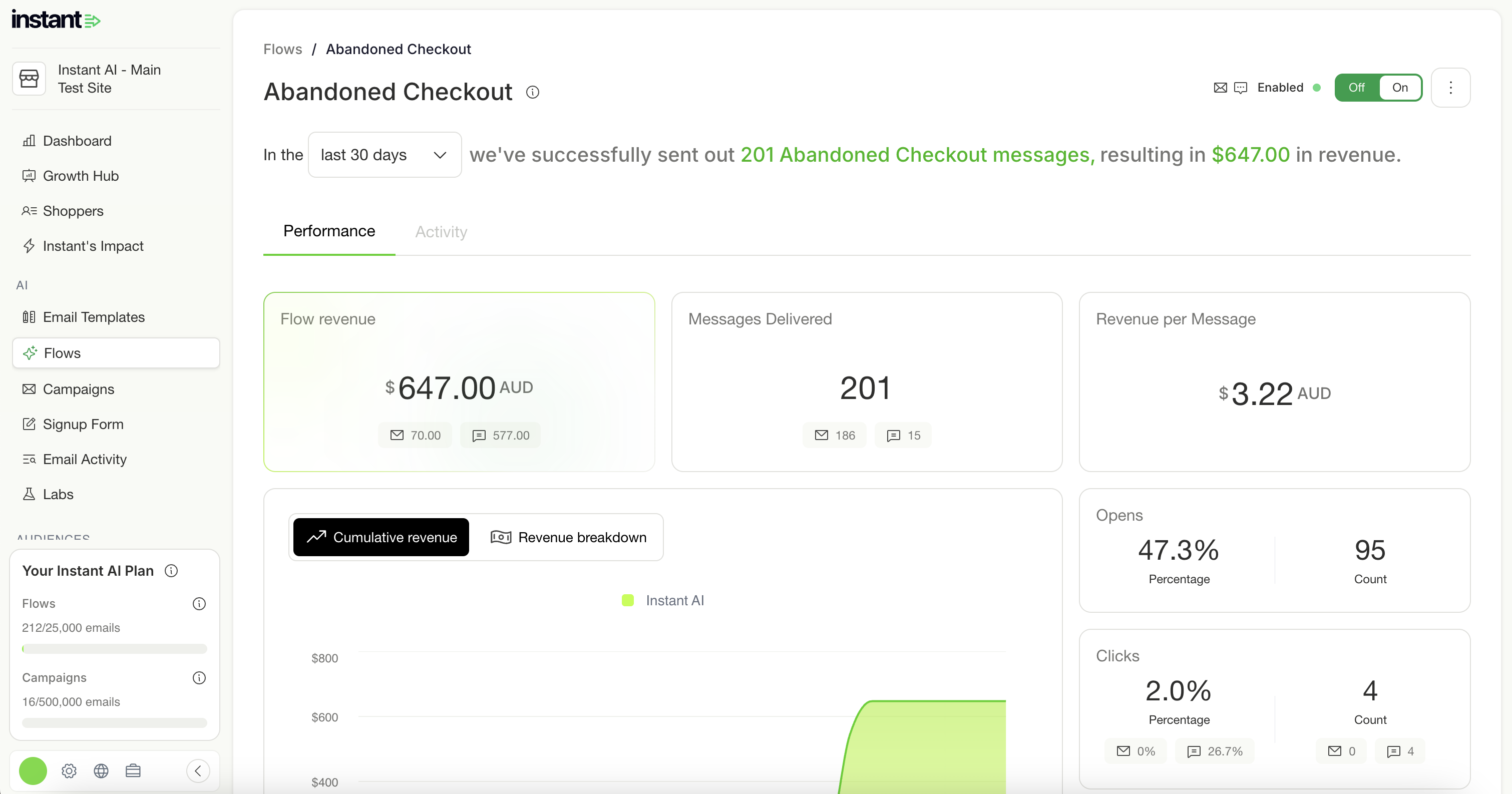
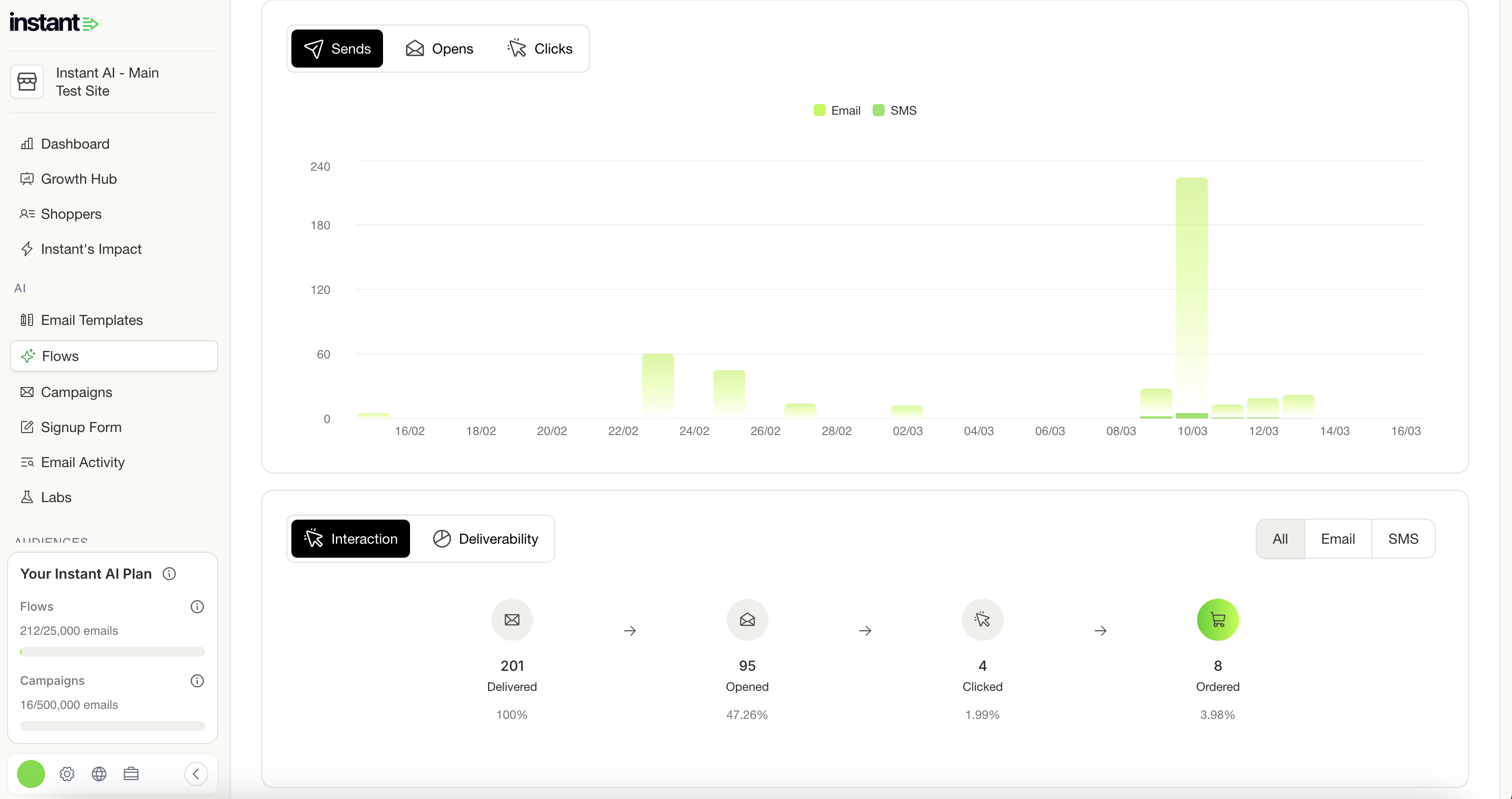
Once SMS is live, your flow dashboard shows a full breakdown by channel.
At the top of the Performance tab:
- Flow Revenue (total, with an email/SMS split shown below)
- Emails Sent (total sends across both channels)
- Revenue per Email
The Sends chart lets you toggle between Opens, Clicks, and Sends, with Email and SMS shown as separate bars so you can see how each channel performs over time.
The Interaction and Deliverability section can be filtered by All, Email, or SMS, which is useful for checking deliverability health per channel. The flow header updates to "Enabled on Email & SMS" so you can always see both channels are running at a glance.
Viewing activity
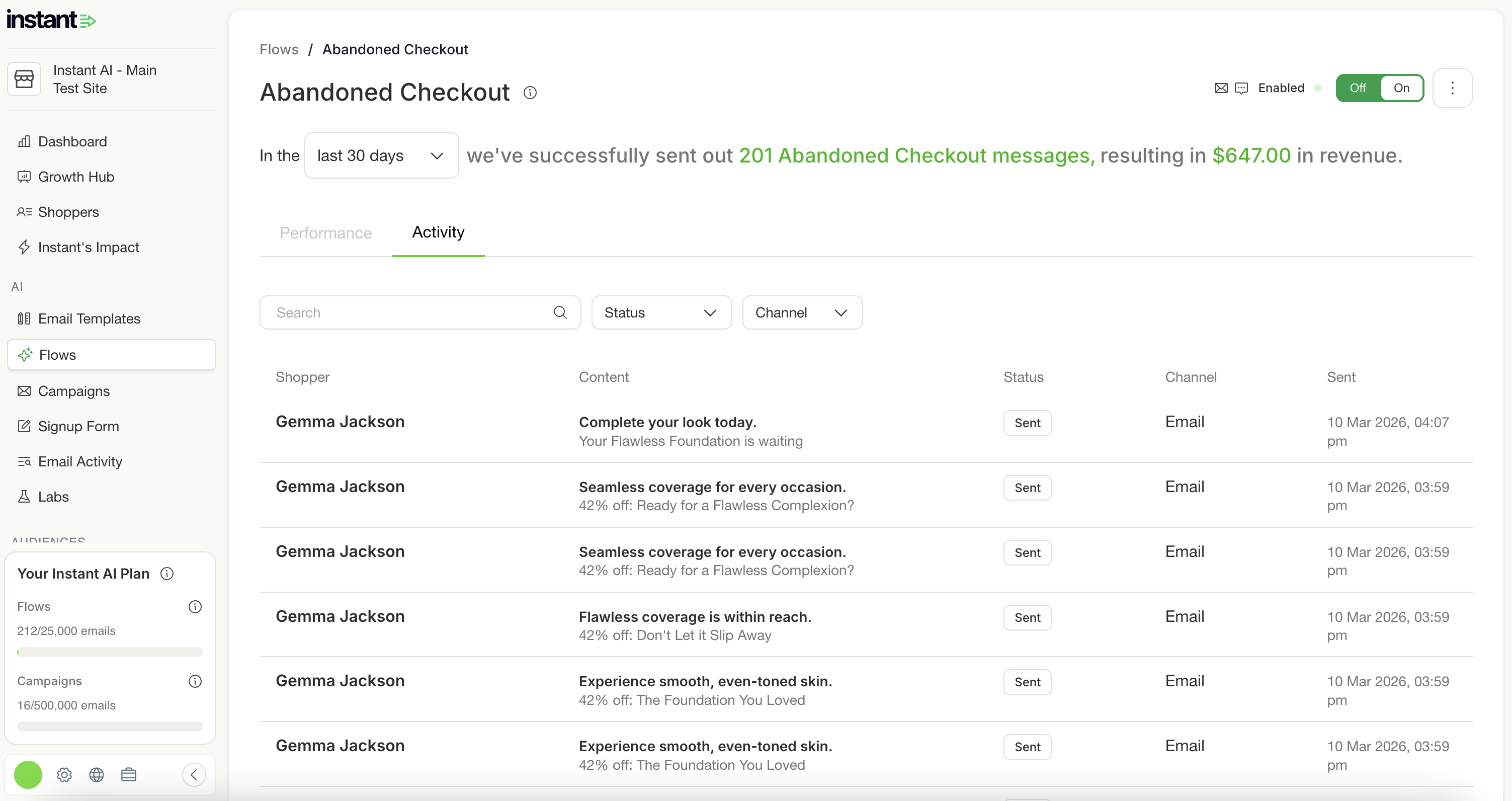
The Activity tab shows every message sent, email and SMS in one list. Each row shows:
- Shopper name or email
- A preview of the message content
- Send status (Sent, Clicked, Blocked)
- Channel (Email or SMS)
- Date and time sent
Filter by Status or Channel to find what you're looking for quickly.
Viewing an individual SMS
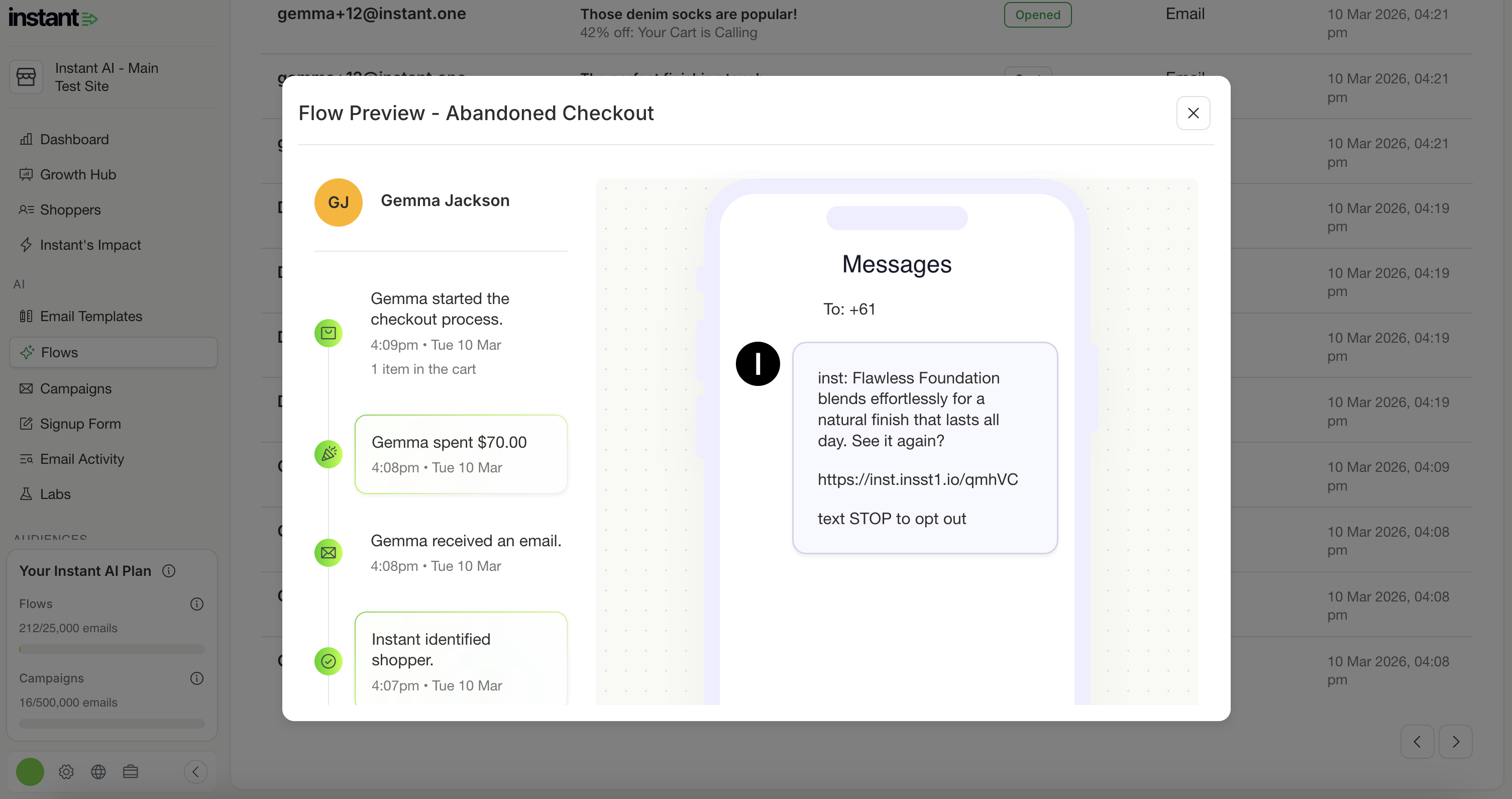
Clicking any row opens the shopper's full flow preview. For SMS touchpoints you'll see:
- A preview of the exact message sent, displayed as it appears on a phone
- The shopper's full timeline: when they were recognised, what they browsed, every touchpoint sent, and whether they converted
- Full attribution and conversion data, same as email
All revenue attributed to an SMS conversion counts toward your flow's total revenue and the main dashboard.
Disabling SMS on a flow
Select the three dots in the top-right corner of the flow, then Disable automated SMS to turn SMS off at any time. SMS stops immediately and our flow keeps sending emails as normal.
When you re-enable it later, the "SMS Is Paused" banner will prompt you to turn it back on. Historical SMS data from before it was paused stays visible in your dashboard.