Net New Profile Guides and Resources
Net New Profile Export helps brands re-target anonymous shoppers on their website through targeted, high-intent abandonment flows.
Guides and docs relating to this feature are available below.
- How do I view profiles identified by Instant Net New?
- Best practices for Net New Profiles with EDMs / Campaigns
- Why is my revenue from Instant flows much higher than the number of Net New Profiles?
- How do I add Net New Profiles to Welcome Flows?
Why does BigCommerce report more carts and abandoned carts since enabling Instant Audiences?
Unlike Shopify, cart abandonment links from BigCommerce do not encode the contents of each shoppers cart. This means that, without Instant Audiences, there is a high chance that by the time a shopper clicks the links in your cart abandonment emails, their cart has expired, and they'll land on your checkout with no products in their cart. This harms overall conversion rates and therefore revenue for your website.
To get around this problem, Instant Audiences generates a new cart for each abandoned shopper, encoding the contents of their cart in the URL sent by your email marketing software.
This feature increases the likelihood of shoppers converting on your website after receiving a cart abandonment link.
Because Instant Audiences creates new carts via BigCommerce's API, this feature may distort BigCommerce's inbuilt abandoned cart reporting, making it report more carts (and therefore more abandoned carts). We generate a cart once for every visitor that performs either an add to cart, or a checkout started event. Once it is generated, we cache that new cart. If the customer adds an item or removes an item from their cart, it then gets regenerated and re-cached.
We recommend merchants use a tool like Google Analytics to accurately track conversion rates and abandoned carts, though our team can disable this feature for merchants who would rather use BigCommerce's inbuilt abandoned cart reporting, noting that this will negatively impact revenue generated by your cart abandonment flows.
Why isn't my Instant dashboard displaying revenue from all of my Instant flows?
If you're seeing discrepancies in the revenue displayed on your dashboard, it could be due to recent changes in your Instant Audiences flow setup.
To ensure all revenue is properly reflected in your Instant dashboard, please follow the steps below.
-
Ensure relevant flows include "Instant Audiences" in their flow name.
For your Audience flow to be included in dashboard reporting, the flow name must include the term "Instant Audiences". This keyword is used to filter and identify relevant flows for accurate reporting.
-
Double-check that relevant flow are Not Archived.
If you've recently archived a high-revenue flow while adjusting your setup, this could explain a sudden drop in reported revenue. As archived flows do not contribute to dashboard reporting, please ensure that the flows you want to track are not archived.
-
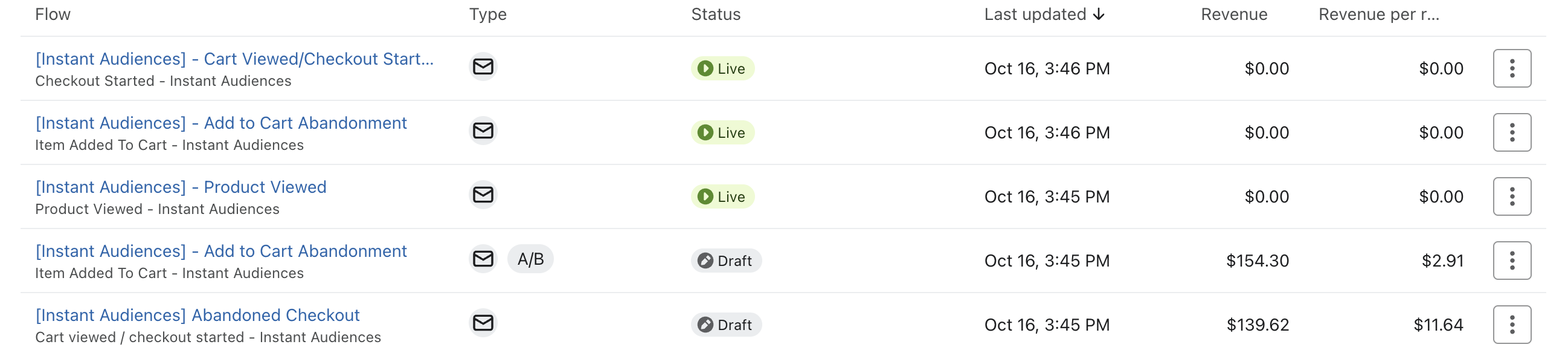
Verify that the Flow is Live or in Draft Status
Your dashboard will only track flows that are either Live or in Draft. To ensure your flow is tracked, confirm flows you'd like to track either Live or in Draft status.
Audience Profiles & Events
User Profiles
Once Instant Audiences has been set up, it begins the tracking of profiles and user activity. We use this activity to match and identify the anonymous shoppers as they interact with your storefront.
If Instant Audiences is able to identify a user through their interactions, a profile is created or updated within your email service provider. This user profile will record all the tracked activities associated with that specific user.
All profiles identified by Instant Audiences are then tagged with a custom property within your email service provider. This ensures that you have a comprehensive overview of all your customers' interactions and allows you to track all of the profiles we have provided to you.
The 'Instant Audiences Tags' custom property has the following options:
- 'Net New': New contacts identified and created by Instant Audiences
- 'All': All identified profiles, including existing subscribers
Events (Metrics)
Instant Audiences monitors a range of user events, including the following:
- Collection Viewed: Tracks when a user views a specific collection of products.
- Product Viewed: Record when a user views a specific product or service.
- Add to Cart: The user adds item(s) to their shopping cart.
- Cart Viewed/ Checkout Started: Monitors visits and initiation of the checkout.
.png)
How do I setup my flows for sale periods?
During the holiday period, your business may decide to run seasonal promotions to boost revenue and generate more activity for your brand. Because these promotions typically run for one day or over the weekend, we recommend adjusting your existing flow to avoid any flow disruption or duplicate emails.
By making small changes to your existing flows, you can ensure timely email delivery and accurate tracking of activity for your seasonal promotions.
Best Practices for Flow Adjustments:
Option #1: Edit the Existing Email or SMS
Modify the current content in your email to reflect the seasonal promotion.
Steps:
- Navigate to your existing flow.
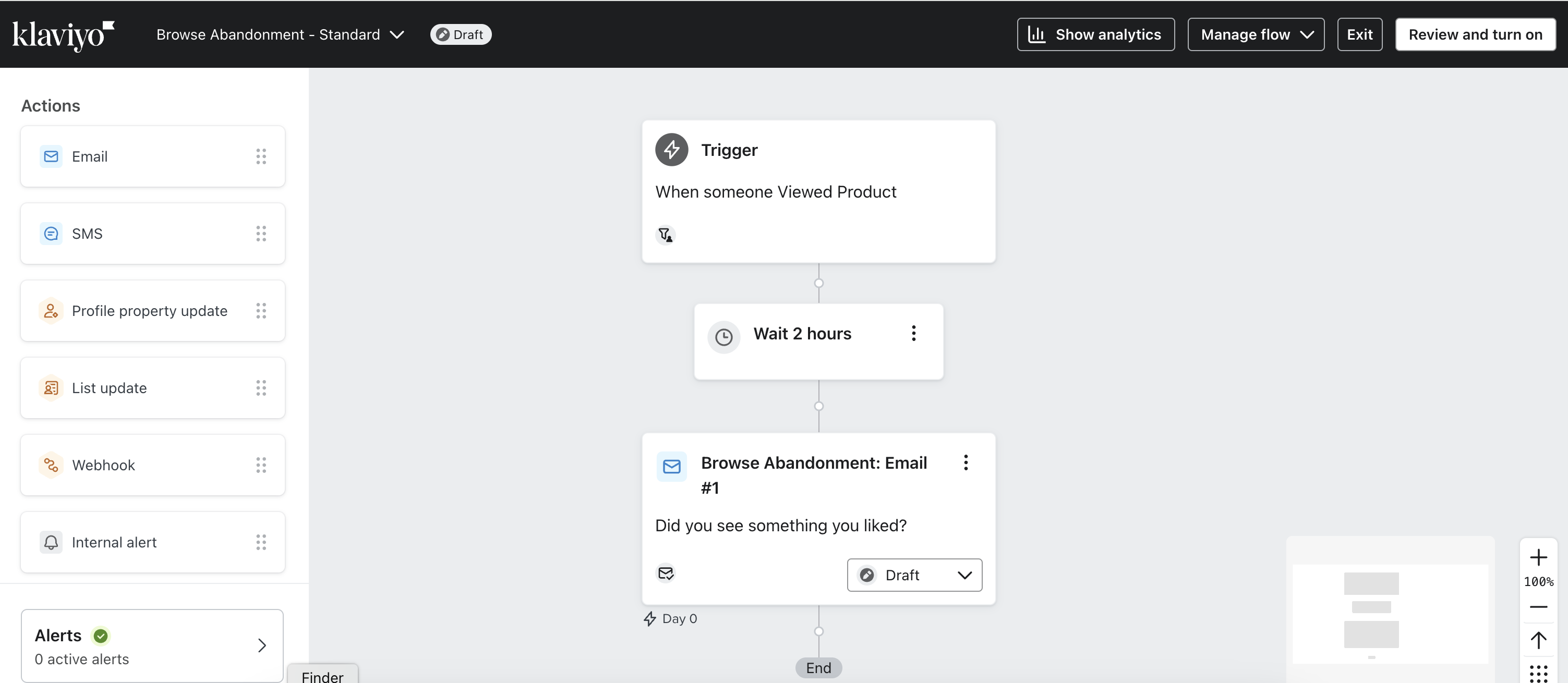
2. In the email box, click on the three dots in the top right corner of the email and select Edit.
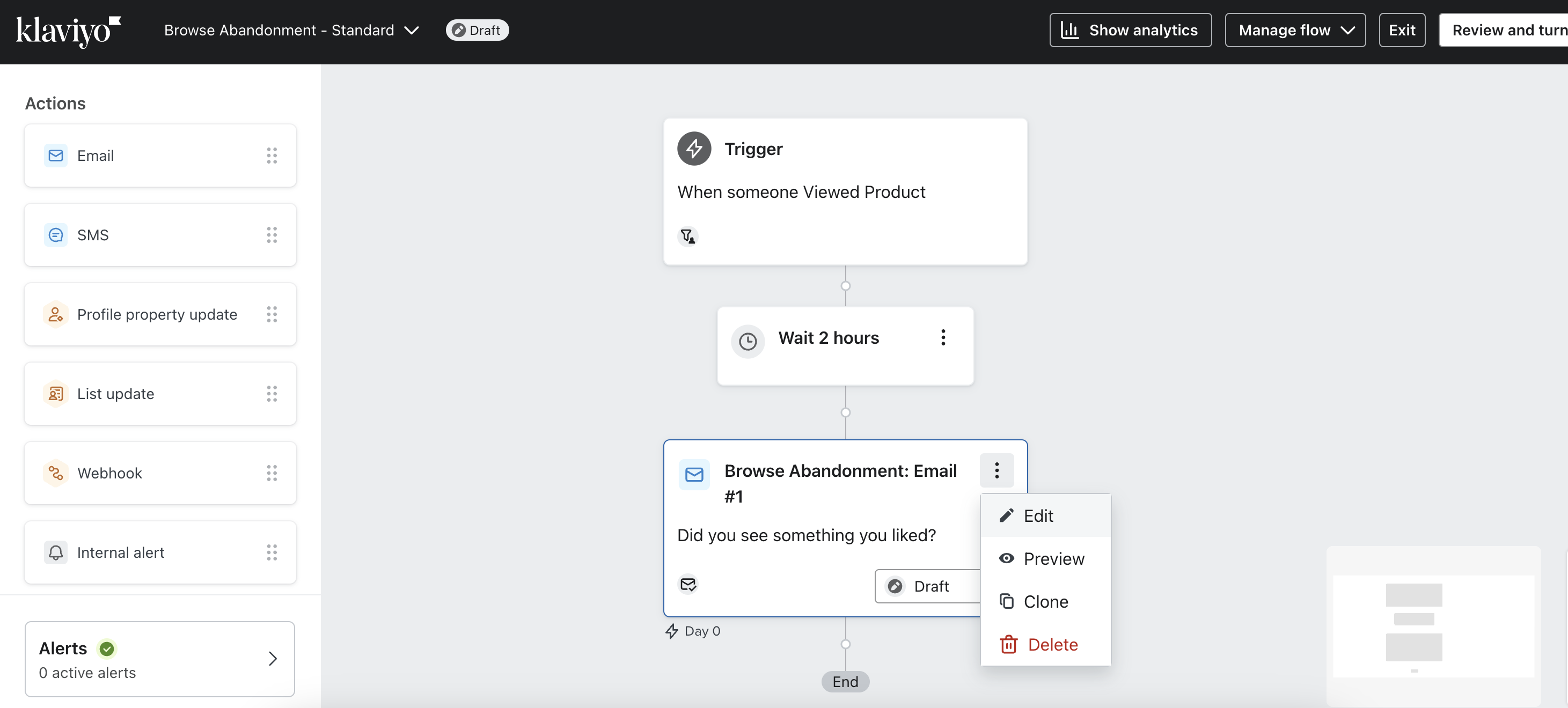
3. On the next page, click the subject line and update the content to reflect your promotion.
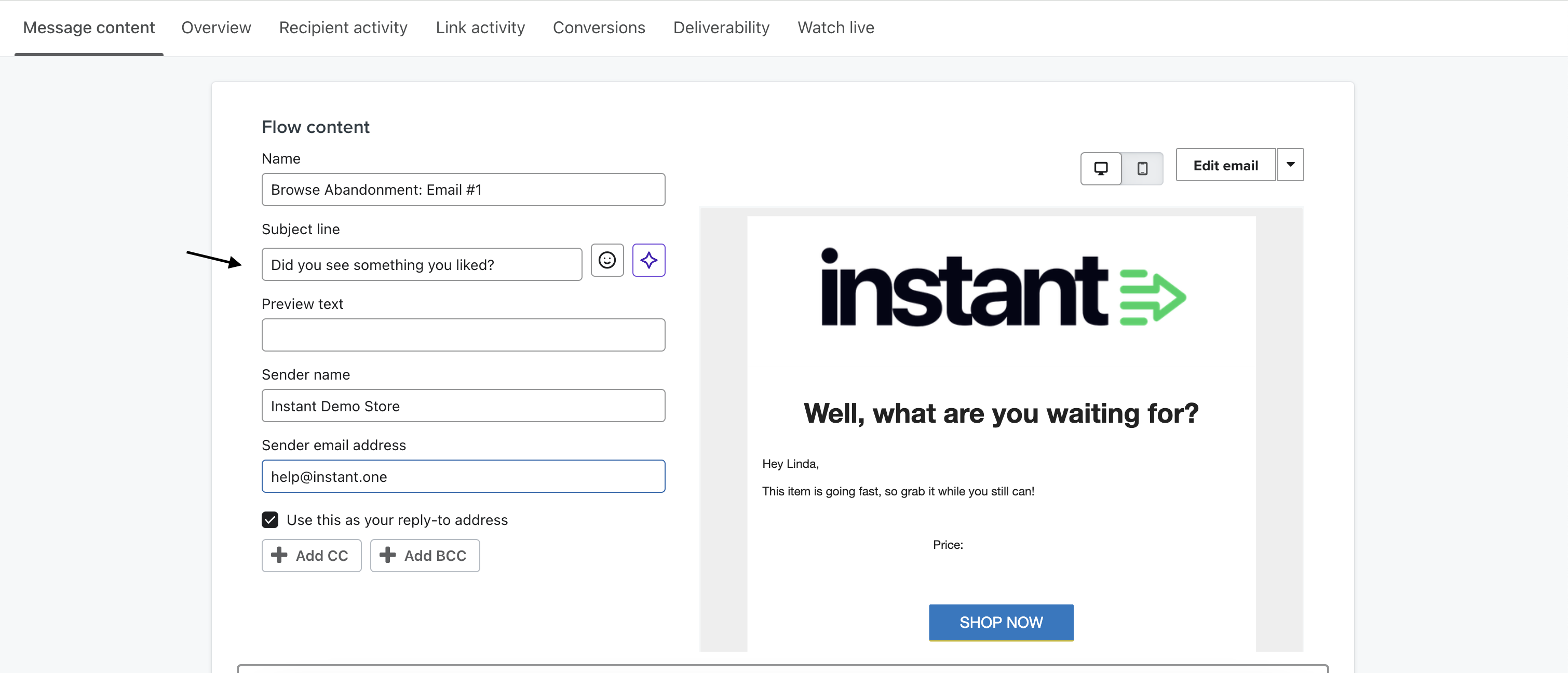
4. Once you've made the necessary changes, click Done in the top right-hand corner.
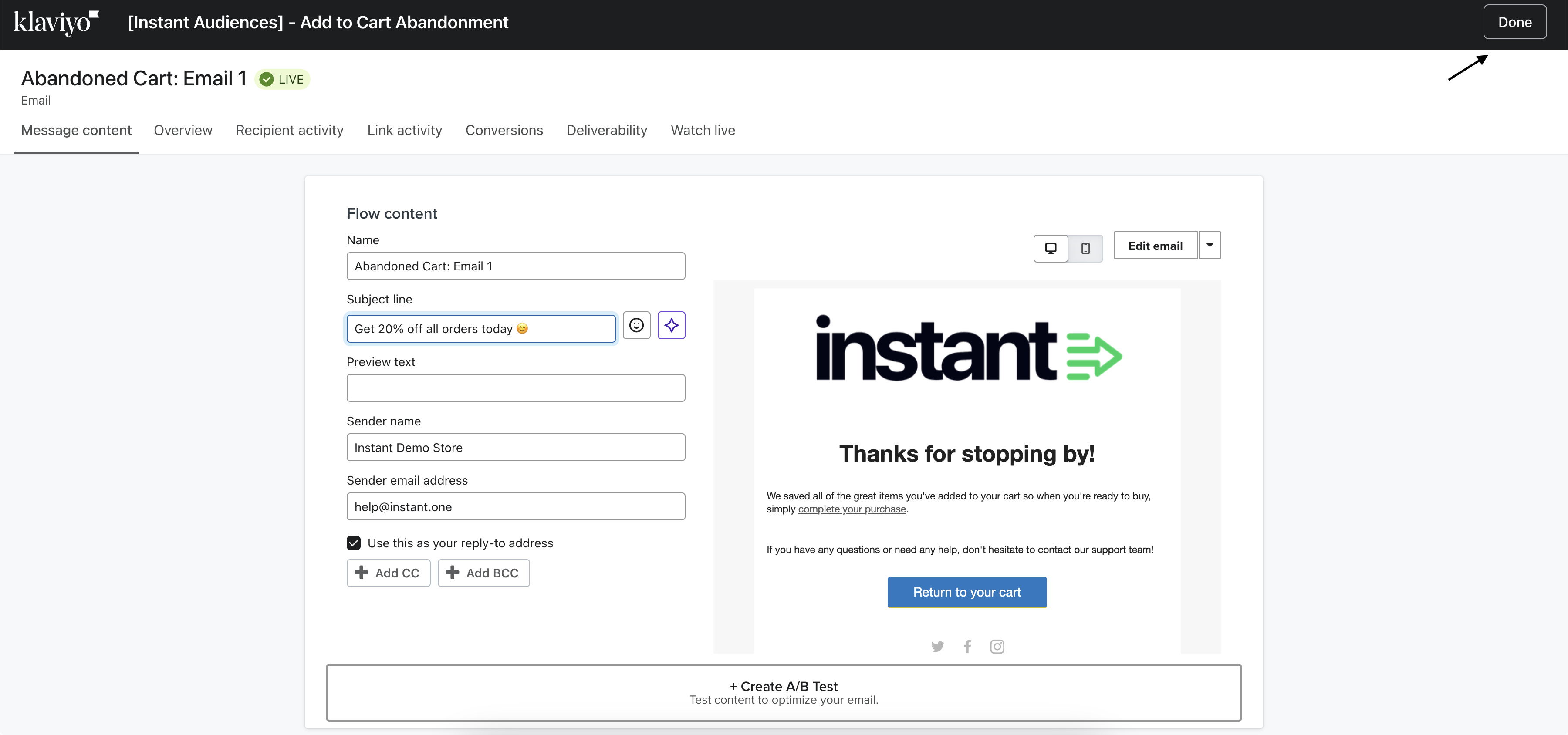
5.Your updated changes will now be reflected in the email.
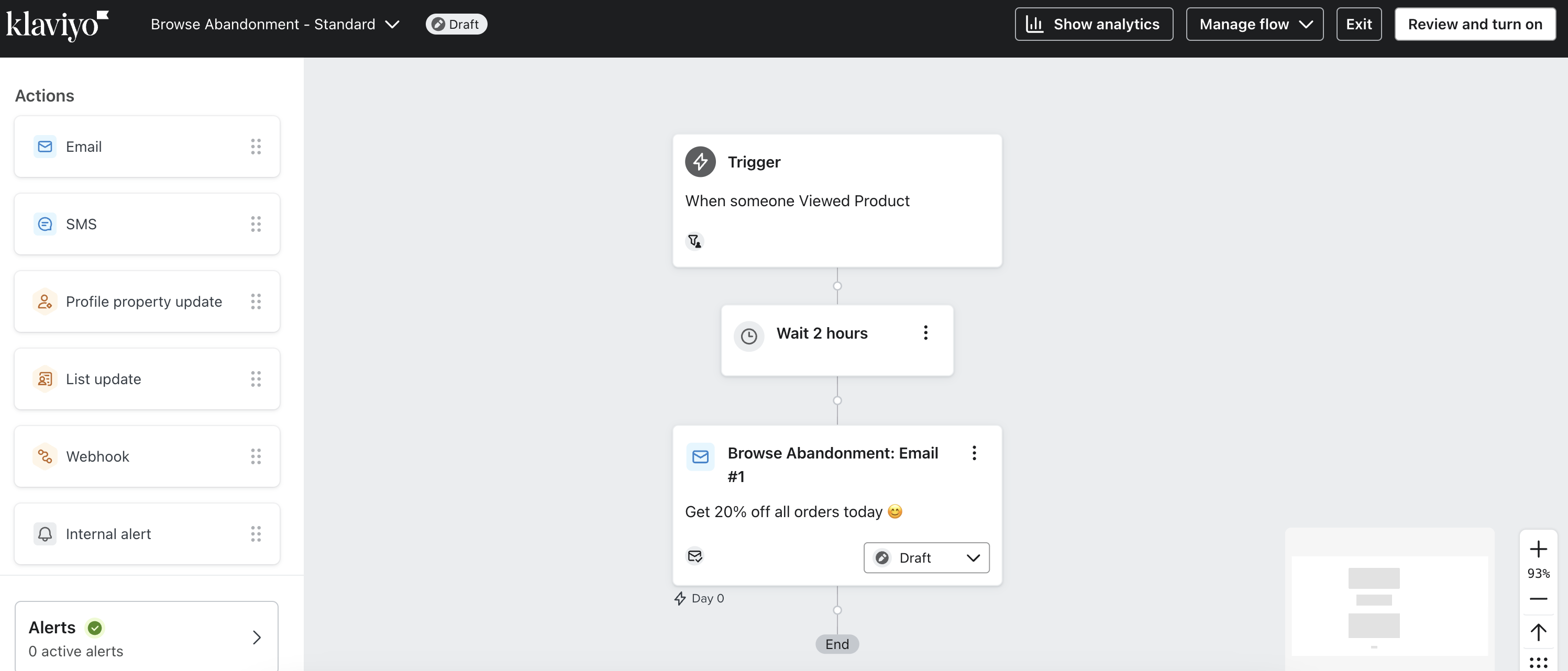
6. To test the changes, click on your email to open the panel on the right, and scroll down to the subject and sender section.
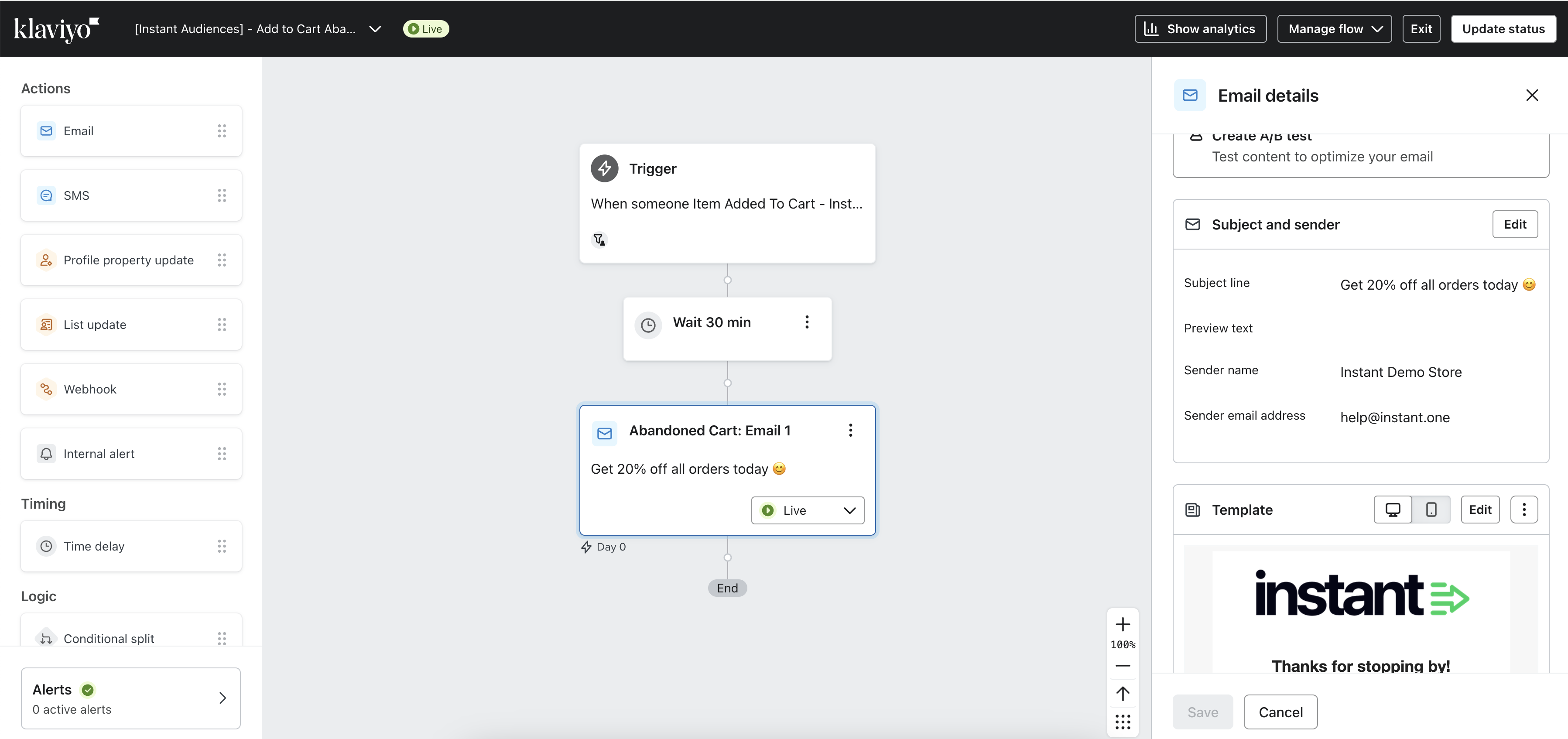
7. Click Edit.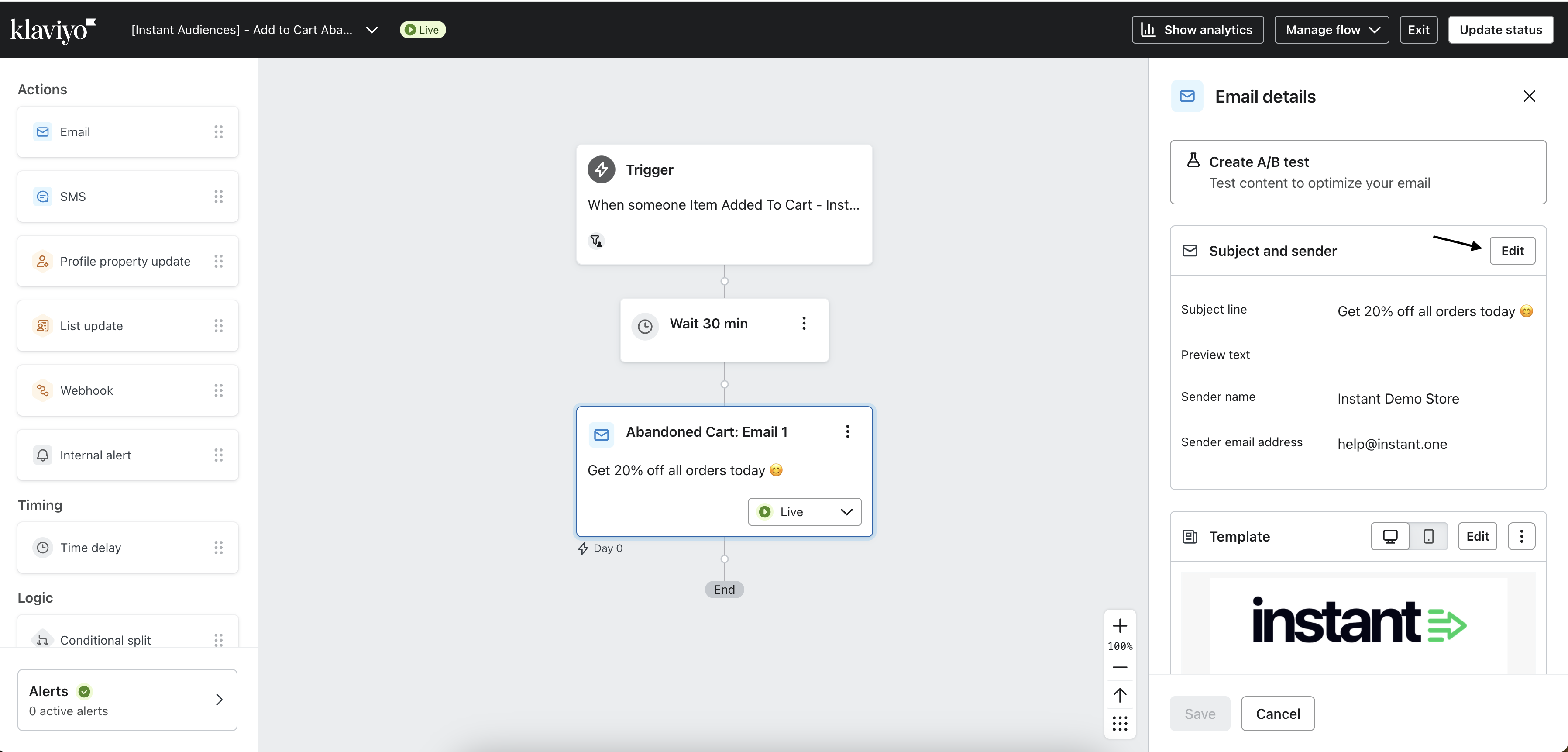
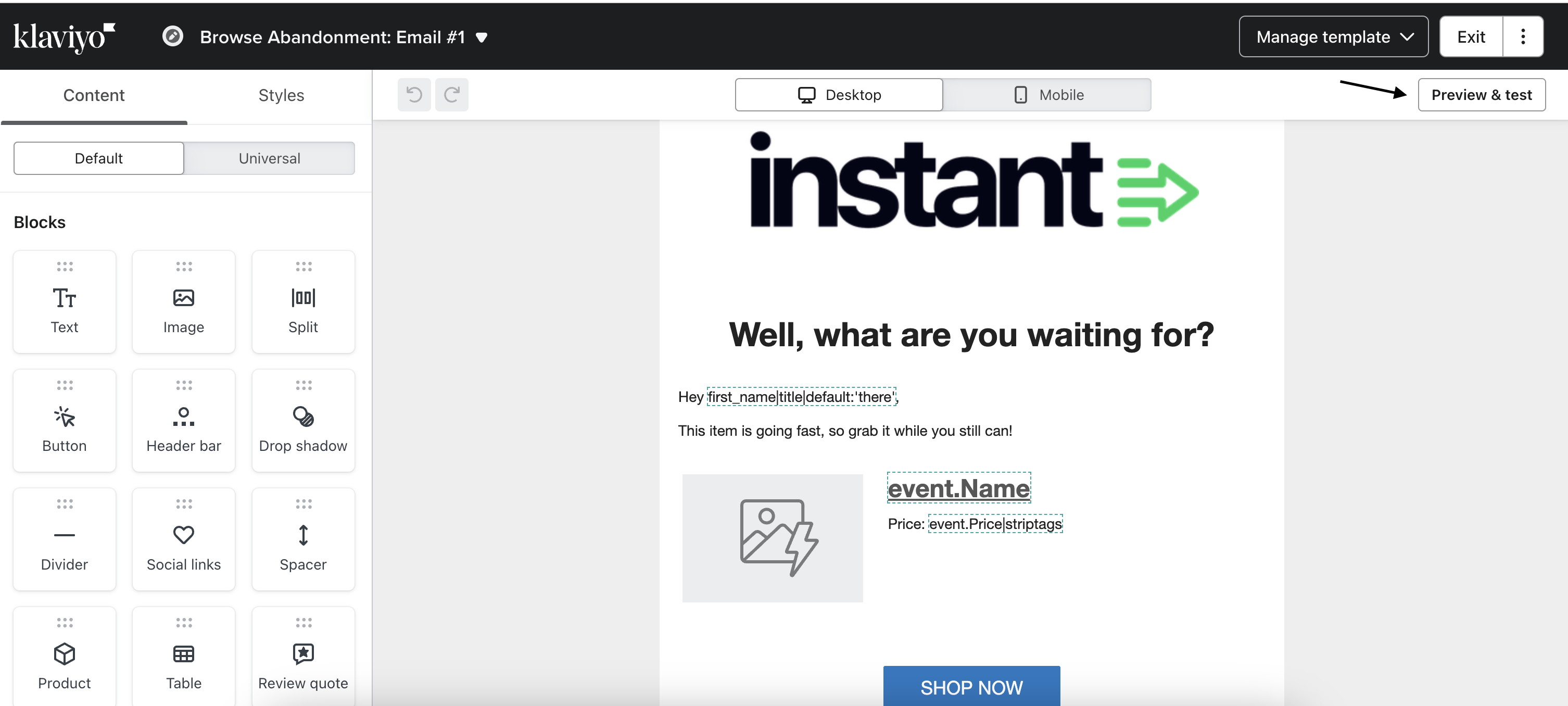
8. On the Manage Template page, click Preview & Test.
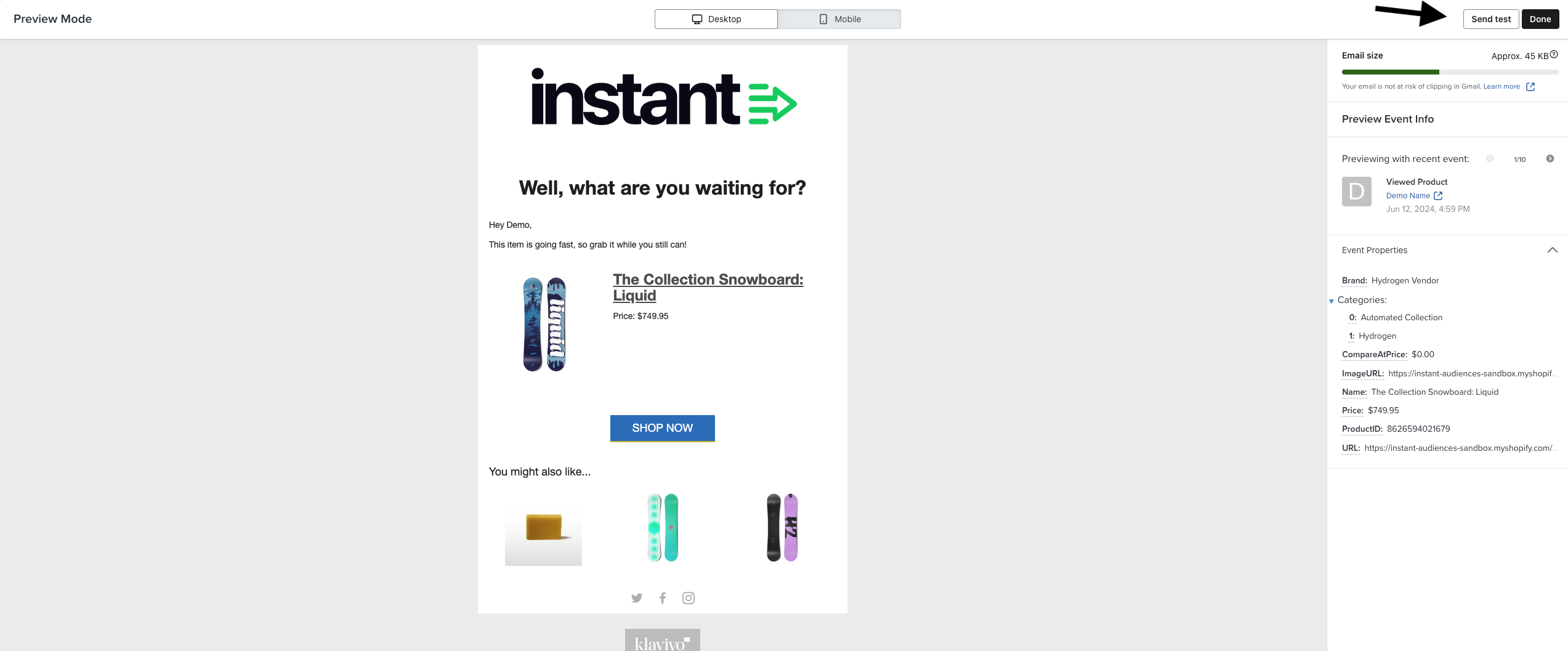
9. On the Preview Mode page, click Send test.
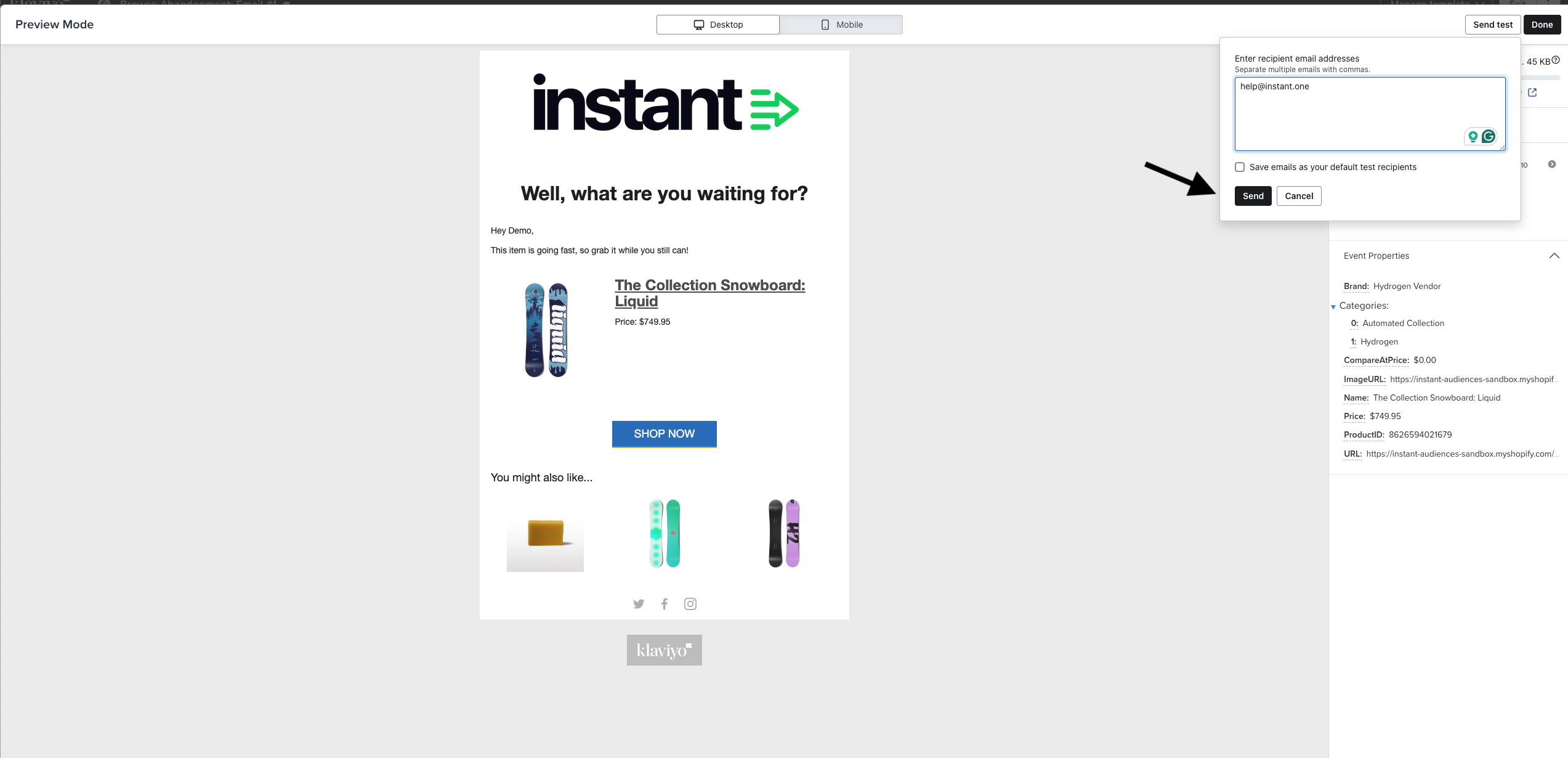
10. In the popup, enter your email address and click Send. The preview will be sent to your inbox.
Option #2: Clone the Existing Email or SMS
Clone your existing email and modify the new copy to fit your needs.
Steps:
-
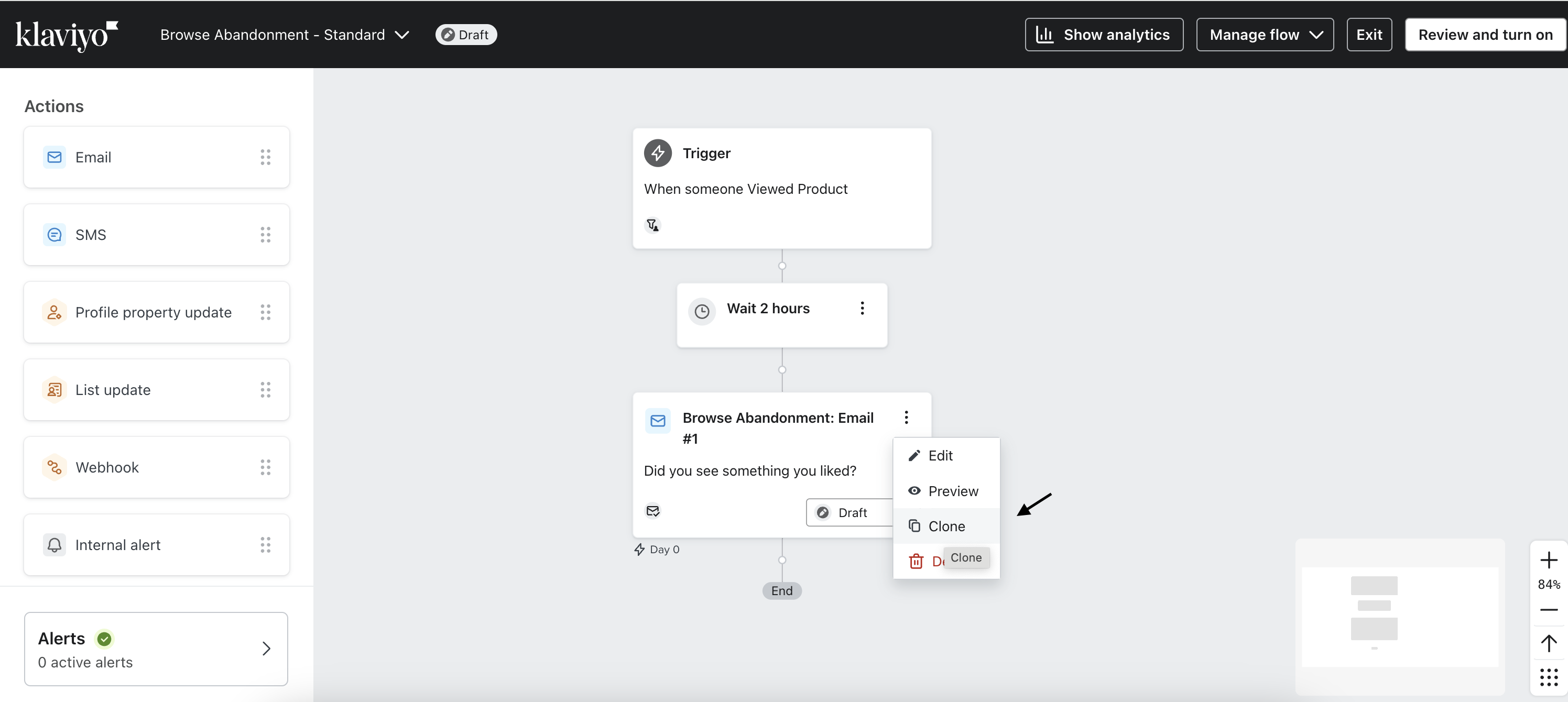
Navigate to your existing flow and click on the email under the trigger. Next, click the three dots in the top right corner and select Clone.
2. A cloned copy of the email will appear directly below the original email.
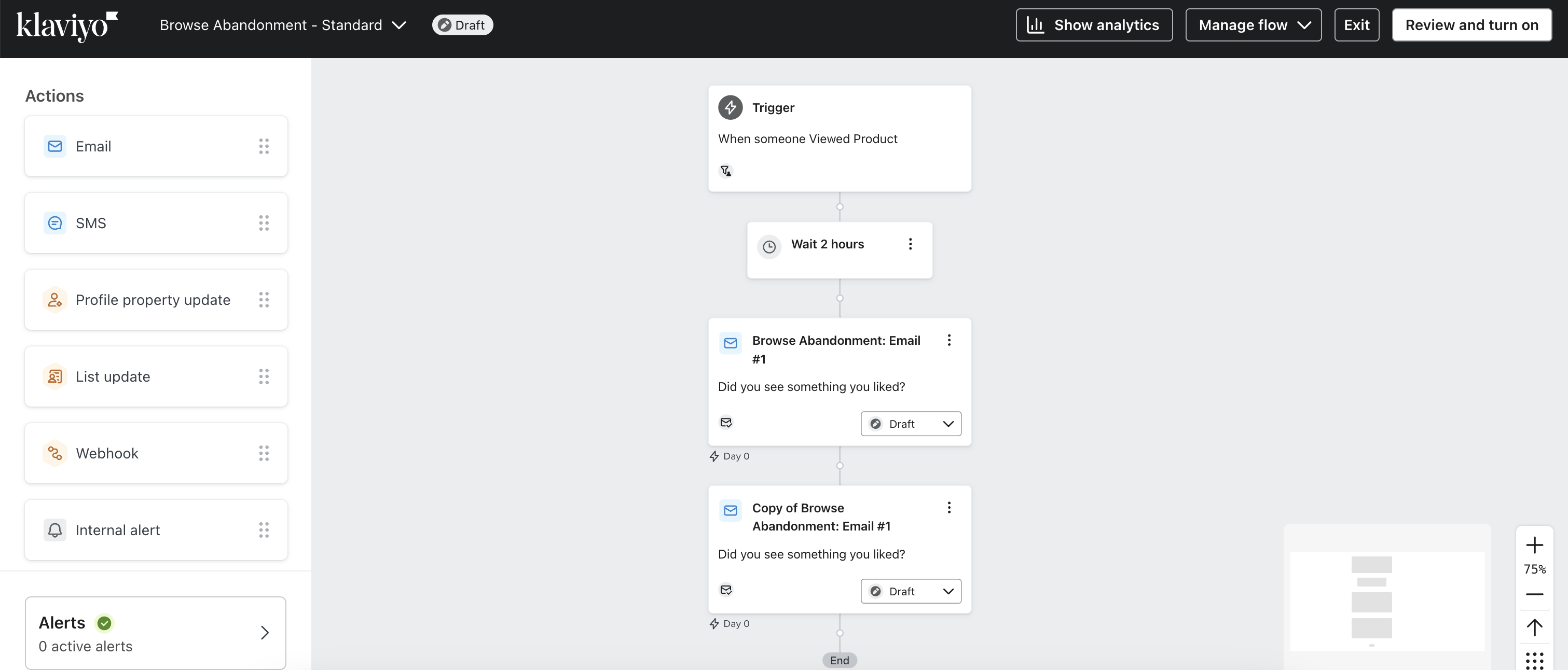
3. In the top right-hand corner of the clone, click the three dots and select Edit.
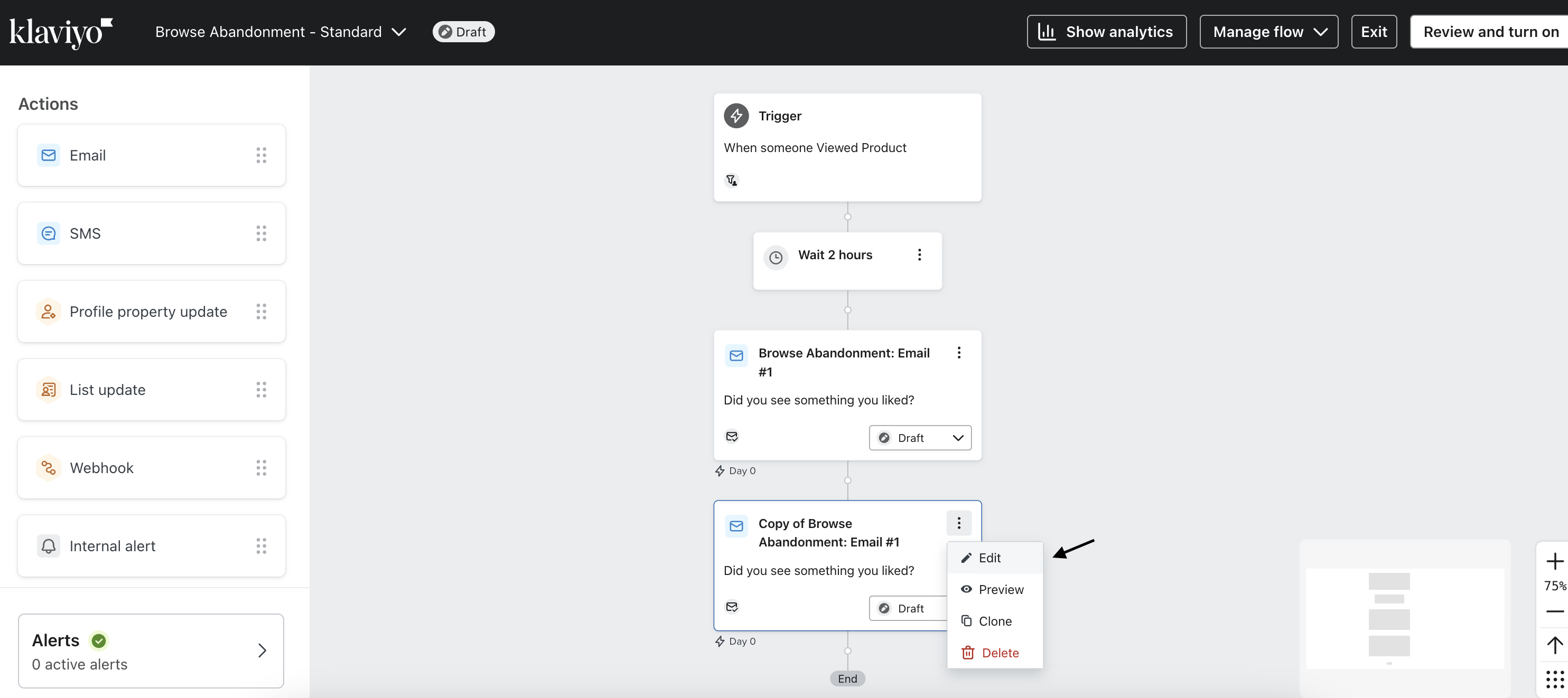
4. On the next page, click the subject line and update the content to reflect your promotion.
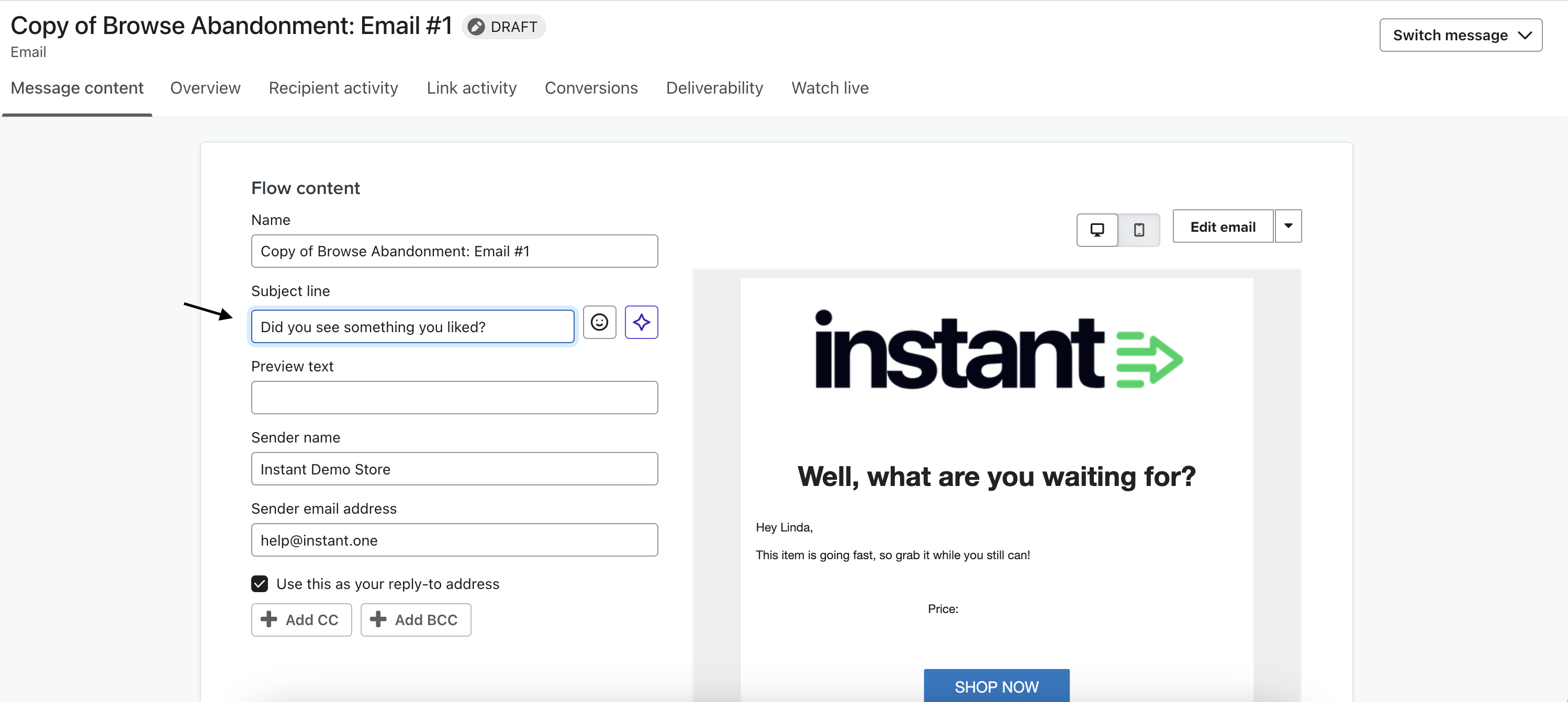
5. Once you've made the necessary changes, click Done in the top right-hand corner.
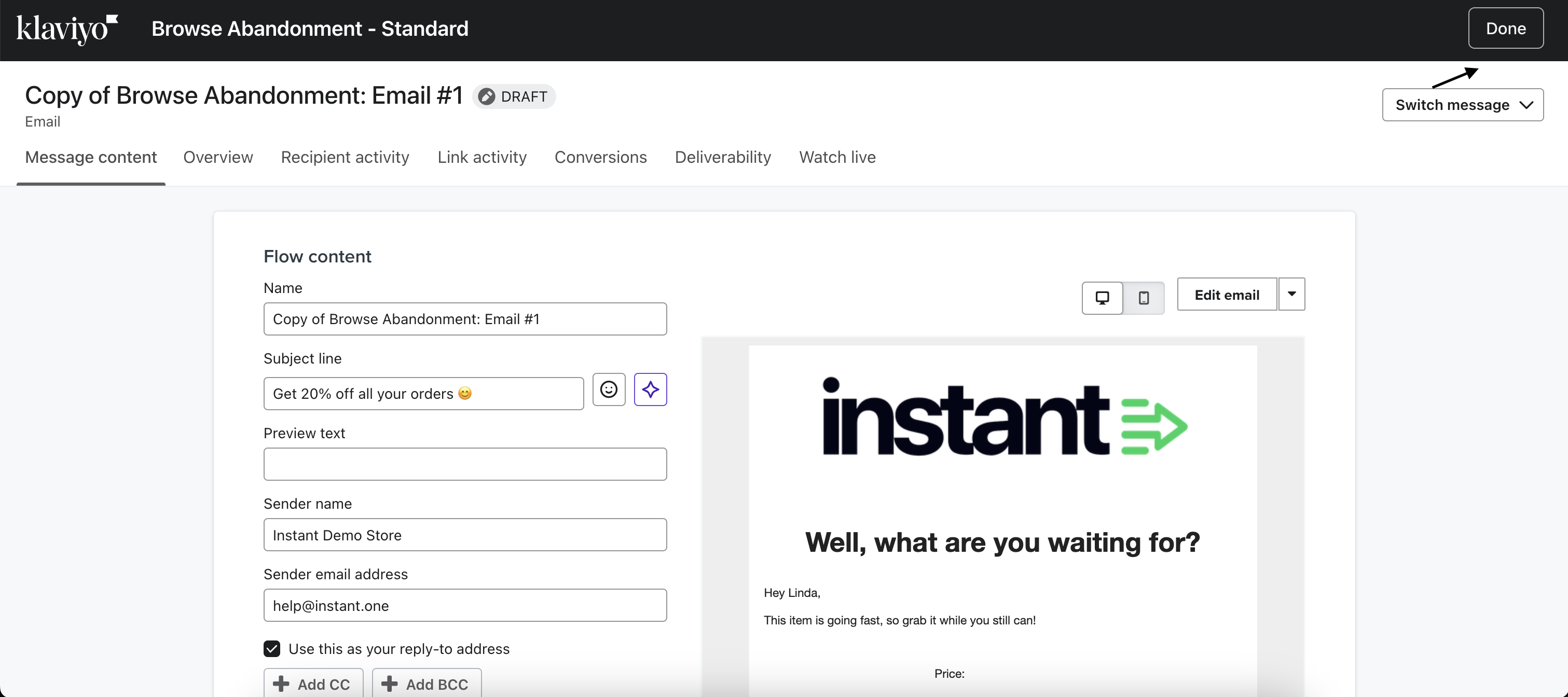
6. This will redirect you to the flow page. To test the changes, go to the left-hand pane and click Edit.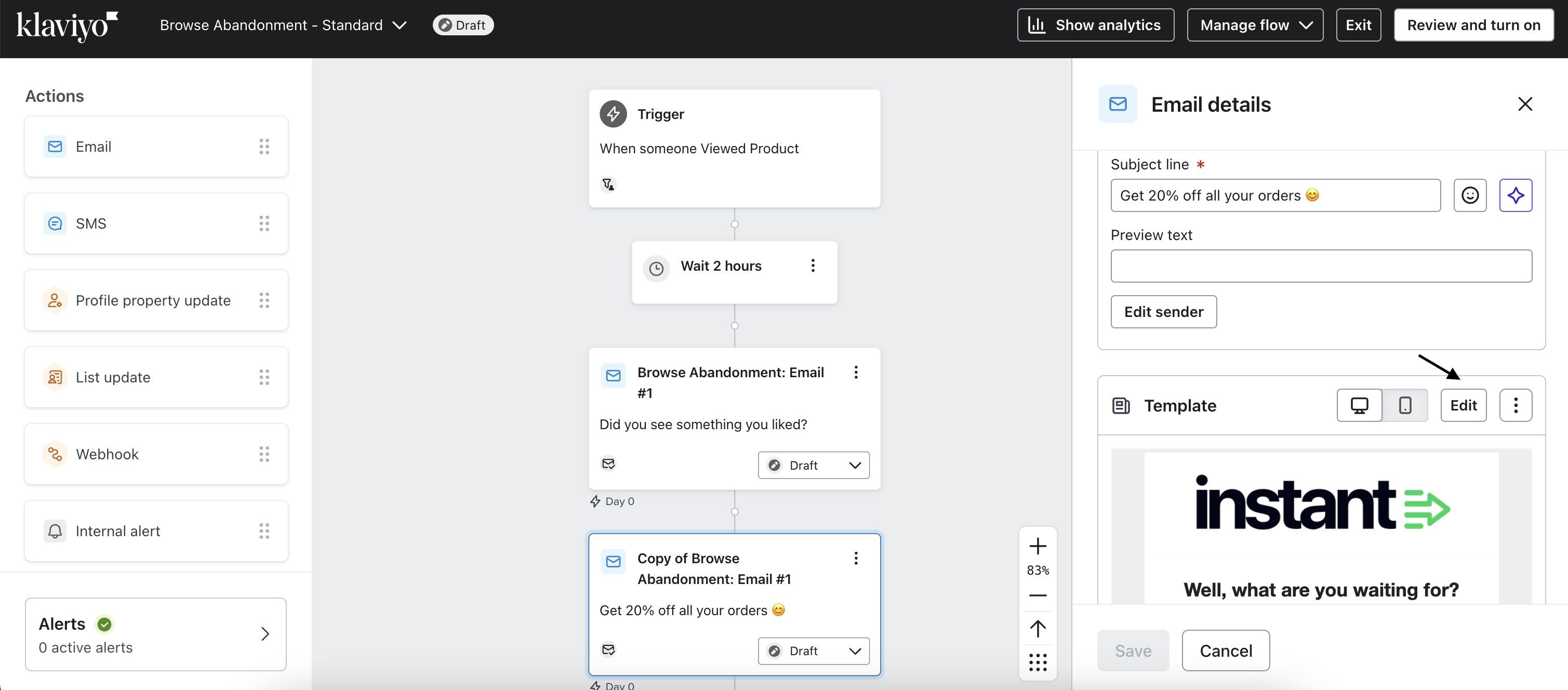
7. On the Manage template page, click Preview & test.
8. On the Preview & Test page, click Send Test.
9. In the popup, enter your email address and click Send. The preview will be sent to your inbox.
10. On the day of the sale, select the Live button in the original email and switch its status to Draft. Next, set the cloned email status to Live.
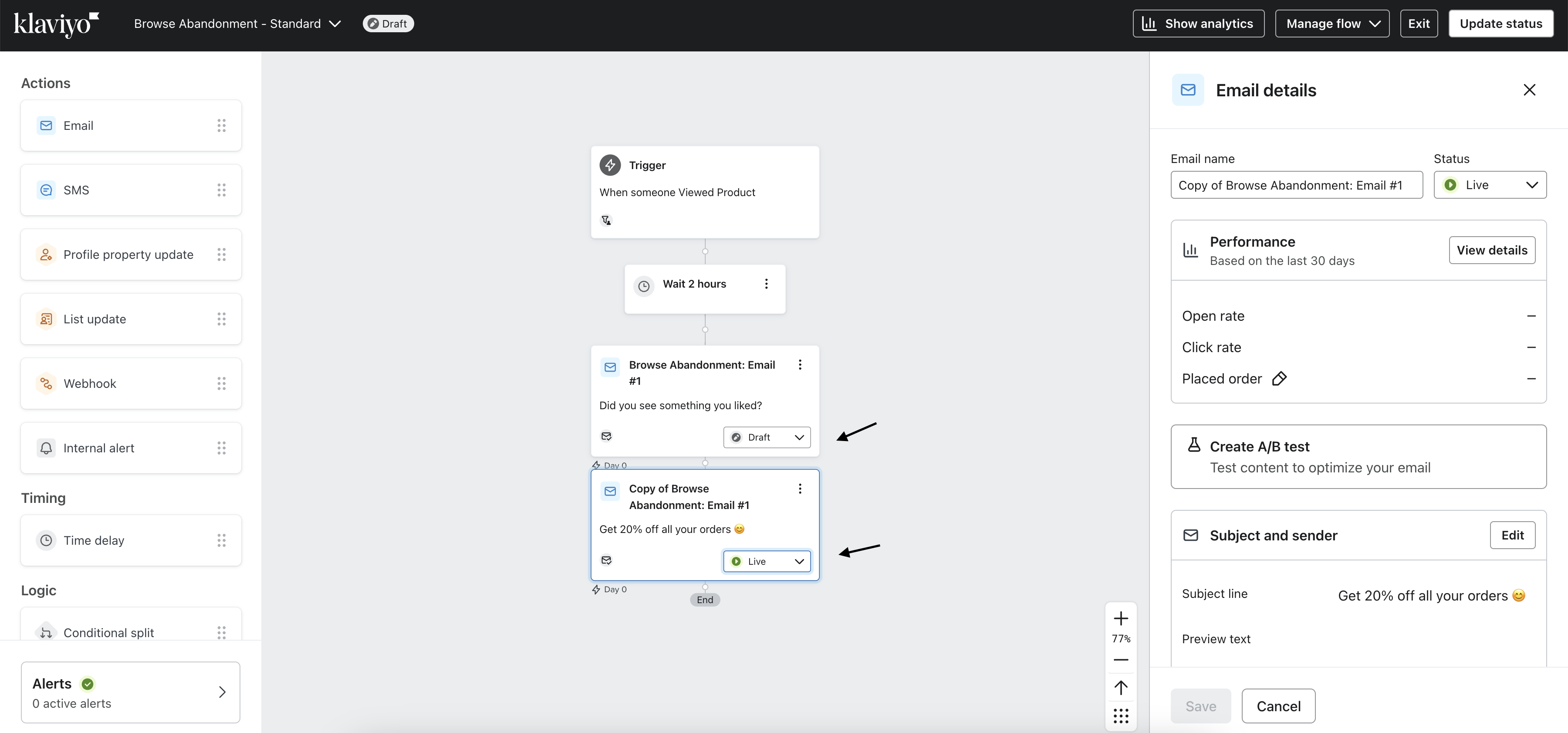
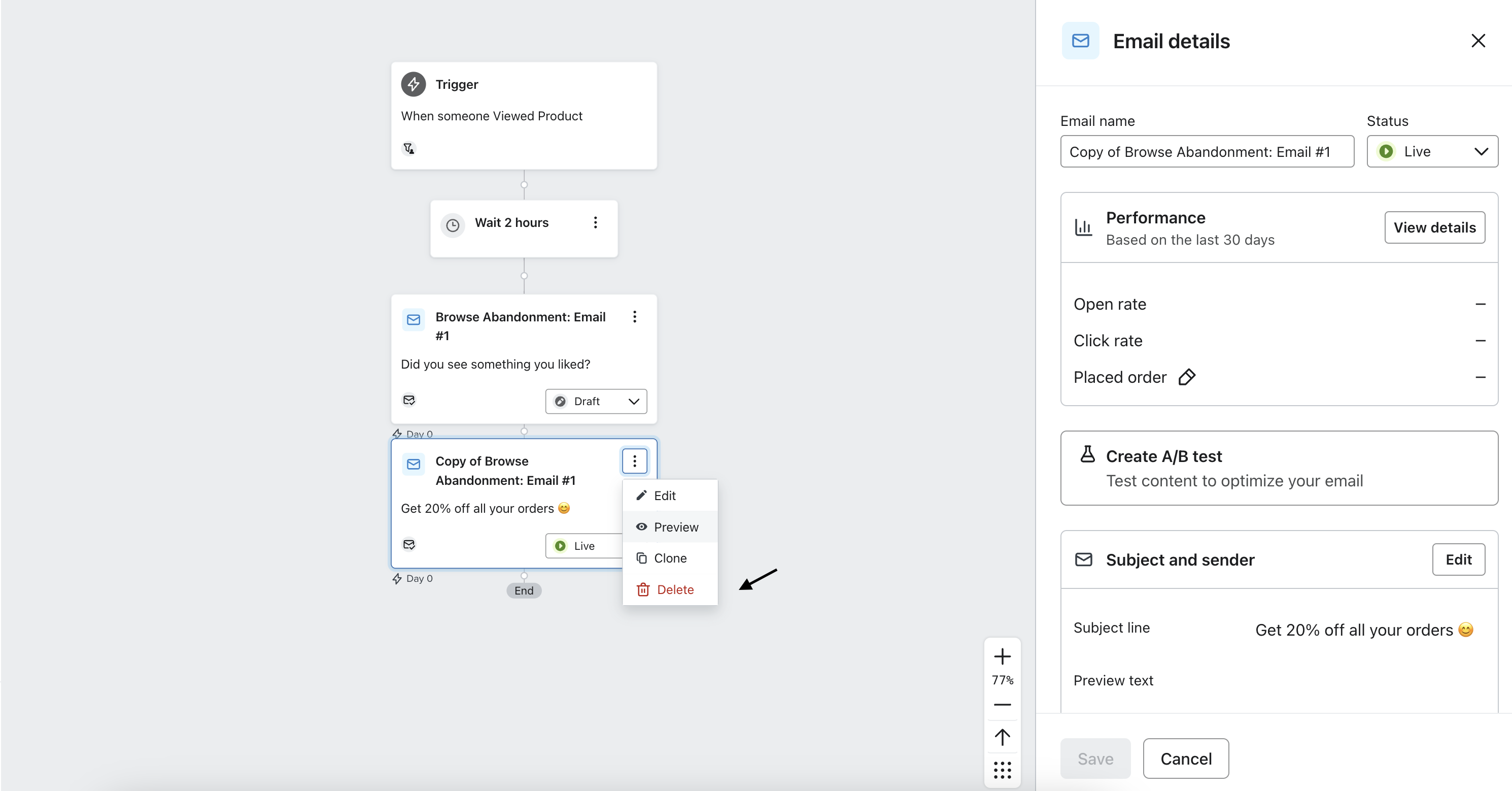
11. After the sale ends, return the flow to its original setup. Click the three dots in the top-right corner of the clone and select Delete.
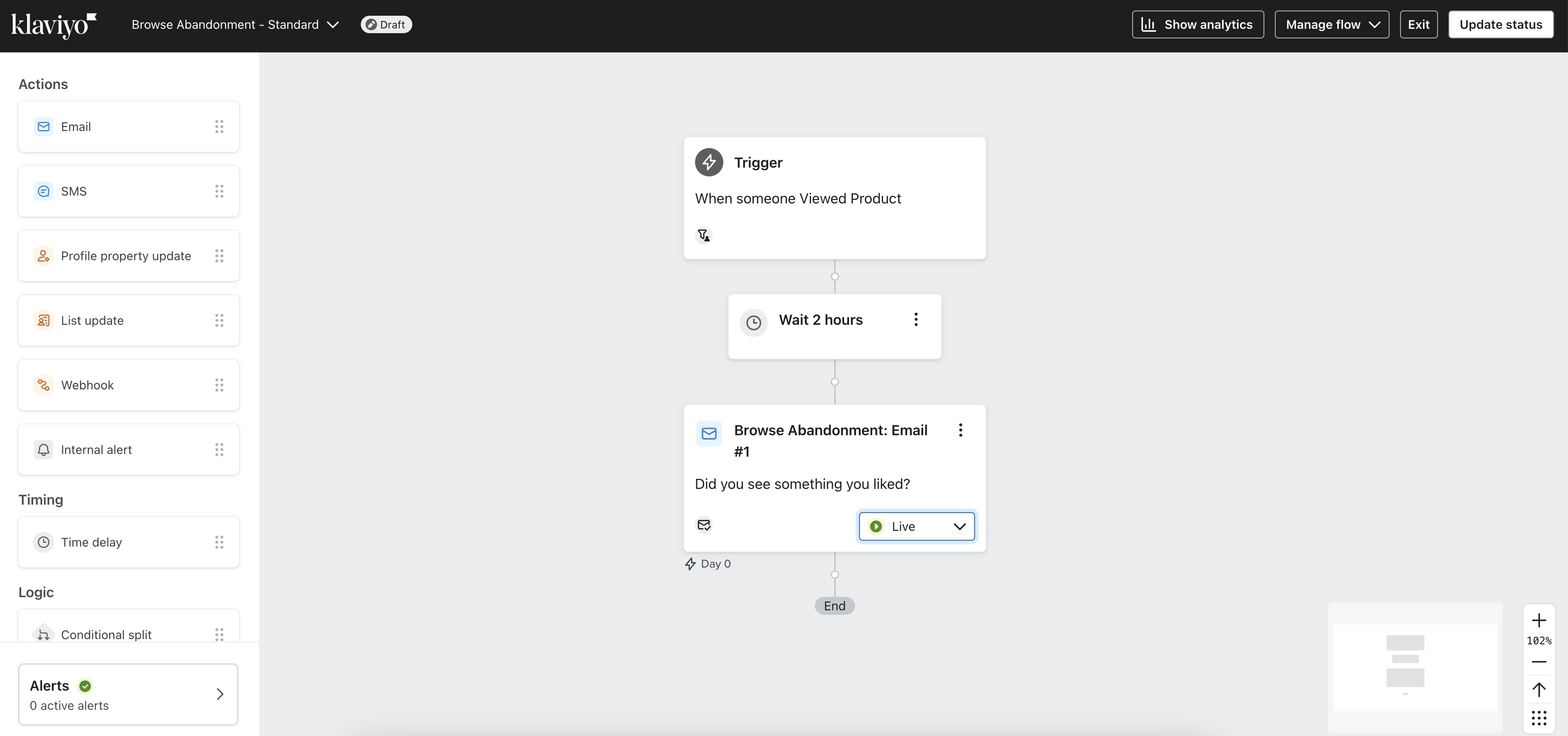
12. Update the subject in the original email and set the status to Live.
Flow Setup: Collection Viewed
Note:Collection Viewed abandonment flows target visitors who have viewed a collection page but left the site without completing a purchase.
Instant Audiences has a 'Collection Viewed' metric which enables us to see when a shopper has viewed a collection.
This captures your anonymous shoppers who have not performed a higher intent metric such as 'Product Viewed' or 'Add to Cart'
As these shoppers have shown interest in a particular collection or category. We can now enrol them in a Collection Viewed Flow to move them down your funnel.
What is a Collection Viewed Flow?
A Collection Viewed Flow involves sending targeted messages or sequences of messages to these individuals who have shown interest in a collection of products but haven't taken further actions such as viewing specific products, adding items to their cart, initiating the checkout process, or completing a purchase.
By engaging these potential customers who have already expressed interest in a particular category or collection, we aim to rekindle their interest and guide them towards making a purchase.
Why should I use a Collection Viewed flow?
Reach more Potential Customers: By targeting individuals who have viewed a collection but haven't proceeded further, the flow allows you to engage with a significantly larger portion of your website traffic who are already displaying interest in your products.
Personalise Communication: This flow enables personalised communication based on the specific collections or categories that visitors have shown interest in. By delivering relevant content and offers, you can increase the likelihood of conversion.
Enhance your Lead Gen Efforts: Integrating the Collection Viewed Flow into your lead gen strategy allows you to effectively identify and segment traffic that has landed on specific collections as a result of your marketing efforts. Enrolling browsers in a collection viewed flow increases chance conversion and reduces your acquisition cost.
How do I set up the collection viewed flow?
We have prebuilt a template we can clone into your account ready to go with all the filters and trigger splits per category. Simply put together your content for each collection.
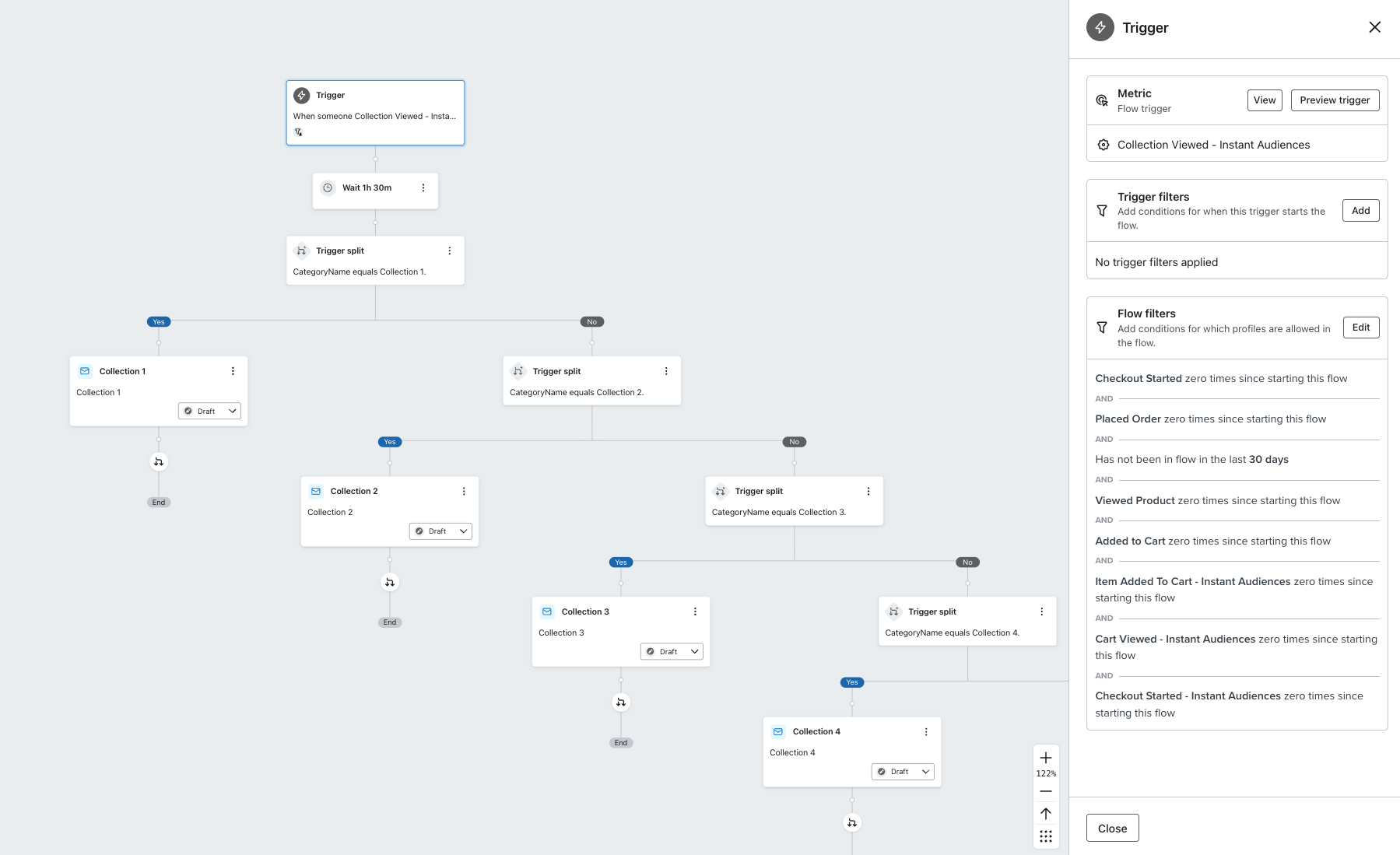
Please reach out to us [email protected] if you need this template.
Effective Emails for Audience Events
Engaging with your new Audience contacts through well-crafted email copy is crucial for driving conversions and building brand loyalty.
To help you create impactful email sequences for various customer events, we've put together a guide that includes recommendations, examples, and best practices for each event type.
When creating this content, it's important to keep the following in mind:
- Use personalised and friendly language.
- Keep emails mobile-responsive and visually appealing.
- A/B test different subject lines, copy, and CTAs to optimise results.
- Always include an unsubscribe option.
Collection Viewed
Collection Viewed refers to the action taken by a customer when they browse through a group of products within a specific category or theme. This event indicates their interest in a particular assortment of items and offers an opportunity to engage them with targeted content related to that collection.
Recommendations for Email Copy:
- Use captivating subject lines that hint at the value of the collection.
- Showcase the variety of products within the collection.
- Include a call-to-action encouraging users to explore further.
Example:
Subject: "You have great taste: New Knits Collection"
"Hello [Customer's Name],
We noticed you were browsing our New Knits Collection. Did you like what you saw? Keep exploring now and find your perfect fit.
CTA: "Explore Now"
Best Practices:
✔ Send the email within a few hours of the collection view.
✔ Limit collection-viewed emails to once per week to avoid overwhelming users.
Product Viewed
Product Viewed signifies the action of a customer viewing a specific product's details, images, and information on your website. This event provides insights into individual product preferences and serves as a chance to send tailored follow-up emails to remind customers about their interest in that particular item.
Recommendations for Email Copy:
- Remind customers of the specific product they viewed.
- Highlight key features, benefits, and customer reviews.
- Create a sense of urgency or offer a personalised recommendation.
Example:
Subject: "We saw you checking us out"
"Hi [Customer's Name],
Remember the [Product Name] you were checking out? We saved it for you, make it yours now.
CTA: "Shop Now"
Best Practices:
✔ Send the email within 24 hours of the product view.
✔ Include a clear and attractive product image.
✔ Consider offering a limited-time discount or free shipping to entice purchase.
Item Added to Cart
Item Added to Cart is the action of a customer placing a product into their shopping cart on your store. This event signals a higher level of intent to purchase and can trigger relevant communication to encourage the customer to proceed with the checkout process.
Recommendations for Email Copy:
- Confirm the addition to the cart.
- Highlight key features, benefits, and customer reviews.
- Include shipping and returns information to give the buyer confidence.
- Include a strong call-to-action to complete the purchase.
Example:
Subject: "[Customer's Name], you left [Product Name] behind!"
Hello [Customer's Name],
No need to worry! We saved your [Product Name] in your cart. Still not sure? - here's some more details to help you decide!
CTA: "Continue Shopping"
Best Practices:
✔ Send the email 1 hour after the item is added to the cart.
✔ Include a clear and attractive product image.
✔ Avoid being too pushy; focus on providing value.
Cart Viewed
Cart Viewed refers to when a customer accesses their shopping cart, reviewing the products they have added. This event presents an opportunity to remind customers about their pending items, address potential hesitations, and provide incentives to complete the purchase.
Recommendations for Email Copy:
- Remind customers about the items in their cart.
- Highlight the benefits of the products.
- Emphasise scarcity or limited-time offers.
Example:
Subject: "Go ahead, take another look"
"Hi [Customer's Name],
We noticed you recently looked at the items in your cart. They're going fast, and we wouldn't want you to miss out.
CTA: "Complete Purchase"
Best Practices:
✔ Send the email within 24 hours of cart viewing.
✔ Include a clear CTA and a direct link to the cart for easy checkout.
Checkout Viewed
Checkout Viewed indicates that a customer has reached the stage of reviewing the items in their cart and is navigating the checkout process. This event is a critical touchpoint where personalised assistance and persuasive content can be delivered to facilitate the final steps toward making a purchase.
Recommendations for Email Copy:
- Encourage customers to complete the checkout process.
- Reiterate the benefits and value of the purchase.
- Offer assistance or address potential concerns.
Example:
Subject: " Your cart is having abandonment issues… "
"Hello [Customer's Name],
We know life can be hectic - it’s easy to forget about your shopping cart, even when it’s full of great items.
We’ve saved you a reminder to return to when you are ready.CTA: "Return to my Items'
Best Practices: ✔ Send the email within a few hours of the checkout view.
✔ Offer a secure and hassle-free checkout process.
✔ Provide customer support contact information for any questions.
Why is my customer receiving duplicate emails from the same flow?
Understanding Cool Down Periods
What is a cool-down period?
A cool-down period is a defined time during which a customer cannot enter another flow after receiving a message.
This practice helps prevent customers from receiving duplicate emails and multiple messages too quickly, leading to a more positive user experience.
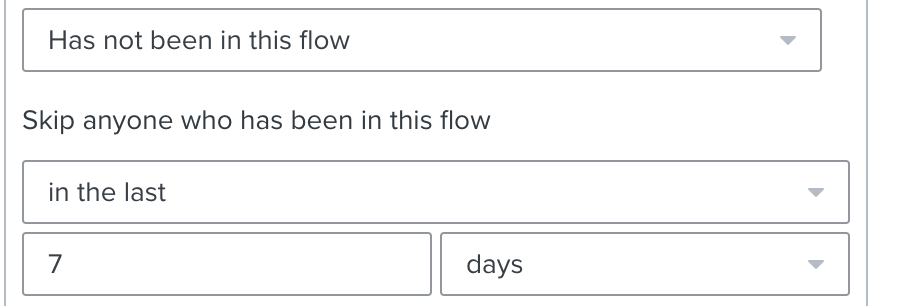
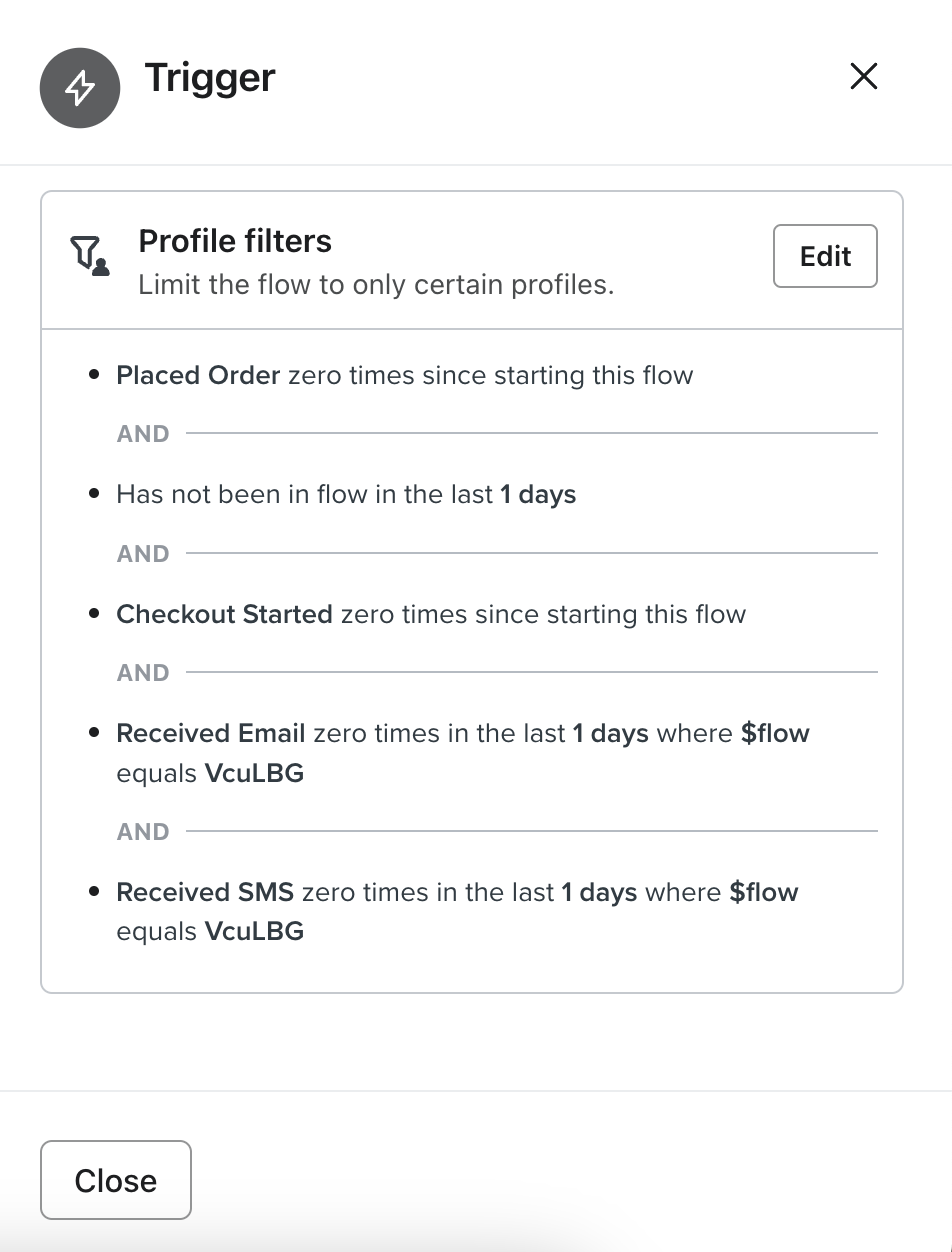
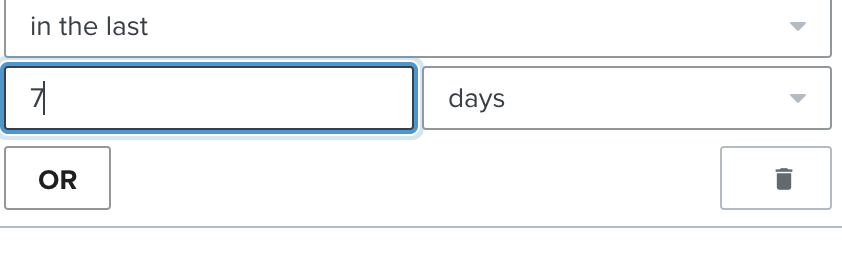
Cool-down periods are typically set to 7 days as shown here:
How cool-down periods work:
Consider the following scenario:
Monday morning - Emma visits an e-commerce website and views a dress, triggering a 'product viewed' event that enrolls her in the store's email flow.
Later that day - Emma returns to the website and triggers the 'product viewed' event again.
Without a cool-down period:
Emma receives duplicate emails from the 'Product Viewed' flow.
With a 7-day cool-down period:
Emma receives only one email from the store, preventing emails fatigue.
Tip:Enhancing the customer experience: A cool-down period helps prevent customers from feeling overwhelmed by receiving the same emails in a short period, ultimately enhancing the customer experience
Key Consideration When Setting Cool-Down Periods: Preventing flow overlap.
Two different flows may have an overlap in triggers. To make sure there is no overlap ensure they are properly spaced out.
Other Considerations:
- Customer Engagement: Align cool-down periods with times when customers are likely to engage with your content.
- Performance Review: Regularly assess and adjust cool-down periods based on customer interactions and feedback.
- Consider store volume: Consider the volume of your store. If you sell high-cost, low-value items, you may need longer cool-down periods. However, if your store has low-cost, high-volume products, shorter cool down periods. might be more beneficial.
How to Adjust the Cool-down Period:
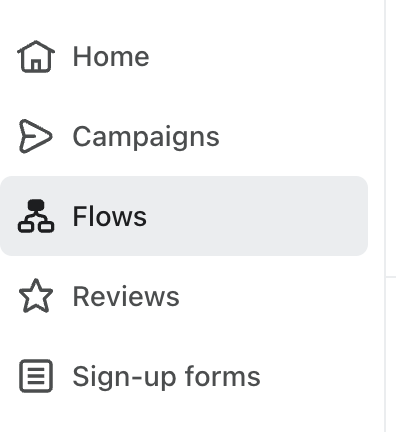
1. Log into your account and click Flows in the left-hand panel.
2. Select the specific flow you want to adjust.
3. Click the flow trigger.
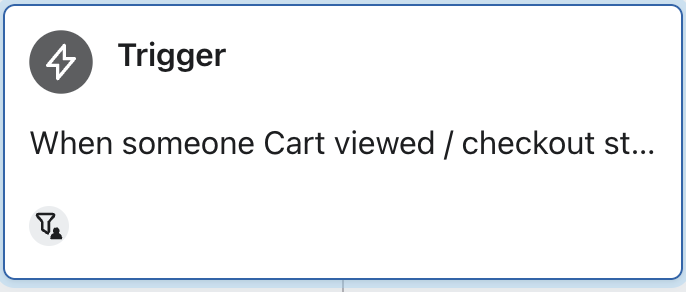
4. Click Edit on the right side to open the filters.
5. Click the +Add icon at the bottom to add your cool-down period.
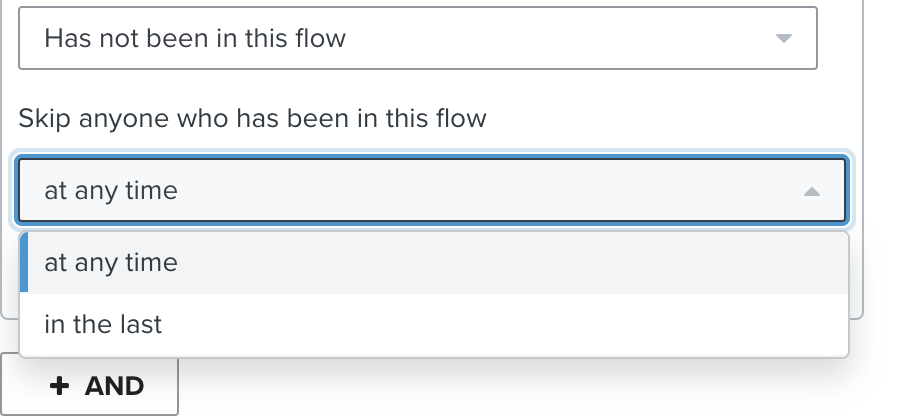
6. A condition box will appear. Click 'Select Condition' then choose 'Has not been in this flow.'
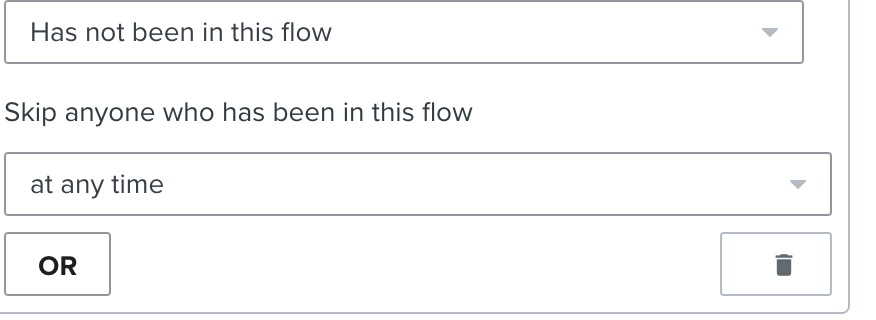
7. Under 'Skip anyone who has been in this flow' select 'In the last' from the dropdown.
8. Adjust the days to your desired cool-down period (typically 7).
9. Click Save.